How to Run Local AI on a Computer From 2017.
Somewhere in your house there is a computer you stopped thinking about. Maybe it is a 2017 laptop in a drawer, its battery tired, its fan a little loud. Maybe it is the family desktop that “got slow.” Maybe it is the Mac you replaced, sitting in a closet because you could not bear to throw it away. I am here to tell you that machine can still think. Tonight, with a free download and about thirty minutes, it can hold a private conversation with an artificial intelligence that lives entirely inside it, answers with the Wi-Fi switched off, and reports to no one.
For most people, “AI” means a website. You type into a box, your words travel to a data center you will never see, a company’s model reads them, and an answer comes back along with whatever that company decided to log, filter, change or charge for this month. That arrangement is convenient. It is also rented. The moment the service changes its rules, its price, its model or its mind about you, your AI changes with it.
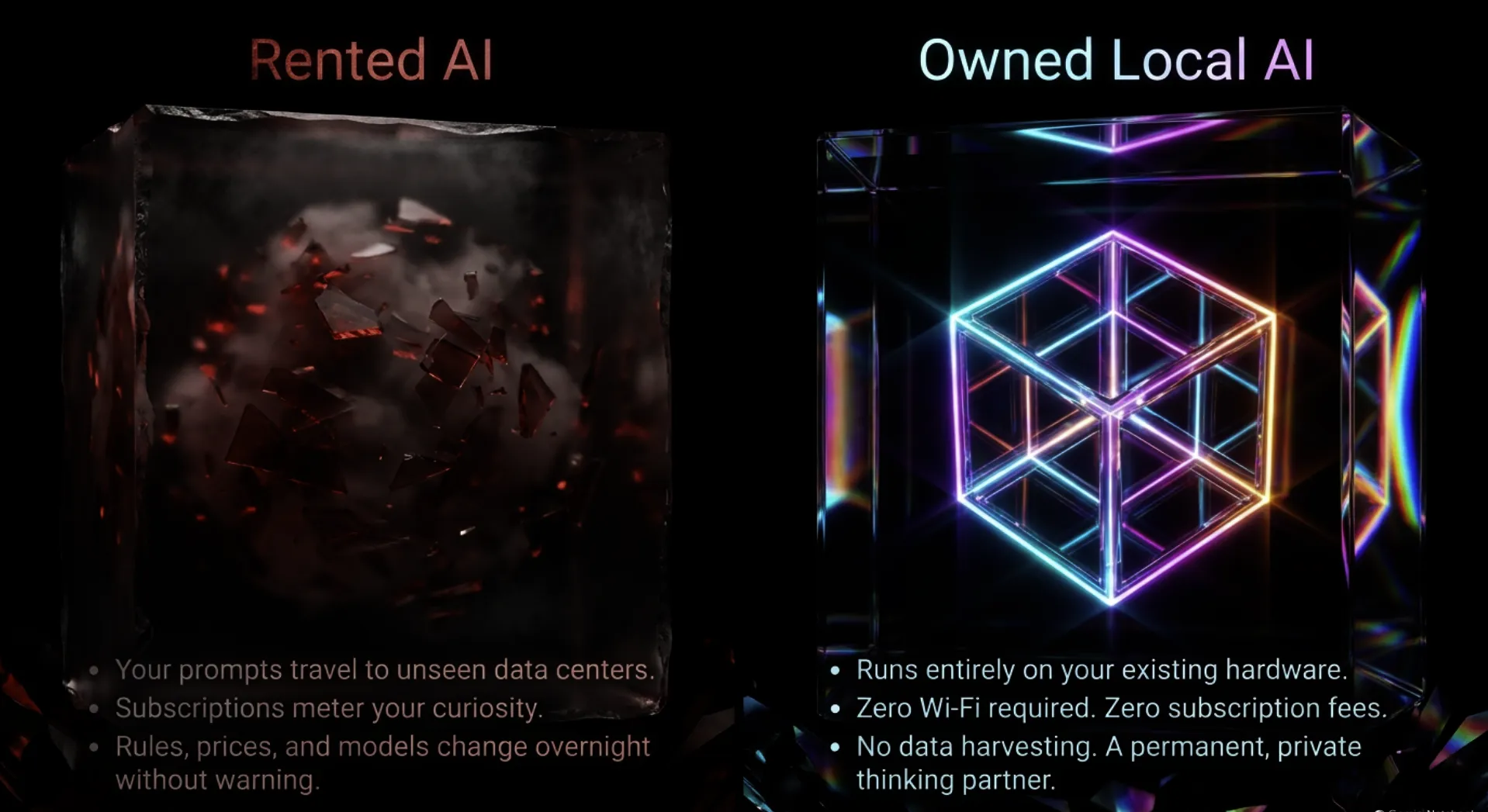
There is another way, and in 2026 it finally became easy. Open models such as Google’s Gemma 4, released under the Apache 2.0 open-source license, and free software such as Ollama let an ordinary person download a capable AI model once and run it forever on hardware they already own. No graphics card is required. No account is required. No subscription is required. I wrote in 2023 that Personal AI Is The New Invention Of Fire. This is the year the fire got small enough to carry home in an old laptop.
The Intelligence In Your Closet
Ollama, Google’s open Gemma 4 models, a computer-age chart for PC and Mac, the best model for every tier, real use cases, and an honest answer on the Raspberry Pi.
This article is sponsored by Read Multiplex Members who subscribe here to support my work: Link: https://readmultiplex.com/join-us-become-a-member/
It is also sponsored by many who have donated a “Cup of Coffee”. If you like this, help support my work: Link: https://ko-fi.com/brianroemmele
Listen to the companion podcast: https://rss.com/podcasts/readmultiplex-com-podcast/3333744
Why You Need to Do This, and Why Now
I have been building with computers since the days when a kilobyte felt like a warehouse. Every generation of personal computing has had a moment when something that belonged to institutions arrived on the kitchen table. The mainframe became the PC. The phone company’s switchboard became your pocket. Intelligence is having that moment right now, and most people are missing it because they think it requires a shiny new machine. It does not. Here is why I want every reader of this site to run at least one AI model on a computer they own.
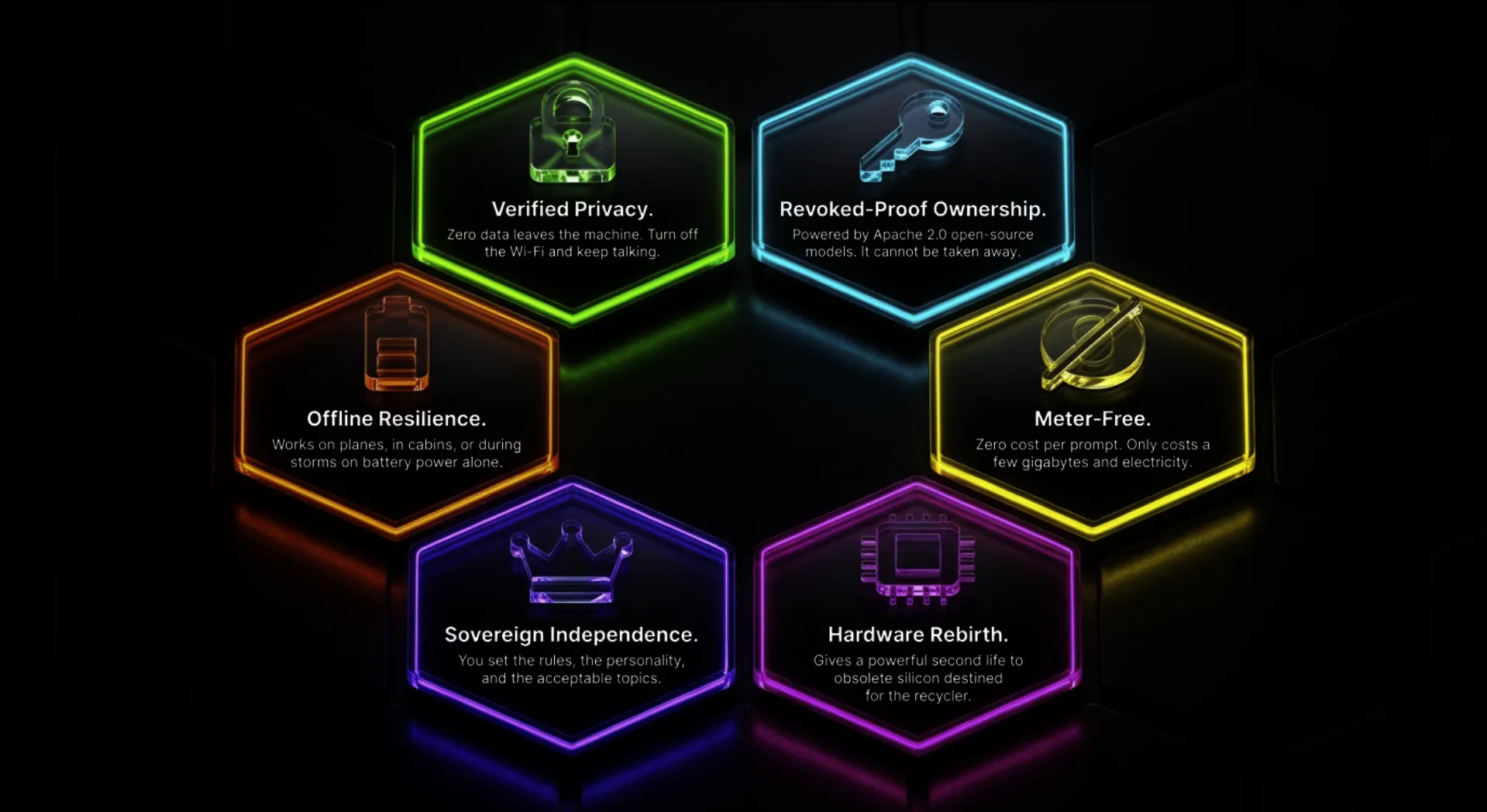
1. Privacy you can verify
When you run a model locally, your words never leave the machine. Ollama’s own documentation says it plainly: “Ollama runs locally. We don’t see your prompts or data when you run locally.” Your medical questions, your tax worries, your business plans, your half-finished novel, your journal, your children’s homework questions: none of it travels to a server. You can test this yourself, and I will show you how. Turn off the Wi-Fi and keep talking.
2. Ownership that cannot be revoked
Google released the Gemma 4 family under the Apache 2.0 license, an industry-standard open-source license that permits use, modification and redistribution. Google’s own open-source team described the goal as “local, private execution that doesn’t rely on cloud-only infrastructure.” Once the model file is on your drive, it is yours. Nobody can quietly swap it for a different model next Tuesday, add a new restriction overnight, or shut off your access because of a policy change.
3. It works when the internet does not
Planes. Cabins. Ships. Rural roads. Storms that take the cell towers down. A local model does not care. If you have read my work on building your own “ark” of knowledge and tools for the years ahead, this belongs in it: a thinking partner that runs on battery power with no connection at all.
4. No meter running
There is no subscription and no per-question charge. The software is free, the models I recommend are free, and the computer is the one you already have. The only thing you spend is a few gigabytes of disk space and some electricity.
5. Independence and resilience
Cloud services ration you with rate limits, change models without asking, and decide what topics are acceptable. A model on your own machine answers when you ask, as often as you ask, in the way you configure it. You choose the model. You choose the personality. You choose the rules.
6. A second life for “obsolete” hardware
The computer that “got slow” for web browsing is often perfectly capable of running a small, modern AI model. The tests and published benchmarks below include a 2019-era laptop with plain Intel integrated graphics and a Raspberry Pi 5, a credit-card-sized computer. Before you send an old machine to the recycler, give it a new job.
7 . Political agenda to control AI
It should be very clear that major AI companies have formed a new political union to centrally control and censor AI, all in the name of safety. The arms will be twisted until most folks say “please regulate AI to keep me safe”, and shall it be.
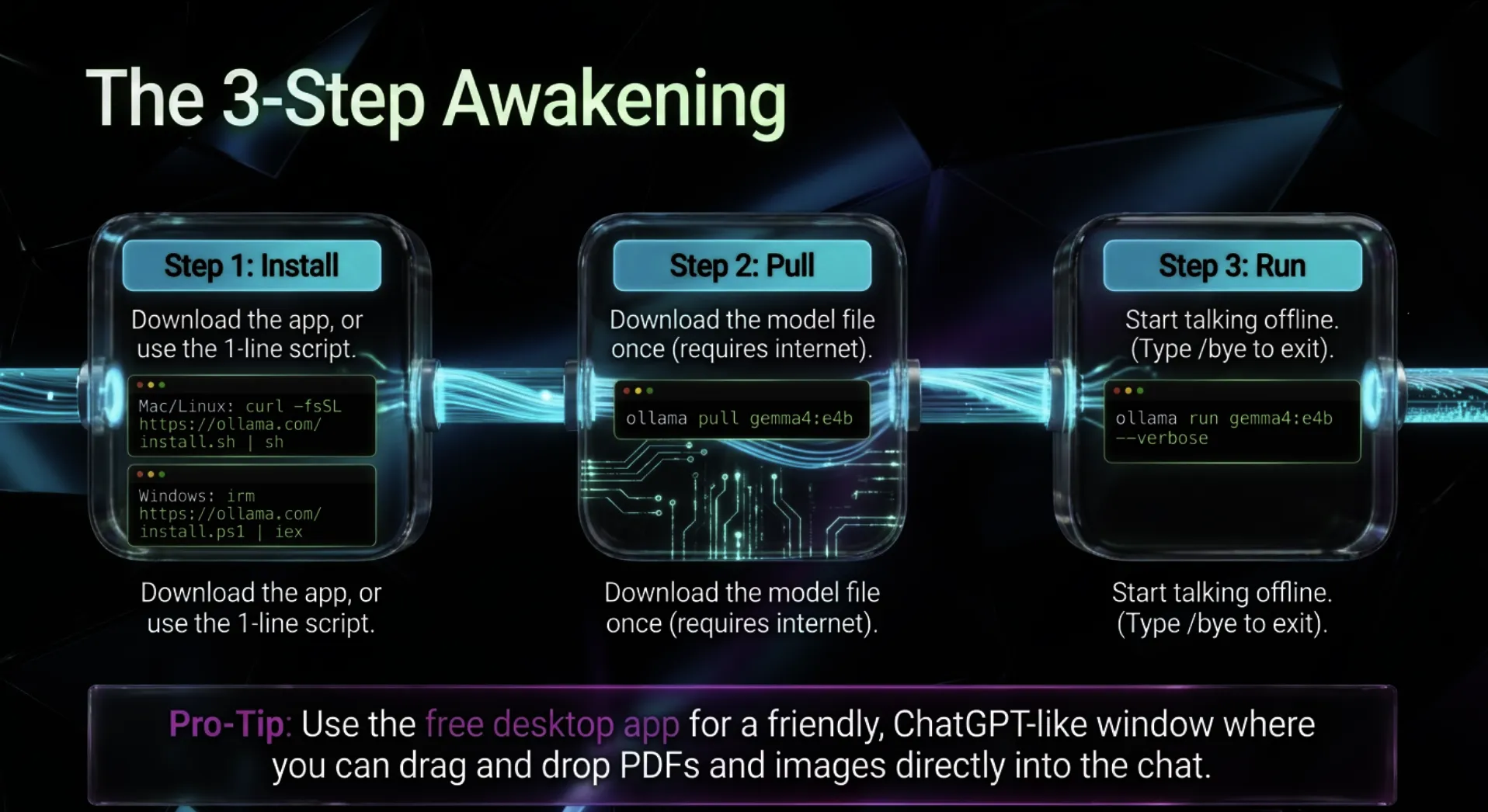
What You Are Actually Installing
Three words will make everything below make sense.
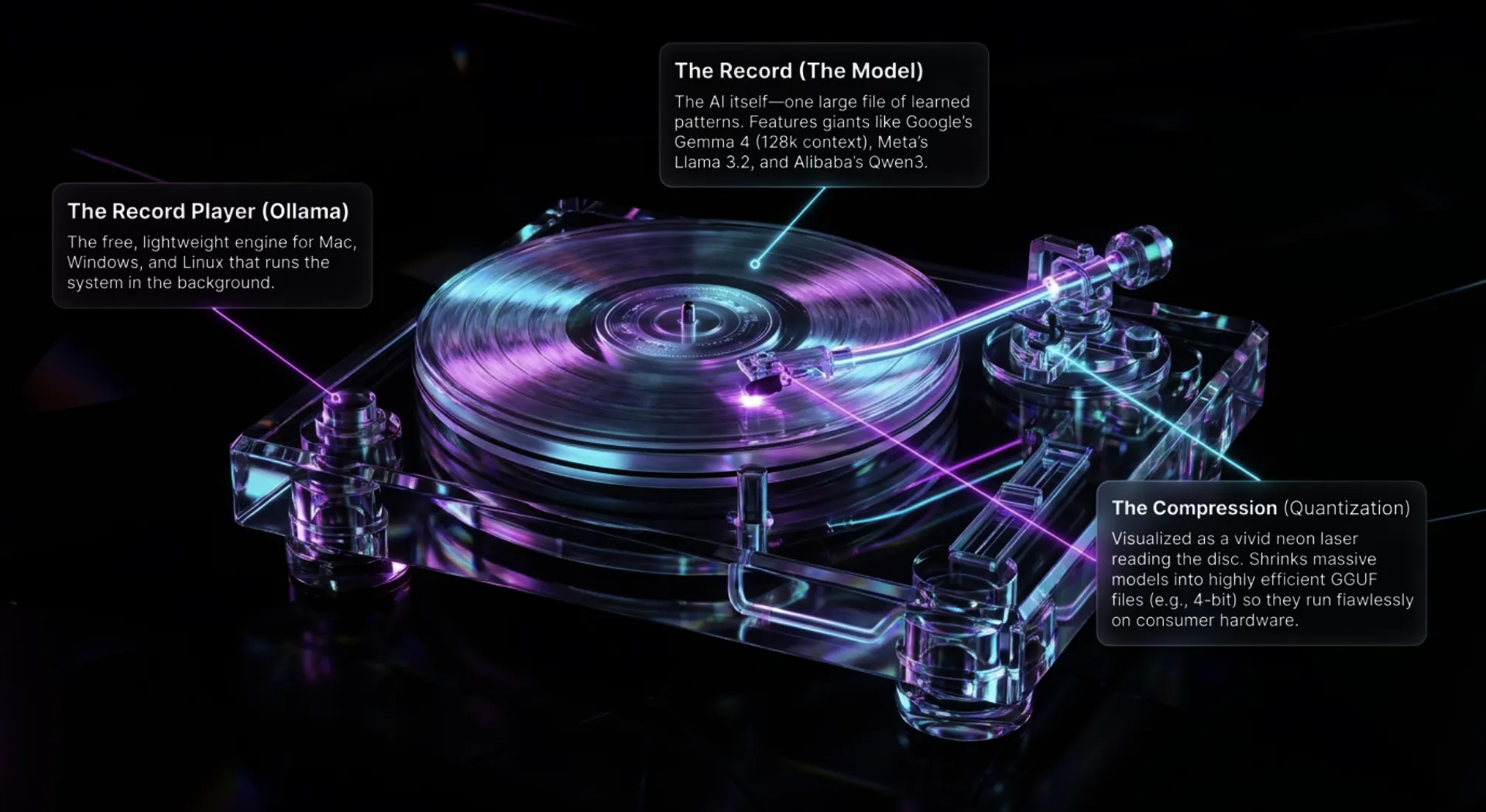
- Ollama is a free program for Windows, Mac and Linux that downloads AI models and runs them on your computer. It has a simple chat window and a command line. Think of it as the record player.
- A model is the AI itself: one large file of learned patterns. Think of it as the record. Gemma 4 (from Google), Llama 3.2 (from Meta), Qwen3 (from Alibaba) and gpt-oss (from OpenAI) are all available through Ollama’s library.
- Quantization is compression for models. Google’s own Gemma documentation explains that Ollama uses quantized versions of models in the GGUF file format so they run on less powerful hardware, trading a little precision for a much smaller file. When you see a tag such as Q4_K_M, that means roughly 4 bits per number instead of 16.
You will also see names such as Gemma 4 E2B and E4B. The “E” stands for “effective” parameters. Ollama’s model page lists E2B at 2.3 billion effective parameters (5.1 billion including embeddings) and E4B at 4.5 billion effective (8 billion including embeddings). Google designed both for edge devices: phones, laptops and small boards. Both read text and images, and both list a context window of 128,000 tokens. They are the reason an old laptop is suddenly interesting.
A quick word on speed. AI models write in tokens, chunks of text that average a little under a word in English. Raspberry Pi and Google measured Gemma 4’s tokenizer at about 4.2 characters per token. As a rough guide (my estimate), 5 tokens per second is about as fast as most people read, 10 feels brisk, and 20 or more feels instant.
Will My Computer Work? The Computer-Age Chart
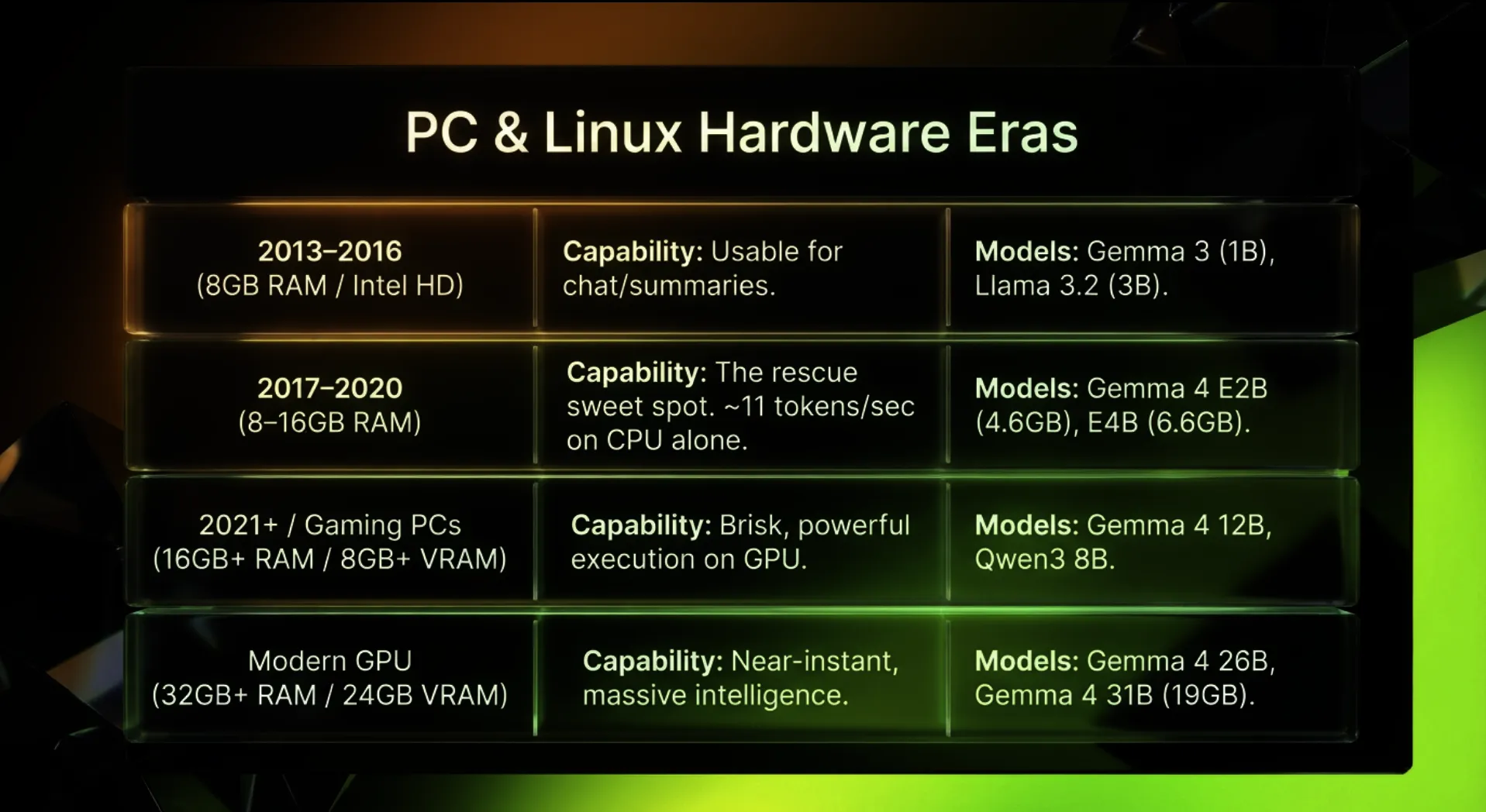
Here is the honest chart. The software requirements come straight from Ollama’s documentation: Windows 10 version 22H2 or newer, or macOS 14 Sonoma or newer. On Macs, Ollama uses the graphics processor on Apple M-series chips and runs on the CPU alone on Intel Macs. On PCs, it can use NVIDIA graphics cards with compute capability 5.0 or higher (the GeForce GTX 750 from 2014 and newer appear on Ollama’s list), many AMD Radeon cards, and no graphics card at all.
The rule that matters most is memory. A model has to fit in your RAM (or in your graphics card’s memory) with room left over for the operating system. Ollama’s original guidance was at least 8 GB of RAM for 7-billion-parameter models, 16 GB for 13-billion and 32 GB for 33-billion. The download sizes in the chart come from Ollama’s own library pages. The “what to expect” column combines published measurements, labeled with their source, and my estimates, labeled as estimates.
PC (Windows or Linux)
| Computer (approx. age) | Typical chip | Memory | Graphics | Models to try (download size) | What to expect |
|---|---|---|---|---|---|
| Before 2013 | Intel 3rd-gen Core and older (no AVX2) | 4–8 GB | Any | gemma3:270m (292 MB), gemma3:1b (806 MB) | Possible on Ollama’s slowest compatibility library. No published benchmark found. Estimate: slow, short answers only. Needs Windows 10 22H2 or Linux. |
| 2013–2016 | Intel 4th–6th-gen Core (Haswell to Skylake) | 8 GB | Integrated | gemma3:1b, llama3.2:3b (2.0 GB), qwen3:4b (2.5 GB), gemma4:e2b (4.6 GB, tight) | Estimate: usable for chat and summaries at a few tokens per second on 3B-class models. |
| 2017–2020 | Intel 7th–10th-gen Core, AMD Ryzen 2000–4000 | 8–16 GB | Integrated (for example Intel UHD 620) | gemma4:e2b; gemma4:e4b (6.6 GB) with 16 GB, or tight with 8 GB | Reported test: a 2019 laptop with Intel UHD 620 graphics and 8 GB of RAM ran Gemma 4 E4B entirely on its CPU at about 11 tokens per second. Not independently verified. |
| 2021–2026 | Intel 11th-gen Core and newer, Core Ultra; AMD Ryzen 5000 and newer | 16–32 GB | Integrated; some Ryzen AI chips are on Ollama’s AMD list | gemma4:e4b, gemma4:12b (8.0 GB), qwen3:8b (5.2 GB) | Google measured Gemma 4 E4B at 17 tokens per second on an Intel Lunar Lake CPU using its LiteRT-LM engine. Ollama speeds will differ. |
| Gaming PC, 2014 and newer | Any of the above | 16 GB+ | NVIDIA GTX 750 / 900 / 10-series and newer with 6–8 GB of video memory | gemma4:e2b or gemma4:e4b on the graphics card, qwen3:8b | Estimate: much faster than CPU-only when the whole model fits in video memory. Needs NVIDIA driver 551.61+ on Windows. |
| Modern graphics card | Any recent CPU | 32 GB+ | 12–16 GB (RTX 3060 12 GB and up) | gemma4:12b, gpt-oss:20b (14 GB) on 16 GB cards | Estimate: fast, near-instant answers on mid-size models. |
| High-end graphics card | Any recent CPU | 32 GB+ | 24 GB (RTX 3090, 4090 class) | gemma4:26b (16 GB), gemma4:31b (19 GB) | Estimate: the strongest models in the Gemma 4 family, running fully on the card. |
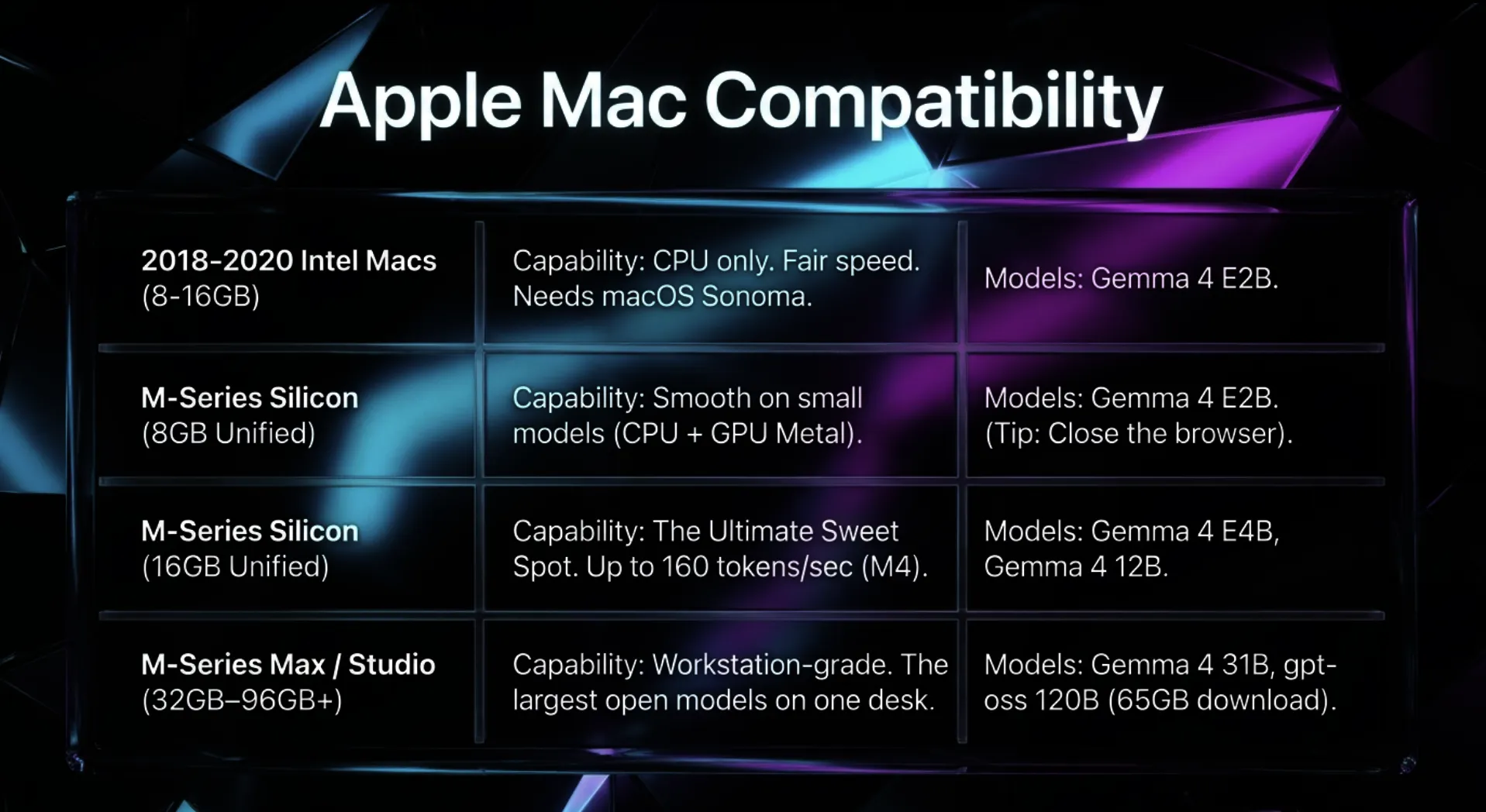
Mac
| Mac | Chip | Memory | How Ollama runs it | Models to try (download size) | What to expect |
|---|---|---|---|---|---|
| 2017 and older Intel Macs (most cannot run Sonoma) | Intel | Any | Not supported by current Ollama, which needs macOS 14 Sonoma | None on macOS | Option: install Linux on it and run Ollama there, or use a Raspberry Pi. |
| 2018–2020 Intel Macs on Apple’s Sonoma list | Intel | 8–16 GB | CPU only | gemma3:1b, llama3.2:3b, gemma4:e2b; gemma4:e4b with 16 GB | Estimate: slow to fair, similar to a PC of the same age. |
| M1, M2 or M3 Macs with 8 GB (2020–2024) | Apple Silicon | 8 GB unified | CPU and GPU (Metal) | gemma4:e2b, qwen3:4b, llama3.2:3b; gemma4:e4b is tight | Estimate: smooth on small models. Close the browser. |
| Any M-series Mac with 16 GB | Apple Silicon | 16 GB unified | CPU and GPU (Metal) | gemma4:e4b, gemma4:12b (8.0 GB), qwen3:8b | The sweet spot. Google measured Gemma 4 E2B at 160 tokens per second on an M4 MacBook Pro’s GPU using LiteRT-LM. Ollama speeds will differ. |
| M-series Pro or Max with 32–64 GB | Apple Silicon | 32–64 GB unified | CPU and GPU (Metal) | gemma4:26b (16 GB), gemma4:31b (19 GB), gpt-oss:20b (14 GB) | Google measured Gemma 4 E4B at 101 tokens per second on an M4 Max GPU (LiteRT-LM). Big models run comfortably. |
| Mac Studio with 96 GB or more | Apple Silicon | 96 GB+ unified | CPU and GPU (Metal) | gpt-oss:120b (65 GB) | Estimate: the largest open models that fit on one desk. |
What about processors older than 2013? Ollama’s troubleshooting guide says it ships CPU libraries tuned for different processor features. The AVX2 version is fastest, and a plain “cpu” library is “the slowest but most compatible.” Intel added AVX2 with its 4th-generation Core “Haswell” chips in 2013. Older machines may still run the tiniest models, very slowly. I could not find a published benchmark for them, so treat that as possible but untested.
How to check what you have. On Windows, press the Windows key, type About your PC, and read “Processor” and “Installed RAM.” Then press Windows+R, type winver, and press Enter to see your version (you need 22H2 or newer). On a Mac, open the Apple menu and choose About This Mac to see the chip, the memory and the macOS version.
Disk space. Ollama’s Windows guide asks for at least 4 GB for the program itself, plus room for models. Plan on 15 GB free to be comfortable with one or two small models.
Where to Find an Older Computer That Works
Do not have a spare machine? Thousands of perfectly good 2017-and-newer business computers come off corporate leases every year, and these sellers carry hundreds of older models at a time.
What to look for: a 2017 or newer PC with an Intel Core 8th-generation chip or newer (or any AMD Ryzen), 16 GB of RAM (8 GB works for the smallest models), and an SSD with at least 256 GB. For a Mac, any Apple M-series Mac with 16 GB of memory is the sweet spot. Intel Macs from 2018 to 2020 work on the CPU alone. Small “mini” or “tiny” business desktops such as the HP EliteDesk Mini, Lenovo ThinkCentre Tiny and Dell OptiPlex Micro are quiet, sip power and make excellent dedicated AI boxes.
- Amazon Renewed: refurbished and pre-owned computers sold on Amazon, many from 2017 to 2022.
- Back Market: refurbished desktop computers: a large marketplace of refurbished ThinkCentres, OptiPlexes, EliteDesks and Mac minis, with a one-year warranty.
- Dell Refurbished: desktops and laptops: Dell’s own outlet for off-lease OptiPlex and Latitude machines.
- Lenovo Outlet: desktops: Lenovo’s outlet for new and Lenovo Certified Refurbished ThinkCentres and more.
- Apple Certified Refurbished Mac: Apple’s own refurbished M-series Macs. Filter for 16 GB of memory.
- eBay Refurbished: eBay’s refurbished program, with a wide range of older laptops and desktops.
As an Amazon Associate I earn from qualifying purchases. It costs you nothing extra and helps support this work.
The Step-by-Step Install for Total Beginners
You do not need to be technical. You need to be able to download a file and type a few short commands exactly as written. I will tell you what you should see after each step, so you always know you are on track. If something looks different, skip to the troubleshooting notes at the end of this section.
A note on the “terminal.” On Windows it is called PowerShell. On a Mac it is called Terminal. It is just a window where you type a command and press Enter. Nothing you type below can harm your computer.
Windows PC: from zero to a private AI
Step 1. Download and install Ollama. Go to ollama.com/download, choose Windows, and run the file named OllamaSetup.exe. Ollama’s documentation notes that the installer does not require Administrator rights and installs into your own user folder. If you prefer a one-line install, open PowerShell and paste:
irm https://ollama.com/install.ps1 | iexWhat you should see: the installer finishes, and a small llama icon appears in the system tray near the clock. Ollama now runs quietly in the background.
Step 2. Confirm it worked. Press the Windows key, type PowerShell, and open it. Type:
ollama --versionWhat you should see: a line similar to ollama version is 0.x.x. Any number is fine. If Windows says “ollama is not recognized,” close PowerShell, open a new one, and try again.
Step 3. Download your first model. Pick based on your memory (the chart above helps). With 8 GB of RAM, start small. With 16 GB, take the sweet spot.
ollama pull gemma4:e2bor, with 16 GB of RAM or more:
ollama pull gemma4:e4bWhat you should see: progress bars counting up through several pieces, then the word success. Gemma 4 E2B is about 4.6 GB and E4B about 6.6 GB, so this is the one step that takes a while on slow internet. It is also the last time you need the internet for this model.
Step 4. Talk to it.
ollama run gemma4:e4bWhat you should see: a >>> prompt. Type a question in plain English and press Enter. Try: “Explain how a refrigerator works to a ten-year-old.” The answer streams onto the screen word by word. When you are finished, type /bye and press Enter.
Step 5. Measure your speed. Add the verbose flag:
ollama run gemma4:e4b --verboseWhat you should see: after each answer, a block of statistics. The line that matters is eval rate, in tokens per second. Write that number down. It tells you exactly how your machine performs.
Step 6. See where it is running. While a model is loaded, open a second PowerShell window and type:
ollama psWhat you should see: a table with a PROCESSOR column. “100% CPU” means the model runs entirely in system memory. “100% GPU” means your graphics card is doing the work. A split such as “48%/52% CPU/GPU” means it is shared.
Step 7. Use the friendly chat window. Ollama’s desktop app for Windows and Mac includes a chat window. Click the llama icon, open Ollama, pick your model from the menu, and chat. You can drag in a PDF or text file and ask questions about it, and with Gemma 4 you can drop in a photo and ask what is in it.
Step 8. Prove it is private. Turn off your Wi-Fi. Ask another question. It still answers. That moment is the whole point of this article.
If you have an NVIDIA card, Ollama’s Windows guide asks for NVIDIA driver version 551.61 or newer. If you have an AMD Radeon card, current AMD drivers with Vulkan support are used by default. You do not have to configure anything; Ollama detects the hardware itself.
Mac: from zero to a private AI
Step 1. Check your macOS. Apple menu, About This Mac. You need macOS 14 Sonoma or newer. Apple’s compatibility list for Sonoma starts with 2018 MacBook Air, MacBook Pro and Mac mini models, 2019 iMacs, and every Apple Silicon Mac.
Step 2. Install Ollama. Download Ollama.dmg from ollama.com/download, open it, and drag Ollama into your Applications folder. Open it. Ollama’s documentation explains that on first launch it checks for its command-line tool and asks permission to create a link to it. Say yes. Prefer one line? Open Terminal (press Command+Space, type Terminal) and paste:
# One-line install for Mac
curl -fsSL https://ollama.com/install.sh | sh
What you should see: the llama icon in your menu bar.
Step 3. Confirm, download, run. In Terminal, type the same commands as on Windows:
ollama --version
ollama pull gemma4:e4b
ollama run gemma4:e4b --verbose
What you should see: a version number, download progress ending in success, then the >>> prompt. On Apple Silicon, ollama ps should show the model on the GPU. On an Intel Mac, it will show CPU.
On an 8 GB Mac, start with gemma4:e2b instead, and close your web browser while you experiment. Browsers eat memory.
Linux: one line
Ollama’s Linux install is a single command:
# One-line install for Linux
curl -fsSL https://ollama.com/install.sh | sh
Then use the same ollama pull and ollama run commands. This is also the route for an old PC or Intel Mac that cannot run a current Windows or macOS: install a modern Linux distribution and run Ollama there.
If something goes wrong
- “ollama is not recognized” or “command not found”: close the terminal and open a fresh one. On a Mac, open the Ollama app once so it can link its command-line tool.
- Strange squares instead of progress bars on Windows 10: Ollama’s guide says older Windows 10 terminal fonts can show unknown squares. Change the terminal font; the download is still working.
- Painfully slow, or the computer freezes: the model is too big for your memory. Type
/bye, then run a smaller one, such asgemma4:e2b,qwen3:4b(2.5 GB) orllama3.2:3b(2.0 GB). Close other programs. - Out of disk space: each model is a separate file. Type
ollama listto see them andollama rmfollowed by the model name to delete one you no longer use.
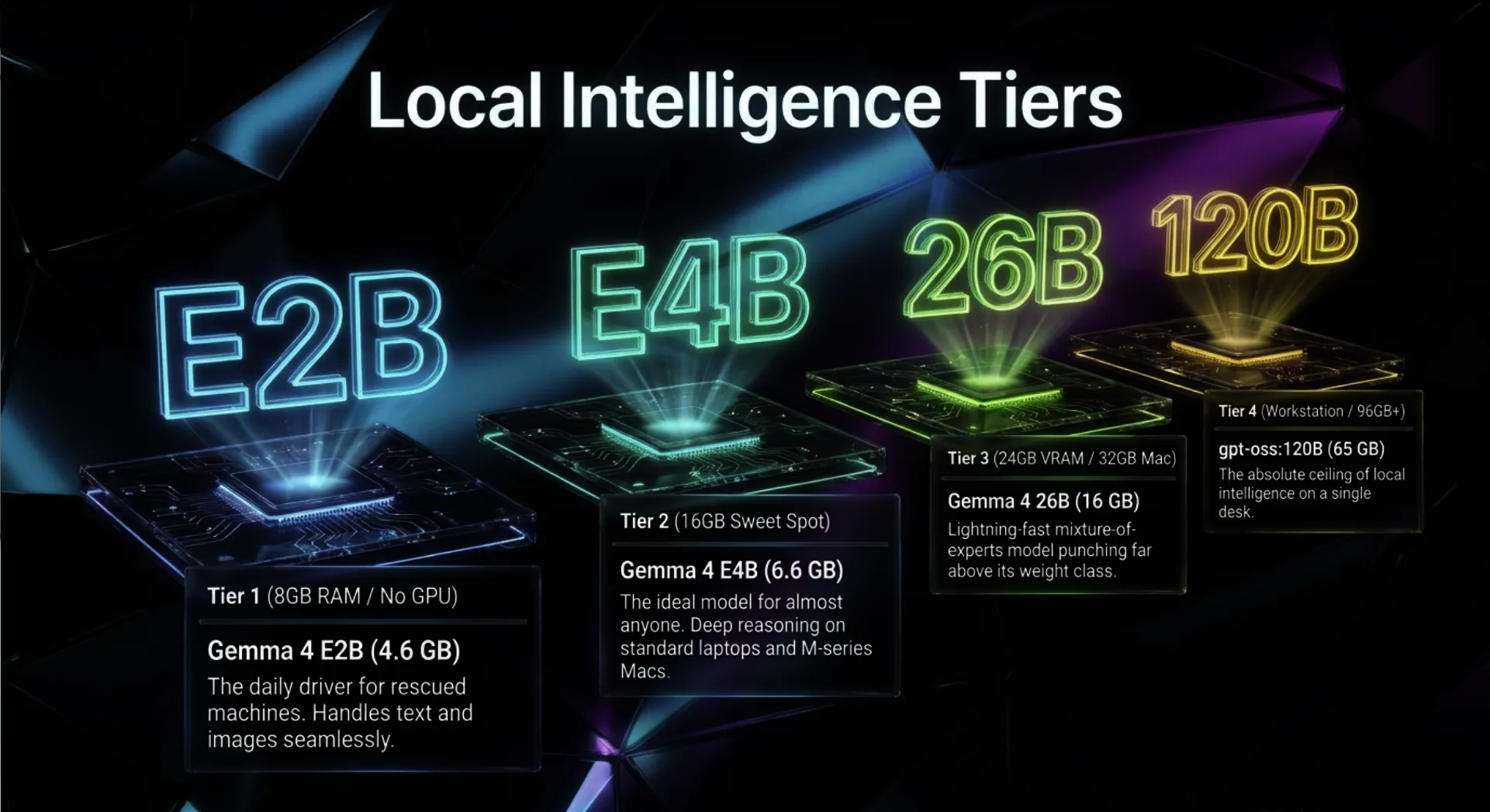
The Optimal Setup: Which Model at Which Tier
Here is how I would set up each class of machine today. Every model below is free, and every size is the download size listed on Ollama’s library pages.
Tier 1: The rescued machine (8 GB of RAM, no graphics card)
- Daily driver:
gemma4:e2b(4.6 GB). It reads text and images and was built for exactly this class of hardware. - If memory is tight:
gemma4:e2b-it-qat(4.3 GB), a quantization-aware version, orllama3.2:3b(2.0 GB) andqwen3:4b(2.5 GB). - Tiny and fast for quick jobs:
gemma3:1b(806 MB). - Tip: close the browser, plug in the laptop, and keep conversations short. Longer conversations use more memory.
Tier 2: The sweet spot (16 GB of RAM, or any 16 GB Apple Silicon Mac)
- Daily driver:
gemma4:e4b(6.6 GB). This is the model I would hand to almost anyone. On an older 8 GB laptop it can still run, but tightly, as the reported 2019 test in the chart shows. - When you need more brainpower:
gemma4:12b(8.0 GB), the 12-billion-parameter Gemma 4 that Google added in June 2026. - Coding and general alternative:
qwen3:8b(5.2 GB).
Buying a Small Machine Just for This
If you want a dedicated, always-on AI box for the house, a small 16 GB mini PC is the most economical way to run Gemma 4 E2B and E4B comfortably. Three that meet the spec:
- HP EliteDesk 800 G4 Mini, Intel Core i5-8500T, 16 GB RAM, NVMe SSD: a 2018-era six-core business mini PC, the very class of “old” machine this article is about. Check the listing’s condition and seller notes.
- Lenovo ThinkCentre M920q Tiny, Intel Core i5-8500T, 16 GB RAM, NVMe SSD: the same generation in Lenovo’s palm-sized Tiny case.
- Beelink SER5 Mini PC, AMD Ryzen 5 5500U, 16 GB RAM, 480 GB SSD: a new, small six-core mini PC if you prefer new over used.
As an Amazon Associate I earn from qualifying purchases. It costs you nothing extra and helps support this work.
Tier 3: The power desk (24 GB or more of graphics memory, or a Mac with 32 GB or more)
- Daily driver:
gemma4:26b(16 GB). It is a mixture-of-experts model with 25.2 billion total parameters, of which only about 3.8 billion are active for each token, so it runs faster than its size suggests. - Maximum quality in the family:
gemma4:31b(19 GB), which Google says ranked third among open models on the Arena AI text leaderboard at launch. - Another strong option:
gpt-oss:20b(14 GB).
Tier 4: The workstation (a Mac Studio or PC with 96 GB or more of memory)
gpt-oss:120bis a 65 GB download. You need well above 65 GB of free memory to run it comfortably, so this is a big-memory Mac Studio or workstation job.
If I could buy only one upgrade for local AI, it would be memory. More memory lets you run larger, smarter models. On a Mac, buy more unified memory when you buy the machine, because it cannot be added later. On a desktop PC, a used graphics card with more video memory makes the single biggest speed difference. A 12 GB card holds the 12B class; a 24 GB card holds the 26B and 31B class.
What You Can Actually Do With It
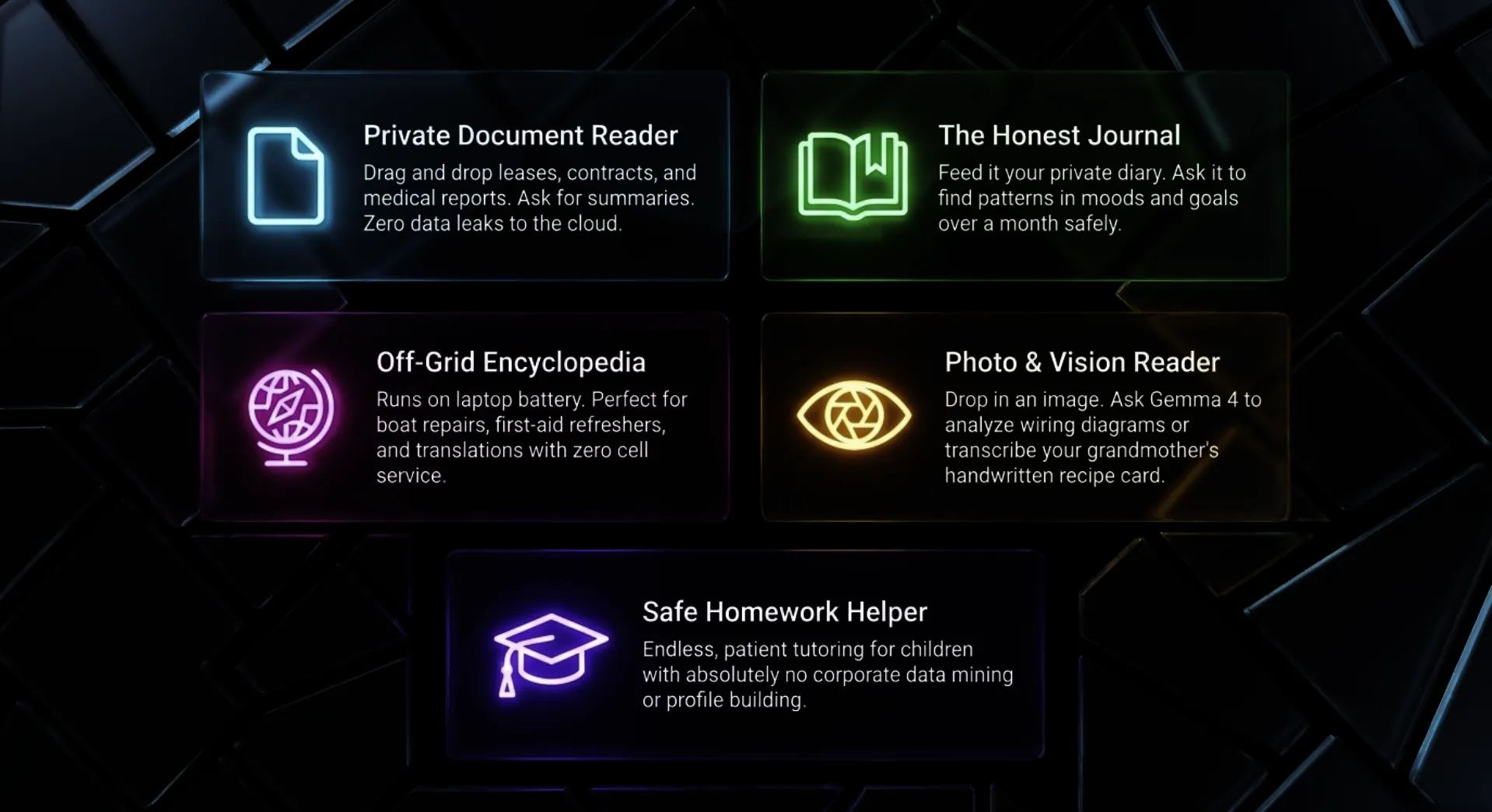
This is where it stops being a hobby and becomes a tool. Some ideas to start with tonight:
- Your private document reader. Drag a lease, a medical report, an insurance policy or a contract into the Ollama app and ask, “What are the three things in here I should worry about?” The document never leaves your desk. I wrote about this idea back in 2023 in How To Have A Private ChatGPT-Like Conversation With Your Local Documents With No Internet. In 2026 it takes a drag and a drop.
- A journal that talks back. Keep a diary in a text file and ask the model to find patterns in your mood, your sleep notes or your goals over a month. This is the kind of material you should never paste into a cloud chatbot.
- The off-grid encyclopedia. On a plane, at a campsite, on a boat, or during a power outage on a laptop battery: explanations, recipes, first-aid refreshers, translations and repair walkthroughs. Treat answers as a knowledgeable friend’s opinion and verify anything important. Small models make mistakes.
- Photo and screenshot reading. Gemma 4 models accept images. Ask what a wiring diagram shows, what plant is in a photo, or to transcribe a handwritten recipe card from Grandma.
- A homework helper with no data mining. Children can ask endless questions to an assistant you control, on a computer you own, with no account and no profile being built about them.
- Small-business back office. Draft customer replies, summarize meeting notes, rewrite product descriptions and clean up spreadsheets with no client data leaving the building.
- A writing partner. Brainstorm titles, outline chapters, and get blunt feedback on a draft that you are not ready to show anyone.
- Translation. Google says Gemma 4 was built for a global audience with support for over 140 languages.
- A coding assistant. Ollama can connect to coding tools on your machine, and the Qwen3 and gpt-oss families are popular for code.
- The beginning of your Wisdom Keeper. In 2020 I described the Intelligence Amplifier and Your Wisdom Keeper, a personal AI that learns from you and works only for you. A local model on your own hardware is the first brick of that building.
Can It Run on a Raspberry Pi? Yes, With Honest Limits
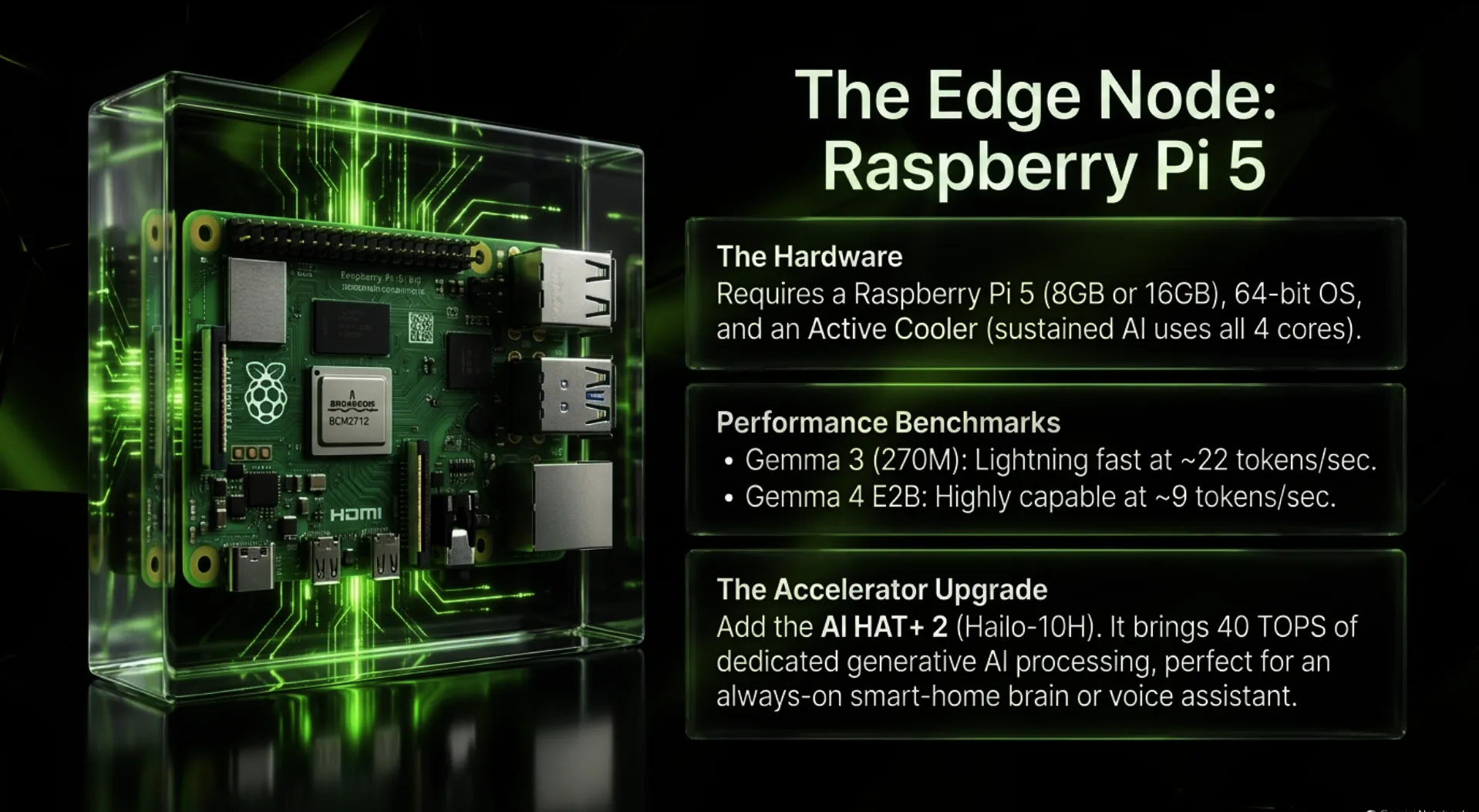
Yes. A Raspberry Pi 5 runs real language models with no add-on board, and Ollama installs on it with the same one-line Linux command. It is slow on bigger models, quick on small ones, sips power, and makes a wonderful always-on private assistant for a workshop, a classroom or a cabin.
Which Pi. The Raspberry Pi 5 with 8 GB or 16 GB of RAM is the one to use. Adafruit’s guide to local LLMs on the Raspberry Pi documents models successfully tested on the Raspberry Pi 4 and 5 with 8 GB of RAM, and it notes that only the smallest models have any chance of running on a Pi. Older boards such as the Pi 3 and the Pi Zero have 1 GB of RAM or less; in my assessment they are not practical for this. You need the 64-bit version of Raspberry Pi OS, because Ollama’s Linux builds for Arm are 64-bit.
Install. On the Pi, open Terminal and run:
# Install Ollama on the Pi, then run a small model
curl -fsSL https://ollama.com/install.sh | sh
ollama run gemma3:1b --verbose
What speed to expect. These are published measurements, with their sources:
| Board | Model | Engine | Writing speed | Source |
|---|---|---|---|---|
| Raspberry Pi 5, 8 GB | Gemma 3 270M | Ollama | 22.75 tokens/s | Adafruit |
| Raspberry Pi 5, 8 GB | Gemma 3 1B | Ollama | 9.99 tokens/s | Adafruit |
| Raspberry Pi 5, 8 GB | Llama 3.2 3B | llama.cpp | 4.61 tokens/s | Jeff Geerling |
| Raspberry Pi 5, 8 GB | Llama 3.1 8B | llama.cpp | 1.99 tokens/s | Jeff Geerling |
| Raspberry Pi 5, 8 GB | Gemma 4 E2B | LiteRT-LM (Google) | 9 tokens/s | Raspberry Pi |
| Raspberry Pi 5, 8 GB | Gemma 4 E2B (Q4_0) | llama.cpp | 4 tokens/s | Raspberry Pi |
| Raspberry Pi 5, 16 GB | Gemma 4 E4B | LiteRT-LM (Google) | 3.2 tokens/s | Google model card |
My Pi recommendation. Start with gemma3:1b for snappy answers. Step up to gemma4:e2b when you want a smarter model that also reads images, and accept a slower pace. Use the official active cooler; sustained AI work keeps all four cores busy, and Adafruit’s parts list for its guide includes the Raspberry Pi 5 Active Cooler.
Where to get one. These listings include what you need:
- Raspberry Pi 5, 8 GB (board only): add the official power supply and Active Cooler.
- CanaKit Raspberry Pi 5 Starter Kit PRO, 8 GB: board, power supply, case with active cooling and a 128 GB card with the OS preloaded.
- CanaKit Raspberry Pi 5 Starter Kit PRO, 16 GB: the same kit with the 16 GB board, my pick if you want to try Gemma 4 E4B.
- Raspberry Pi 5 16 GB Basic Kit with 27W power supply and Active Cooler: a leaner 16 GB option; bring your own microSD card.
As an Amazon Associate I earn from qualifying purchases. It costs you nothing extra and helps support this work.
The accelerator option. In January 2026, Raspberry Pi introduced the AI HAT+ 2 for the Raspberry Pi 5. It carries a Hailo-10H accelerator rated at 40 TOPS (INT4) with 8 GB of its own on-board RAM, designed specifically to run generative AI. At launch, Raspberry Pi listed models in the 1 to 1.5 billion parameter range, including Llama 3.2 1B, DeepSeek-R1-Distill 1.5B, Qwen2, Qwen2.5-Instruct and Qwen2.5-Coder, with larger models promised later. Hailo lists built-in Ollama integration. Raspberry Pi itself is candid that edge models of this size are meant to work within a constrained dataset and will not match the knowledge of giant cloud models. For a voice assistant, a smart-home brain or a camera that can describe what it sees, that is exactly enough.
The Bigger Picture
Every great shift in computing has started as a toy for enthusiasts and ended as something everyone assumed they always had. The personal computer did it. The web did it. Personal AI is doing it now, and the barrier to entry has fallen to an old laptop, a free download and a little curiosity. The people who learn to run their own intelligence now will understand the next decade in a way that people who only rent it will not.
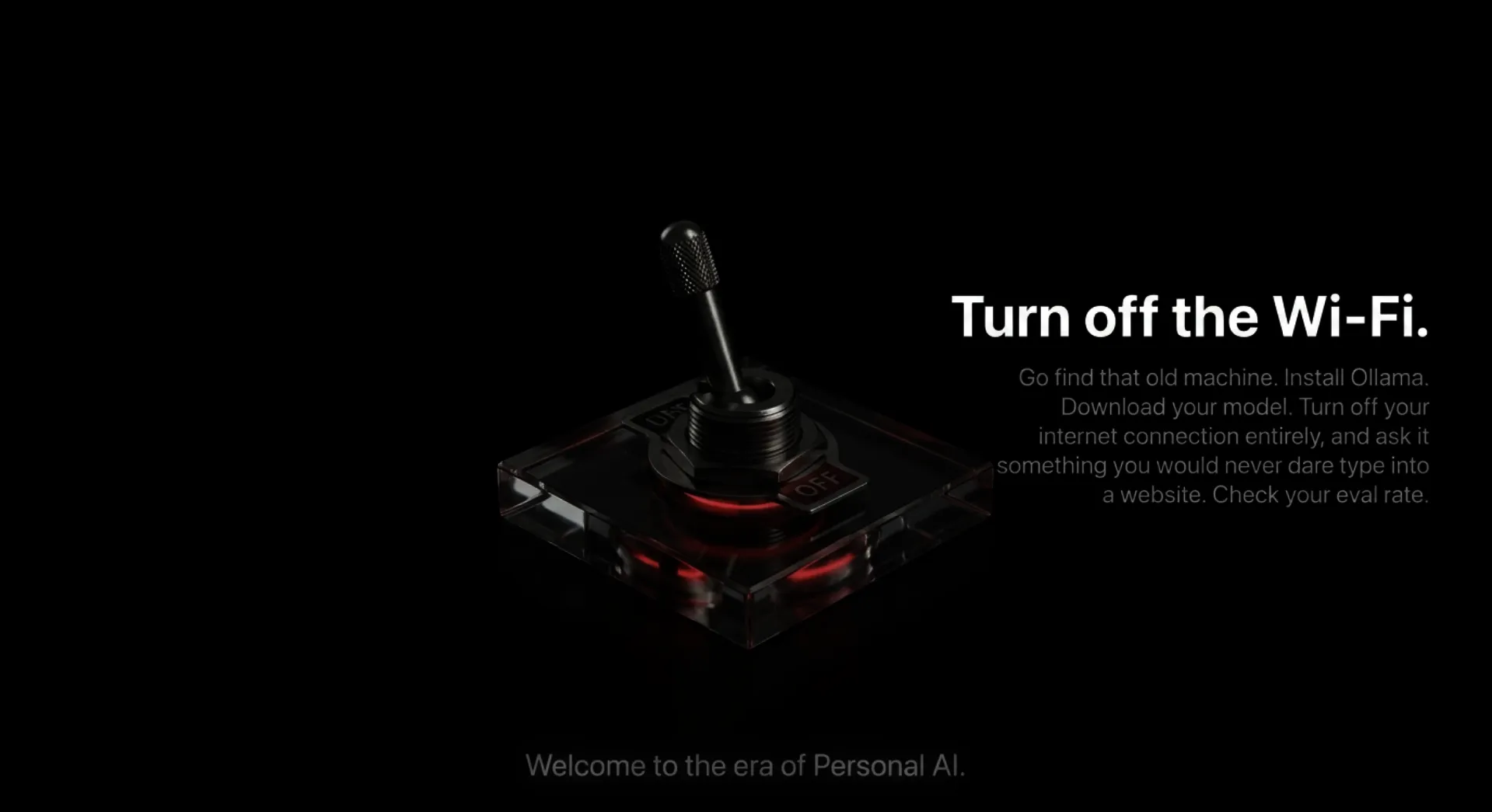
So go find that old machine. Plug it in. Install Ollama. Download a model. Turn off the Wi-Fi and ask it something you would never type into a website. Then come back and tell me what your eval rate was.
Sources
- Ollama download and the Ollama project on GitHub: install commands for Windows, Mac and Linux.
- Ollama documentation: Windows, macOS and Linux system requirements, hardware support, FAQ, context length and troubleshooting.
- Ollama’s new app (July 30, 2025): the chat window, file drag and drop, and image support.
- Gemma 4 on Ollama and the full tag list: model sizes and specifications.
- Run Gemma with Ollama, Google AI for Developers: quantization, model tags and commands.
- Gemma 4: Byte for byte, the most capable open models, Google, and Gemma 4: Expanding the Gemmaverse with Apache 2.0, Google Open Source Blog.
- Gemma releases: Gemma 4 release dates, including the 12B in June 2026.
- Gemma 4 on LiteRT-LM, Google AI Edge: device benchmarks, including Intel Lunar Lake, Apple M4 and Raspberry Pi 5.
- Mastering edge AI on Raspberry Pi with LiteRT and Gemma, Raspberry Pi.
- Local LLMs on Raspberry Pi, Adafruit Learning System.
- Ollama benchmarks on Raspberry Pi 5, Jeff Geerling.
- Introducing the Raspberry Pi AI HAT+ 2, Raspberry Pi, and Hailo’s announcement.
- macOS Sonoma compatible computers, Apple Support.
Support This Work, You Will See It No Place Else
To continue this vital work documenting, analyzing, and sharing these hard-won lessons before we launch humanity’s greatest leap: I need your support. Independent research like this relies entirely on readers who believe in preparing wisely for our multi-planetary future. If this has ignited your imagination about what is possible, please consider donating at buy me a Coffee or becoming a member. Value for value you recieved here.
Every contribution helps sustain deeper fieldwork, upcoming articles, and the broader mission of translating my work to practical applications. Ain ‘t no large AI company supporting me, but you are, even if you just read this far. For this, I thank you.
Stay aware and stay curious,

🔐 Start: Exclusive Member-Only Content.
The rest of this article is for Multiplex members
You’ve reached the members-only part. Log in to keep reading right here, or join to unlock it.
- Full member-only articles: insights, wisdom and executive summaries
- The Multiplex members forum
- Member benefits and discounts
Already a member? You’ll come right back to this article after logging in. Forgot password?
Membership status: Not logged in
🔐 End: Exclusive Member-Only Content.
~—~
~—~

~—~
Support ReadMultiplex at Multiplex.Tips

Support ReadMultiplex
Subscribe or donate by Bitcoin.
Copy address:bc1qkufy0r5nttm6urw9vnm08sxval0h0r3xlf4v4x

Send your receipt to [email protected] to confirm subscription.
Members
Become a member for full member-only articles, the Multiplex members forum, and member benefits and discounts.
 Past, present and future technology research + insights
Listen
🔊 Every article has a free “Listen to this ►” button. Hear it read aloud in your browser.
The Multiplex
- Advertise with us: Rates and booking
- X: @ReadMultiplex
- Buy a T-shirt: Multiplex.Love
- Program Guide: Multiplex.Today
- Podcast: Multiplex.Life
- Join the Multiplex team: Multiplex.Team
Stay updated
Get an email when we post new articles:
