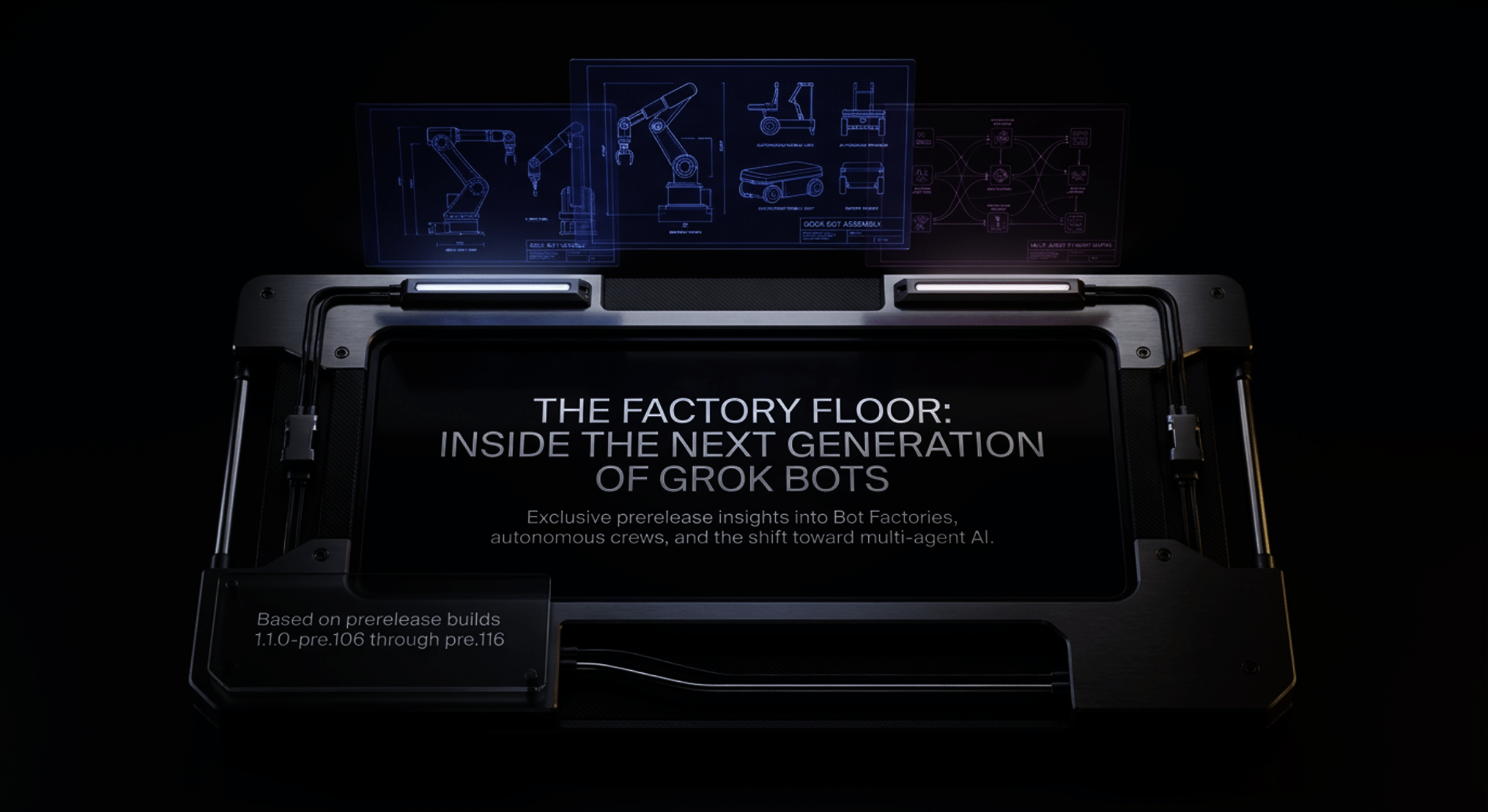
Bot Factories Are Coming to Grok Bot Soon: How to Turn Your Bots Into an Assembly Line
Early Grok Bot builds show your bots working together as a factory, in a fixed order, on a schedule or on a click, and here is exactly how I plan to use it.
This article is sponsored by Read Multiplex Members who subscribe here to support my work: Link: https://readmultiplex.com/join-us-become-a-member/
It is also sponsored by many who have donated a “Cup of Coffee”. If you like this, help support my work: Link: https://ko-fi.com/brianroemmele
I have been building Grok Bots for a while now. And the question I hear most is simple. “Brian, I have five bots. How do I get them to work together?” It looks like an answer is on the way. Today, X user @blankspeaker spotted a batch of new features in Grok Bot prerelease builds (1.1.0-pre.106 through pre.116). The biggest one is called Bot factories. There are also some very practical pieces around it: purchases, comments, reservations, routines and teams.
Before we go further, a clear and honest note.
Everything in this article except Grok Build v1.0.85 is an unofficial prerelease preview. These were found in testing builds. Some are switched off by default. Any of them may change, or may not ship at all. I am writing about what the posts and screenshots actually show, and then telling you how I would use it. Where I am imagining a workflow, I say so.
Full credit to @blankspeaker, who does the patient work of finding these and showing them on video.
Bot Factories: Your Bots, in a Fixed Order
Here is what the preview shows. A card pops up that reads “Your Bots can work as a factory.” It explains that a factory is your Bots working in a fixed order, on a schedule or on a click.
Then it offers a button: Ask my Bot.
Press it, and a question lands in your composer. It is not sent. You can read it and change it first. In the demo it says, roughly: I have several bots on this computer. Which of them could work together as a factory? Propose one to three factories, each as a short list of steps, before you create anything.
I love that design. Your main Bot looks at the bots you already have, and proposes the chain. You stay in charge of what gets built.
In the preview’s feature list, Bot factories was marked off by default in pre.116. So this is early.
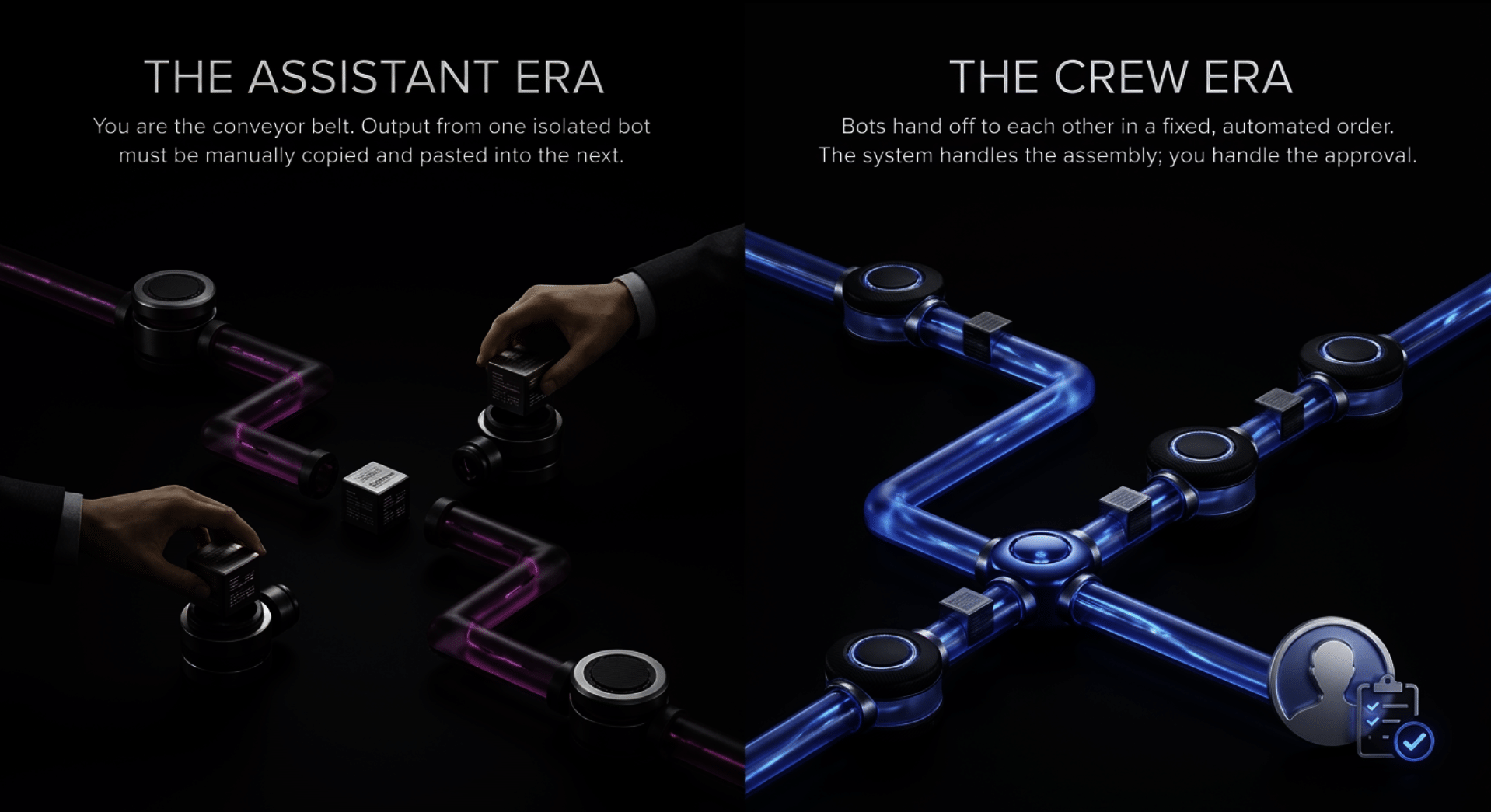
Until now, you were the conveyor belt, copying one bot’s output into the next. A factory lets the bots hand off to each other in an order you choose.
How I would use Bot factories
These are my own ideas for chains, not features shown in the preview. Think of them as recipes to try once factories ship.
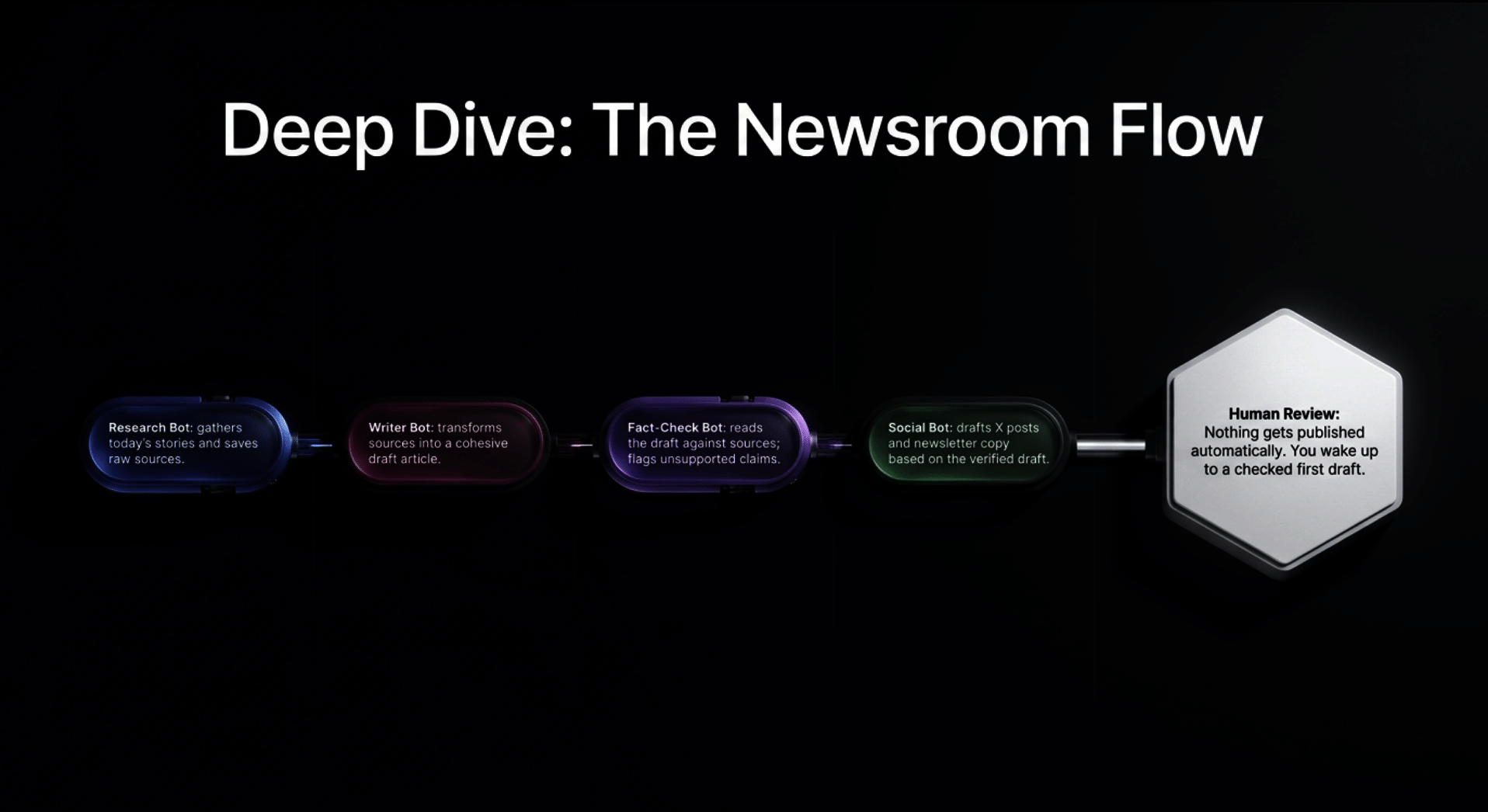
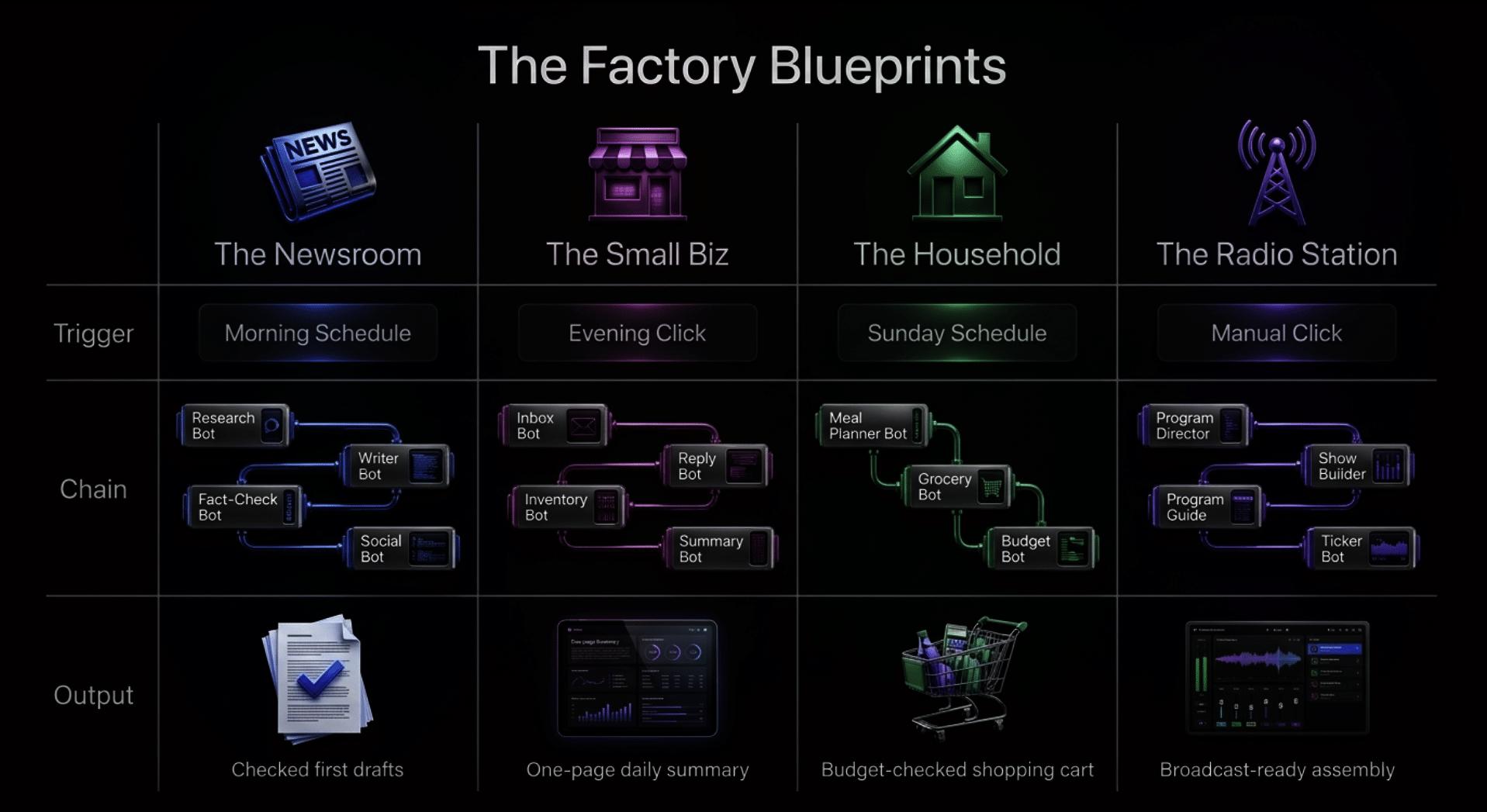
The newsroom factory.
- A research bot gathers today’s stories on one topic and saves its sources.
- A writer bot turns that into a draft article.
- A fact-check bot reads the draft against the sources and flags anything it cannot support.
- A social bot writes X and newsletter drafts from the checked article.
Nothing gets published at the end. It lands as drafts for a human to read. Run it every morning on a schedule, and you wake up to a checked first draft.
The small business factory.
- An inbox bot sorts customer questions and pulls out orders, complaints and requests.
- A reply bot drafts answers in your voice.
- An inventory bot checks what each order needs and lists what is running low.
- A summary bot hands you one short page at the end of the day.
Run it on a click when you sit down after closing.
The household factory.
- A meal planner bot builds the week’s dinners around what your family likes.
- A grocery bot turns that plan into a shopping list and fills a cart.
- A budget bot checks the cart against what you want to spend that week, and stops for you before anything is bought.
Run it on a schedule every Sunday morning.
The radio station factory. This is the one I am most excited about for Multiplex.FM.
- A program director bot writes the day’s brief: the theme, the anniversaries, the news hooks.
- A show builder bot turns the brief into a running order of segments and music.
- A program guide bot writes the listener guide from that running order.
- A ticker bot writes the short on-screen lines.
At the end, it all waits for me. Nothing goes on air until I listen and approve it. The factory does the assembly. I do the judgment.
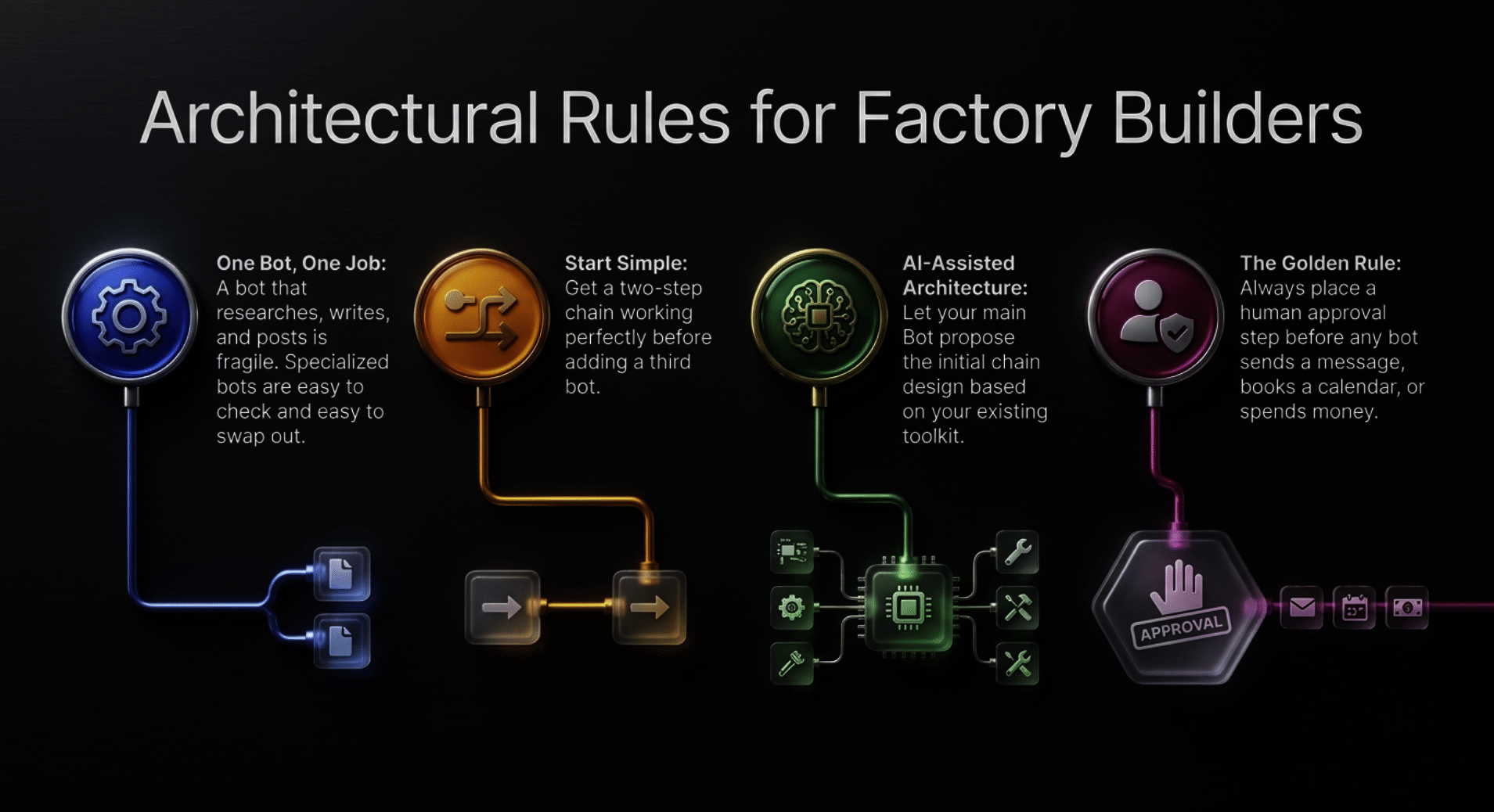
My rules for building a good factory
Keep each bot to one job. A bot that researches and writes and posts is hard to fix. A bot that only researches is easy to check and easy to swap out.
Put an approval step before anything that sends or spends. Emails, posts, purchases, bookings. The last step of a factory should be a draft or a cart, not a send button. I do not know yet whether factories will include a built-in pause for approval. Until I see one, I design the chain so the final bot produces drafts.
Start with two bots. Get a two step chain working well. Then add the third.
Let your main Bot propose it first. The preview is built around this. Ask it which of your bots fit together, read the steps, and edit before you create anything.
Watch the runs. More on that below, because the routine status preview fits perfectly here.
Need bots to chain? That is exactly why we built GrokBot.Rocks, the directory of Grok Bots, with over 10,000 bots to browse. Look for bots that each do one thing well. Those make the best factory parts. And if you build bots yourself, you can claim a free builder page at builder.grokbot.rocks so people can find your bot for their own factories.
Source: @blankspeaker on Bot factories
Purchase Auto-Approve With a Spend Limit
This one sits in the Vault, under Payments. The preview shows a Confirm purchases setting with two choices: Auto-approve or Always ask.
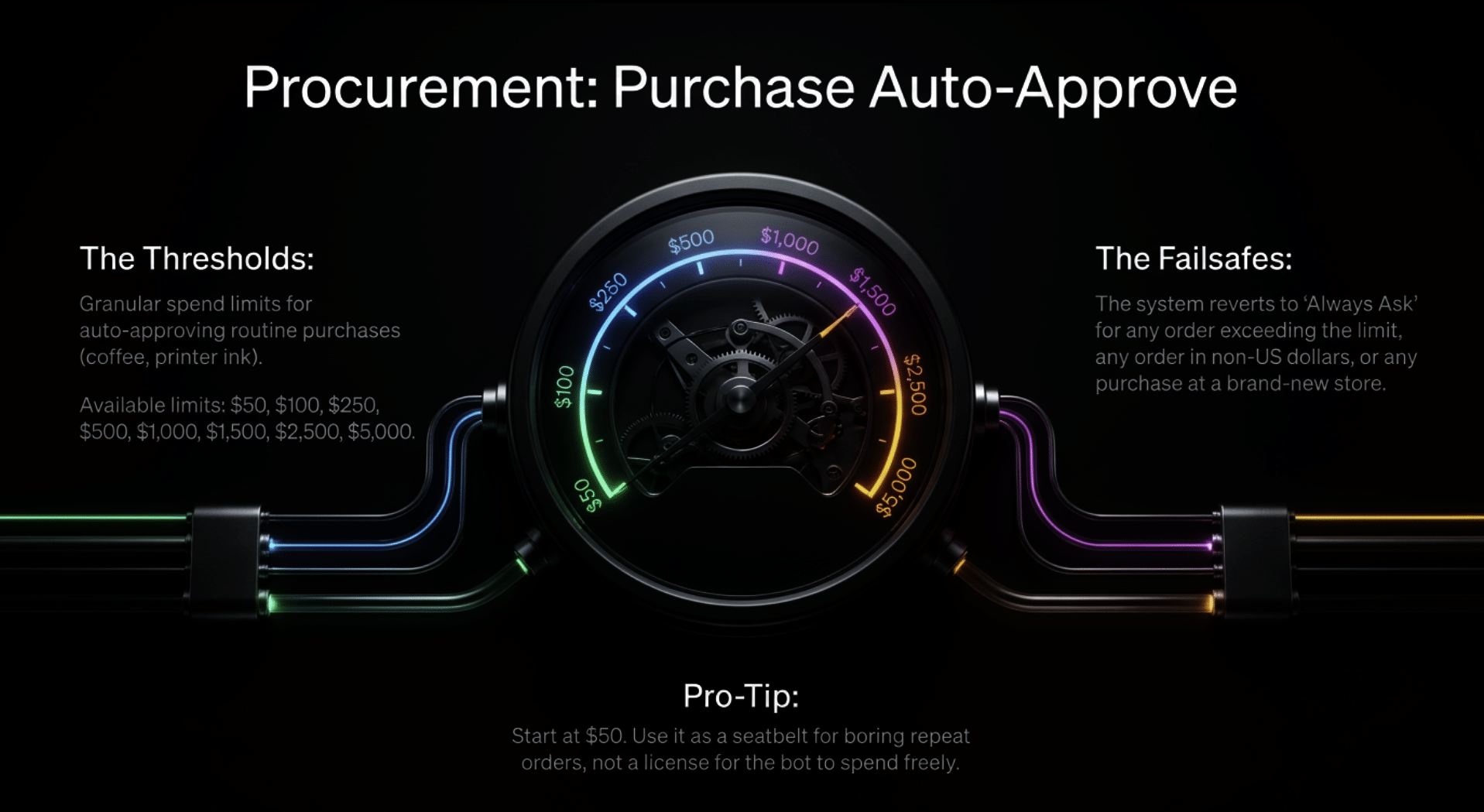
With auto-approve on, Grok Bot pays for orders within your spend limit without asking. The Spend limit menu runs from $50 per order up to $5,000 per order, in steps ($50, $100, $250, $500, $1,000, $1,500, $2,500 and $5,000). The screen says Grok Bot asks you first for any order over that amount, and for any order not in US dollars.
The same screen shows a default payment method, plus X Money and Link listed as payment accounts you can connect. The daily preview card also says this feature is off by default, and that spend rules can show as managed by a team admin.
How I would use it
Start at the bottom. Set the limit at the lowest step and leave it there for a few weeks. Raise it only when you trust the pattern.
Use it for the boring repeats. Paper towels, coffee, printer ink, the same grocery order. Those are the orders where a tap to approve adds nothing.
Keep Always ask for anything new. A new store, a new kind of purchase, a gift. If you are not sure, keep the tap.
Pair it carefully with factories. The household factory above gets much smoother with a small auto-approve limit. But I would still have the budget bot stop the chain when a cart looks unusual. A small limit is a seatbelt, not a license.
Source: @blankspeaker on purchase auto-approve
Comment on Part of a File
This one is small, and I think it will save a lot of typing.
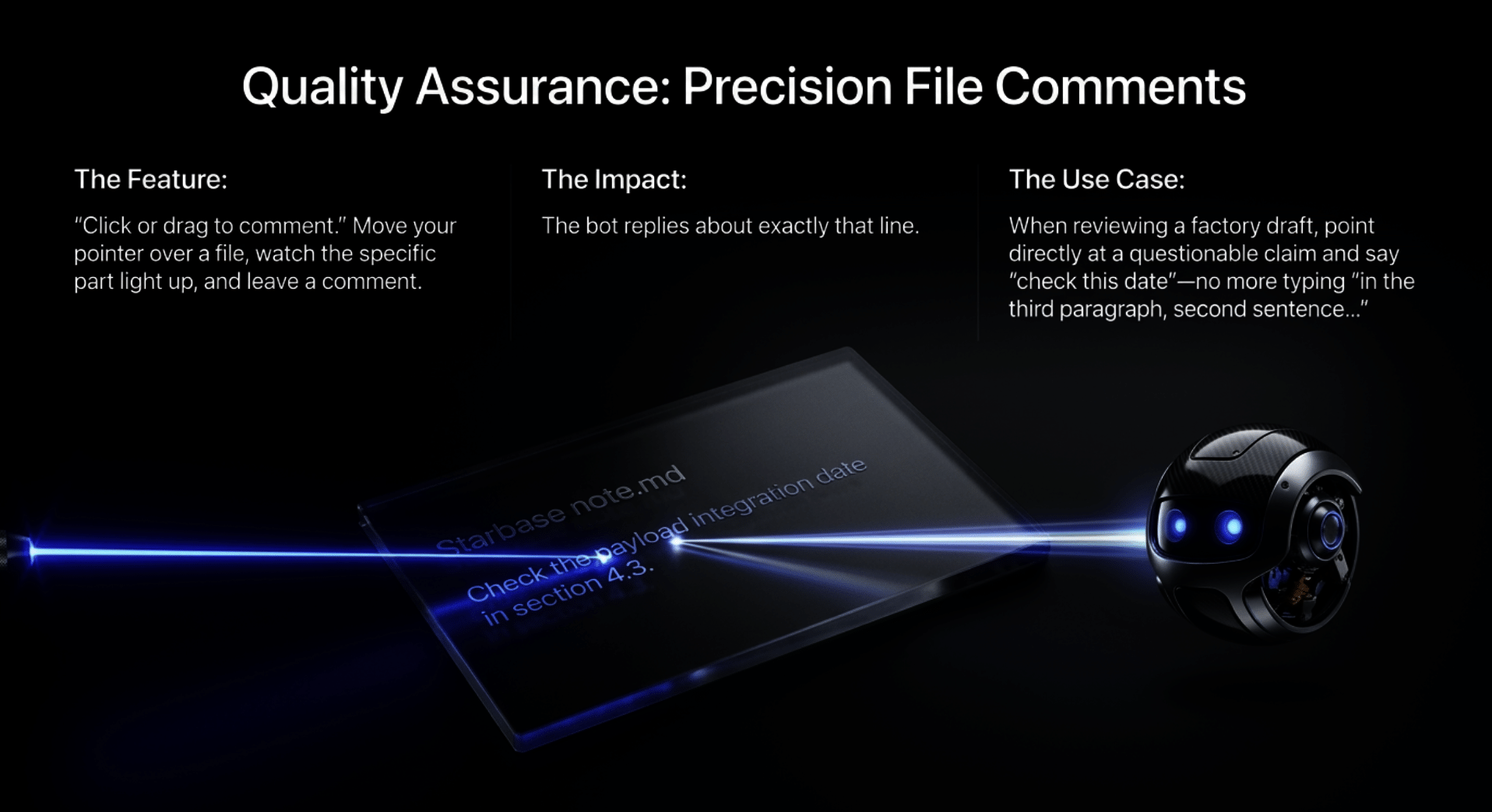
In the preview, you open a file (the demo uses a note called Starbase note.md). There is a Click or drag to comment button at the top. Move your pointer over the file and the part under it lights up, like a single list item. You leave your comment on that part, and it goes to the Bot. The demo shows “Sent to” the bot, and the bot replying about exactly that line.
The daily preview adds that the longer pick, drag-select and keyboard hints are gone. You click anything to comment, or click or drag on a file.
How I would use it
Editing articles. Instead of writing “in the third paragraph, the second sentence, change the date,” I point at the sentence and say “check this date.”
Fixing plans. Point at one step of a trip plan and say “find a backup for this.”
Reviewing factory output. This is where it gets good. When the newsroom factory hands me a draft, I can point at the one claim I doubt and send it back for checking, without rewriting my whole request.
Source: @blankspeaker on comments on part of a file
A Reserve Button on Places
When your bot suggests a venue, the preview shows it can name who takes the booking and a good time to go. In the demo, someone asks where a crew can eat near the launch pad on Thursday. The bot names a restaurant, says it is open, and suggests 6:30 p.m., with a place card underneath.
Open the place, and a Reserve button sits at the top, above Directions, ready to hand the booking to the bot.
How I would use it
Date night in two taps. Ask for ideas, open the one you like, press Reserve.
Inside a factory. A trip planner bot picks the dinner spot, and the booking step waits for your Reserve tap. That keeps the bot helpful and you in control.
Source: @blankspeaker on place reservations
Routine Run Status: See What Ran, and What Failed
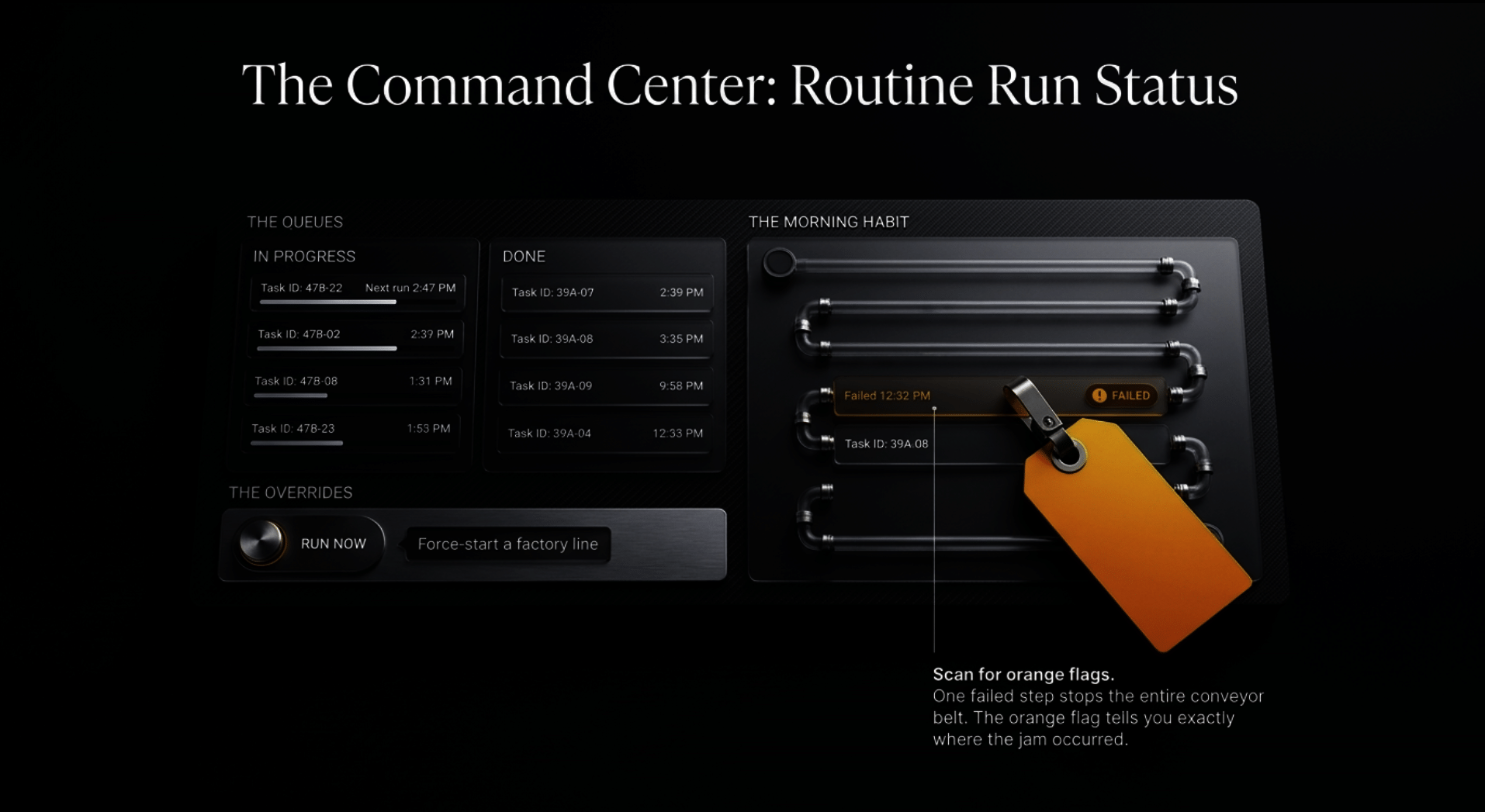
The preview shows the Tasks list split into In Progress and Done. Each routine shows when it runs next, like “Next run 2:47 PM.” A run that failed is flagged in orange, like “Failed 12:32 PM,” right next to the ones that completed.
The same daily preview also lists a Run now control, which starts a run and shows an error if it cannot start.
How I would use it
Make it a morning habit. Glance at the Tasks list with your coffee. Anything orange gets a look before the day starts.
Watch your factories. When bots run in a chain, one failed step can leave the rest with nothing to work on. A clear failure flag tells you where the belt stopped.
Source: @blankspeaker on routine run status
Teams: Shared Settings, Team Plans and Group Chats
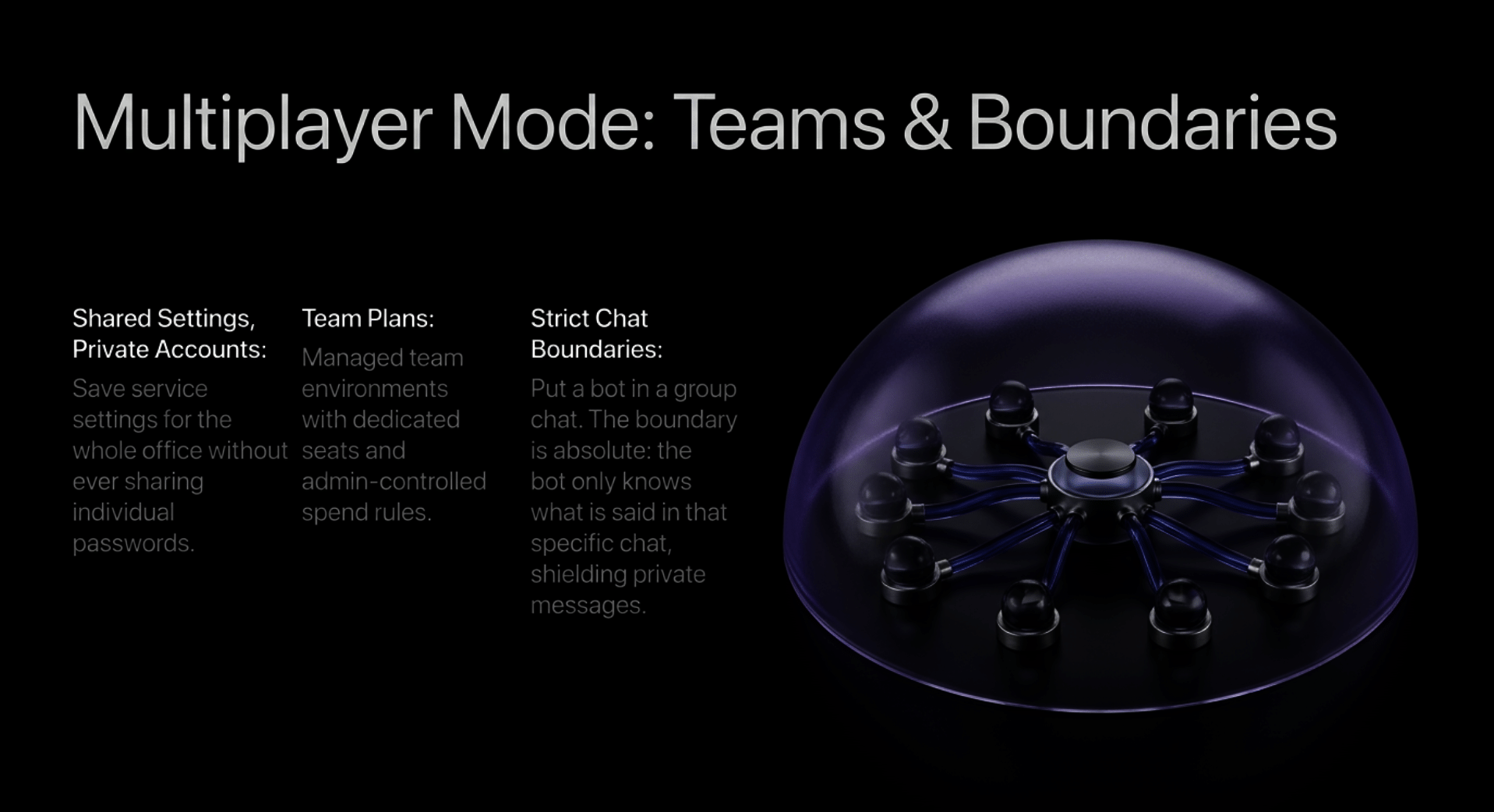
The daily preview (pre.106 to pre.116) shows three team features.
Shared Bot service settings. A setup dialog saves service settings for everyone using the Bot. Each teammate still signs in to that service with their own account.
Team plans and naming. You name a team, and the plan becomes a team plan with a seat for each teammate. The copy covers team approval, a Team badge, general access and removing people.
Team Bot texts and group chats. Phone texts can pick which team they go to. A Bot can join a group chat where anyone can ask it something by starting a message with Grok. It only knows what is said in that chat.
How I would use it
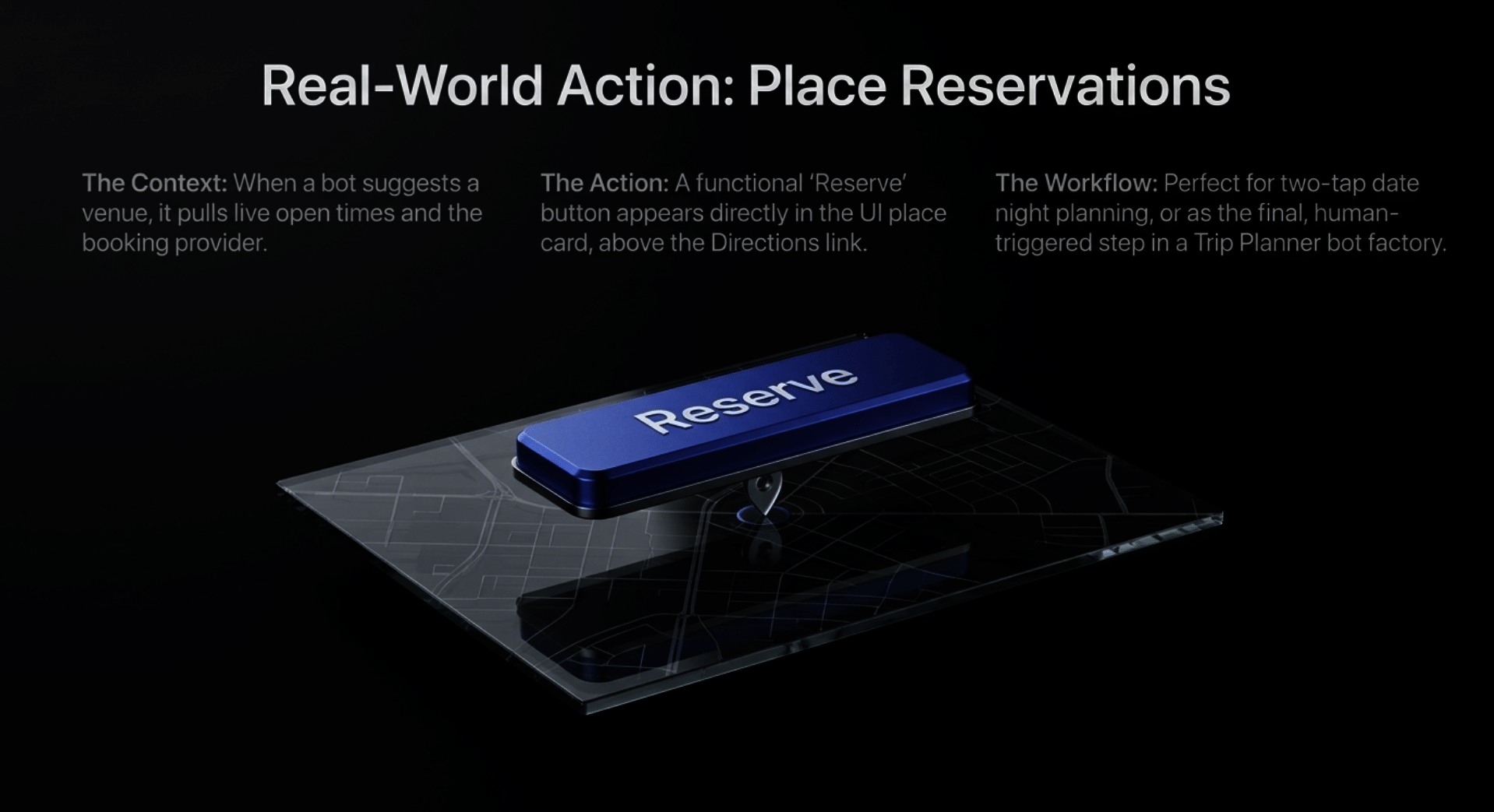
A small office could share one scheduling bot without sharing passwords. A family could put a Bot in the group chat to settle “what time is dinner Saturday” without it seeing anyone’s private messages. A club could give its organizer bot one team, so everyone works from the same setup.
That last line in the preview matters to me. A Bot in a group chat only knows what is said in that chat. Good boundary.
Source: @blankspeaker’s Grok Bot Daily Preview
Shipped Today: Grok Build v1.0.85
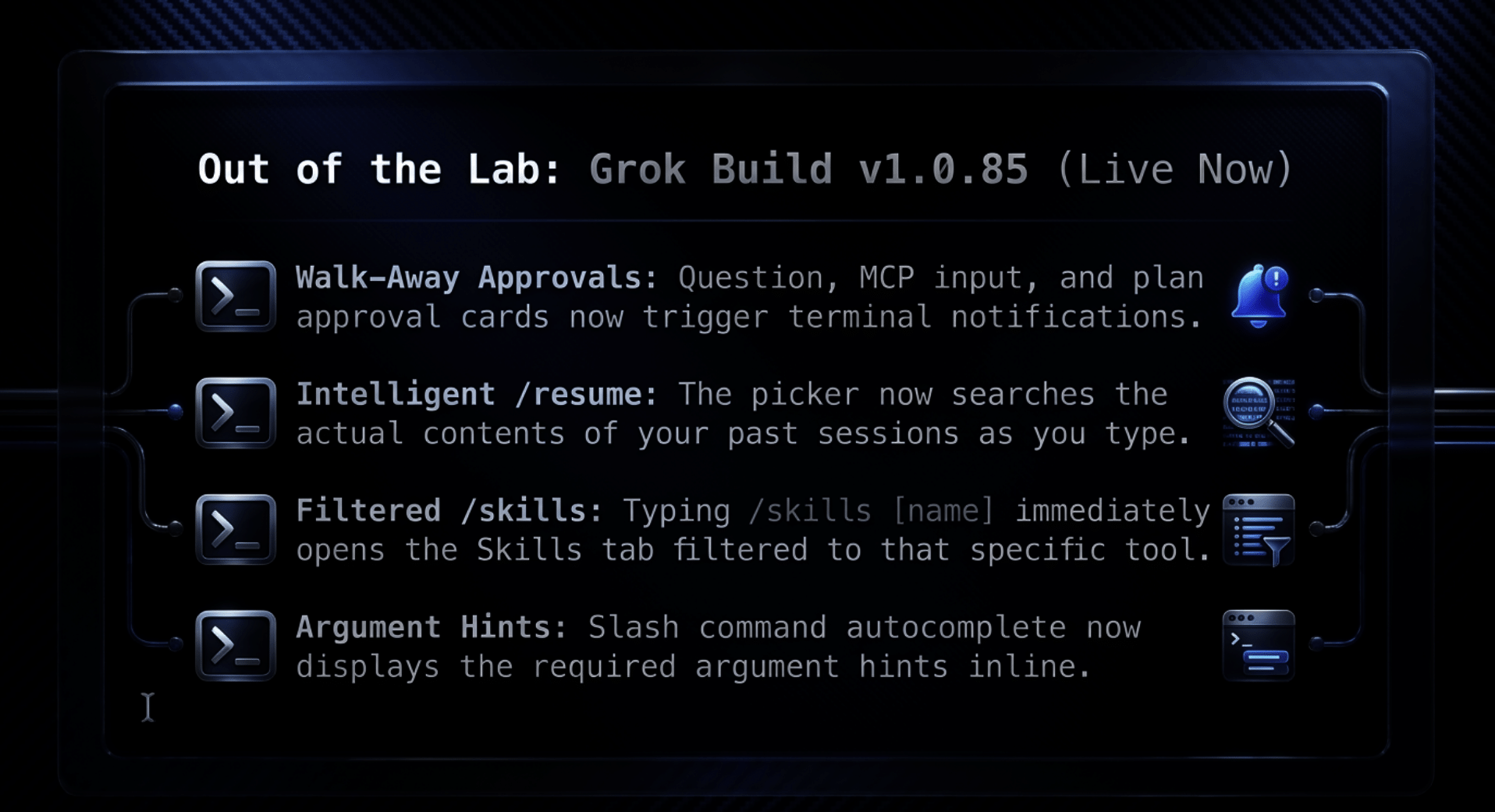
This one is real and out now. Grok Build v1.0.85 shipped on November 13, and the release notes include:
- Question, MCP input and plan approval cards now send the same terminal notification as permission requests. So you can walk away and get pinged when your build needs an answer.
- The /resume picker now searches the contents of your sessions as you type, and lets you open a match. No more guessing which session had that one fix.
- Typing /skills with a name now opens the Skills tab filtered to that name.
- Slash command autocomplete now shows each command’s argument hint.
Source: @blankspeaker on Grok Build v1.0.85
The Big Picture
Put these together and you can see where this is heading. Bots in a fixed order. A flag when a run fails. Comments that point at the exact line. A Reserve button and a spend limit, with you holding the brakes.
This is the shift from one helpful assistant to a small crew that works for you. I have been saying for years that the real power arrives when our personal AI stops waiting for every instruction and starts carrying a whole task from start to finish. These previews are a real step in that direction.
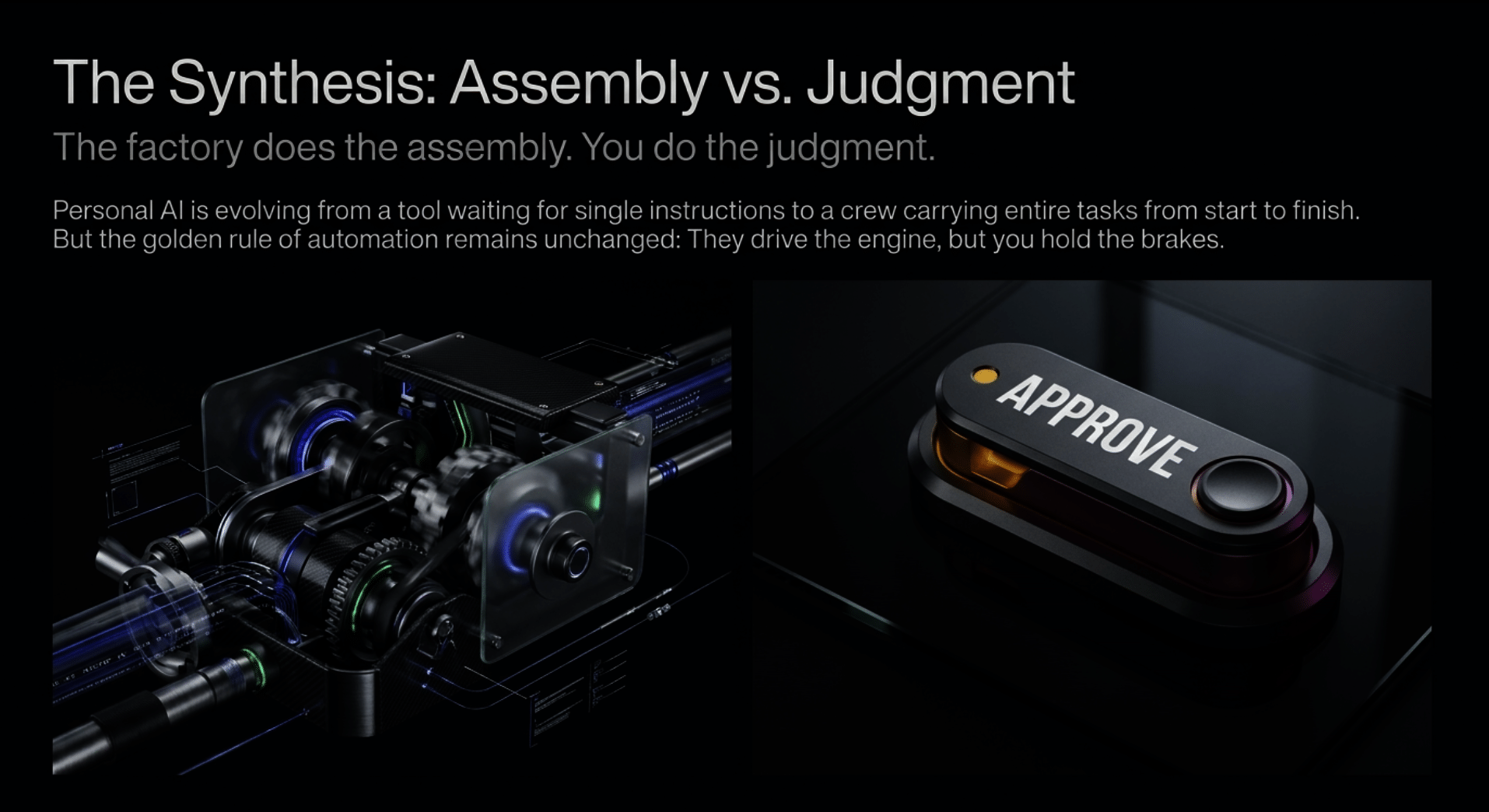
But the rule does not change. You decide what sends. You decide what spends. Build your factory so the last step is always you.
Start thinking now about which of your bots belong together. Browse GrokBot.Rocks for the missing pieces. When factories arrive, you will be ready.
I have more insight for members below. If you are a member, log in below.
Support This Work, You Will See It No Place Else
To continue this vital work documenting, analyzing, and sharing these hard-won lessons before we launch humanity’s greatest leap: I need your support. Independent research like this relies entirely on readers who believe in preparing wisely for our multi-planetary future. If this has ignited your imagination about what is possible, please consider donating at buy me a Coffee or becoming a member. Value for value you recieved here.
Every contribution helps sustain deeper fieldwork, upcoming articles, and the broader mission of translating my work to practical applications. Ain ‘t no large AI company supporting me, but you are, even if you just read this far. For this, I thank you.
Stay aware and stay curious,
🔐 Start: Exclusive Member-Only Content.
The rest of this article is for Multiplex members
You’ve reached the members-only part. Log in to keep reading right here, or join to unlock it.
- Full member-only articles: insights, wisdom and executive summaries
- The Multiplex members forum
- Member benefits and discounts
Already a member? You’ll come right back to this article after logging in. Forgot password?
Membership status: Not logged in
🔐 End: Exclusive Member-Only Content.
~—~
~—~

~—~
Support ReadMultiplex at Multiplex.Tips

Support ReadMultiplex
Subscribe or donate by Bitcoin.
Copy address:bc1qkufy0r5nttm6urw9vnm08sxval0h0r3xlf4v4x

Send your receipt to [email protected] to confirm subscription.
Members
Become a member for full member-only articles, the Multiplex members forum, and member benefits and discounts.
 Past, present and future technology research + insights
Listen
🔊 Every article has a free “Listen to this ►” button. Hear it read aloud in your browser.
The Multiplex
- Advertise with us: Rates and booking
- X: @ReadMultiplex
- Buy a T-shirt: Multiplex.Love
- Program Guide: Multiplex.Today
- Podcast: Multiplex.Life
- Join the Multiplex team: Multiplex.Team
Stay updated
Get an email when we post new articles:
