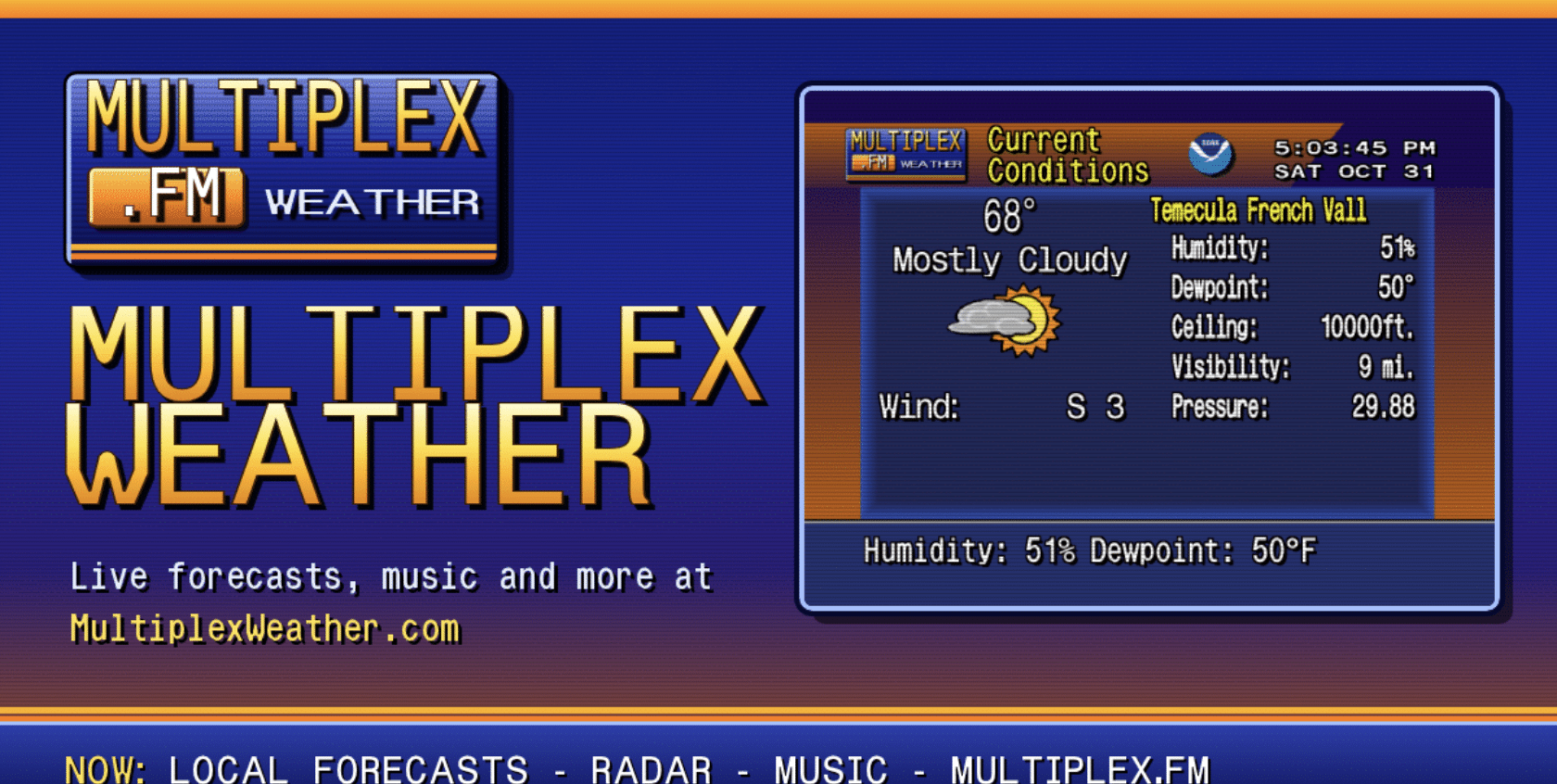
There is a particular kind of comfort in a weather channel that is simply on. If you grew up in the 1980s or 1990s, you know the feeling: the blue and orange screens, the smooth jazz, the forecast that rolled around every few minutes whether you were watching or not. You didn’t look the weather up. It was already there, in the corner of the room, keeping you company.
I wanted that back. So we built it, and it lives at MultiplexWeather.com.
This article is sponsored by Read Multiplex Members who subscribe here to support my work: Link: https://readmultiplex.com/join-us-become-a-member/
It is also sponsored by many who have donated a “Cup of Coffee”. If you like this, help support my work: Link: https://ko-fi.com/brianroemmele
Listen to the companion podcast: https://rss.com/podcasts/readmultiplex-com-podcast/3319266
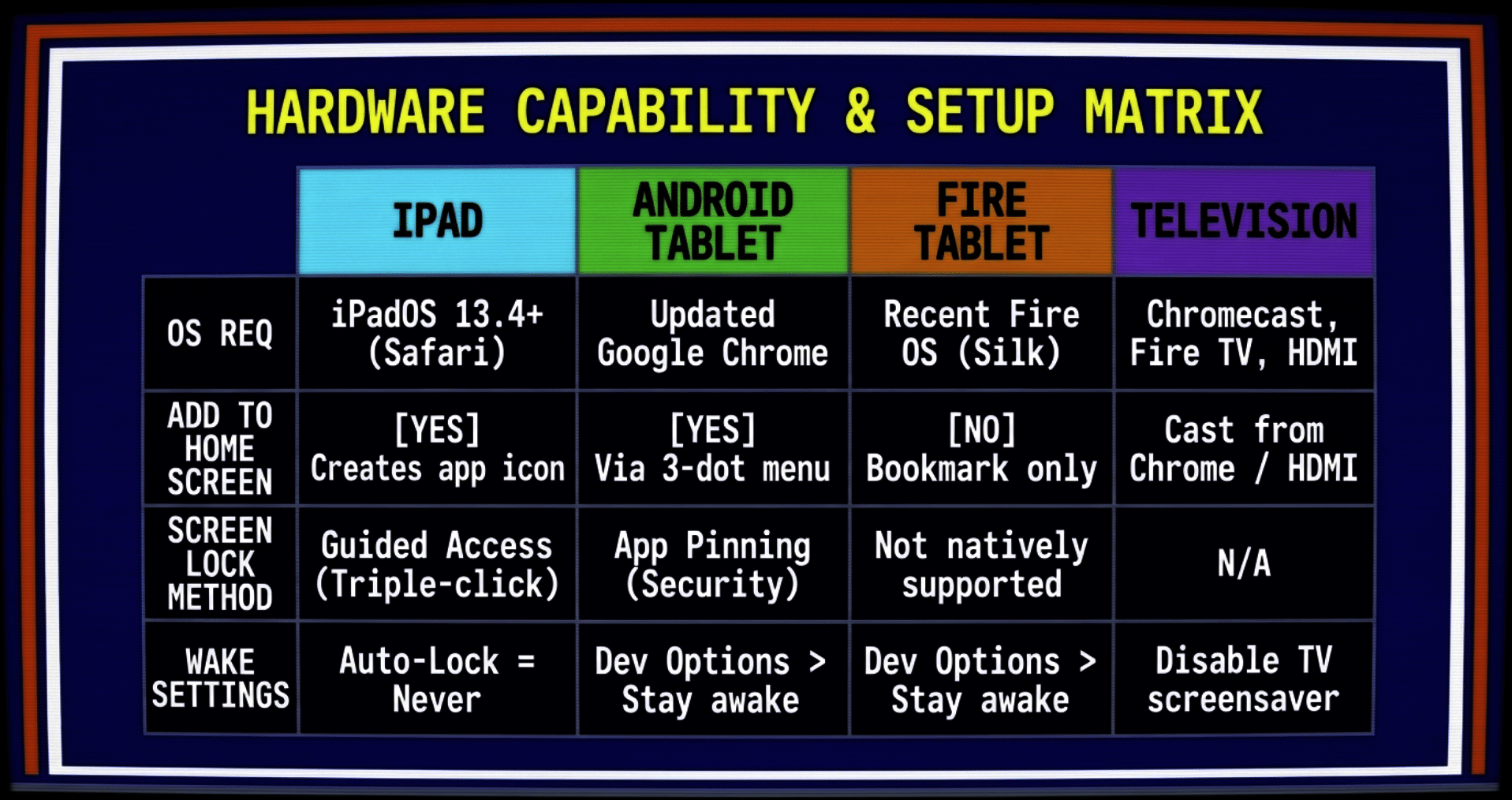
This article is the complete guide to turning almost any screen you own into a standalone weather channel. An old iPad in a drawer, a tired Android tablet that can’t run new apps anymore, a Fire tablet, a laptop plugged into a TV, or a TV with a streaming stick. No app to install. No account. No subscription. Just a web browser and a place to set the screen down.
I’ll walk you through each device step by step, including the small settings that make the difference between “a web page” and “a channel that stays on all day.” By the end you should be able to set one up without needing to ask anyone a follow-up question.
What MultiplexWeather.com actually is
MultiplexWeather.com is a weather channel you leave on. It looks and feels like the classic “Local on the 8s” broadcasts, the WeatherStar 4000 era, but every number on the screen is live.
Here is what it does today:
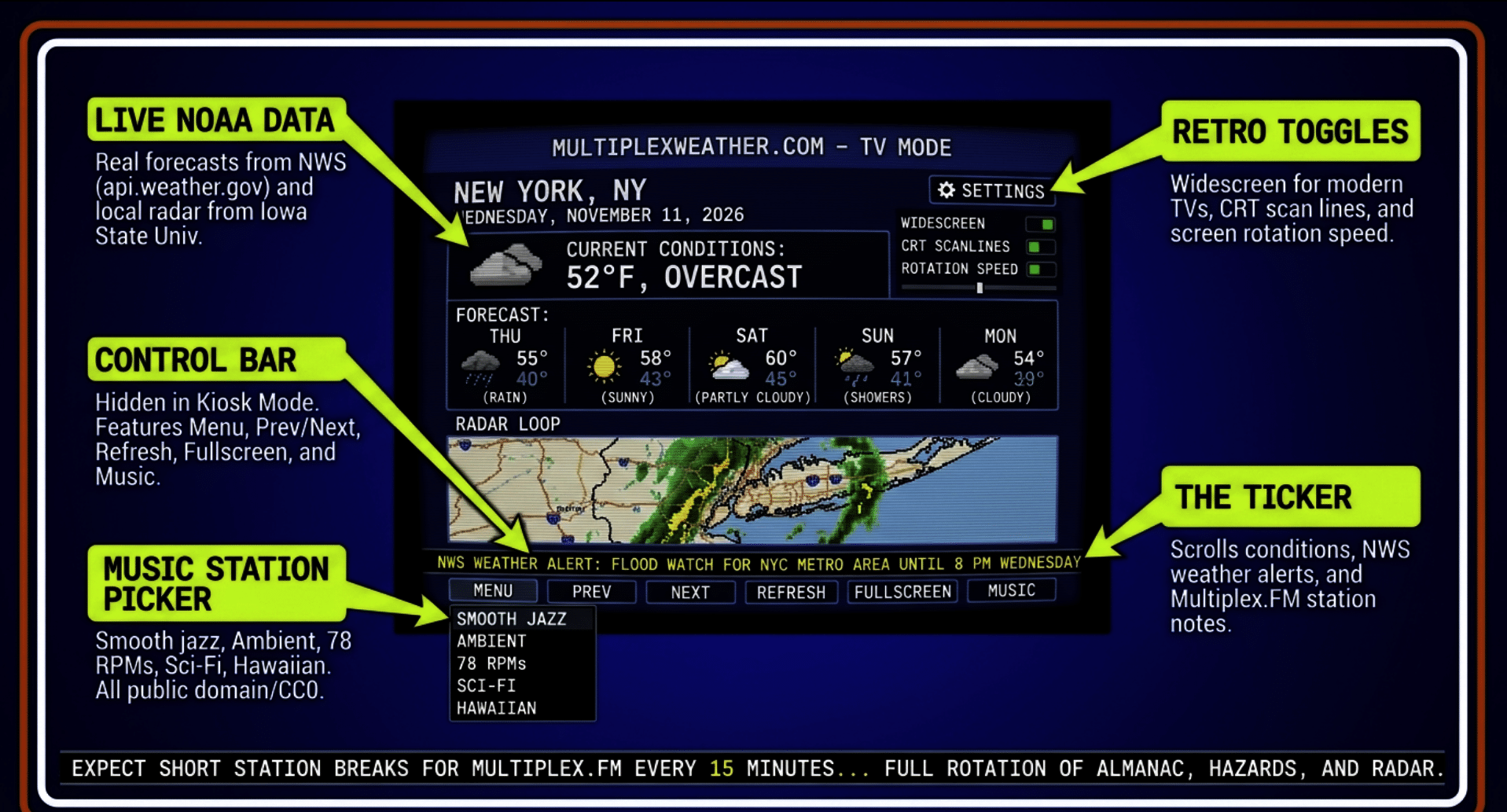
- Real forecasts from NOAA and the National Weather Service. The data comes straight from the National Weather Service (api.weather.gov) into your browser. Radar comes from the Iowa Environmental Mesonet at Iowa State University.
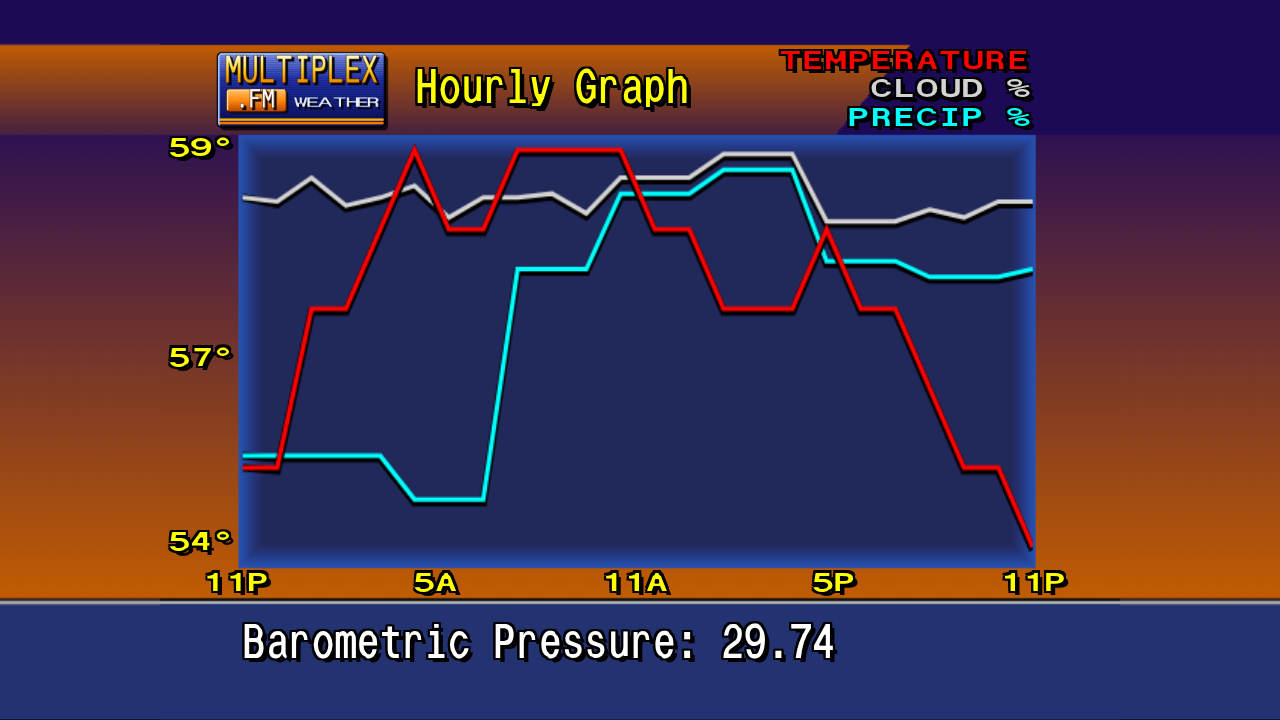
- A full rotation of screens. Current Conditions, Latest Observations, Hourly Forecast, an Hourly Graph of temperature, cloud cover and chance of rain, the Local Forecast in plain words, the Extended Forecast, Regional Observations on a map, Local Radar, a Travel Forecast for 24 major U.S. cities, an Almanac with sunrise, sunset and moon phases, and any active Hazards (watches, warnings and advisories) for your area.
- Music. Tap the music button and the channel plays background music. You can pick a station: Standard (smooth jazz), Ambient, 78 RPMs from 1917 to 1925, Sci-Fi Soundtracks, or Hawaiian recordings from 1916 to 1922. Every track is public domain, CC0, or Creative Commons licensed, and each one is credited.
- Short station breaks. About every 15 minutes the music dips for a brief Multiplex.FM station break, the way a real channel would.
- A ticker. The bottom bar scrolls weather conditions, and any weather alerts for your location come first. Between the weather lines you’ll see a few headlines and notes from Multiplex.FM, our radio station.
- Retro touches you can turn on. CRT scan lines, a widescreen layout for modern TVs, and a speed control for how long each screen stays up.
It covers U.S. locations, because the National Weather Service does.
I want to be clear about where this comes from, because credit matters. MultiplexWeather.com is built on WeatherStar 4000+, an open-source project by Matt Walsh, released under the MIT License, through the Jade66/WeatherChannel fork. We added the Multiplex.FM branding, music, ticker and the rest. We are not affiliated with The Weather Channel or IBM. This is a love letter to an era of broadcasting, made with open tools and public data. The full credits and music licenses are linked at the bottom of the site and at multiplexweather.com/CREDITS.txt.
The idea: any screen with a browser becomes a weather channel
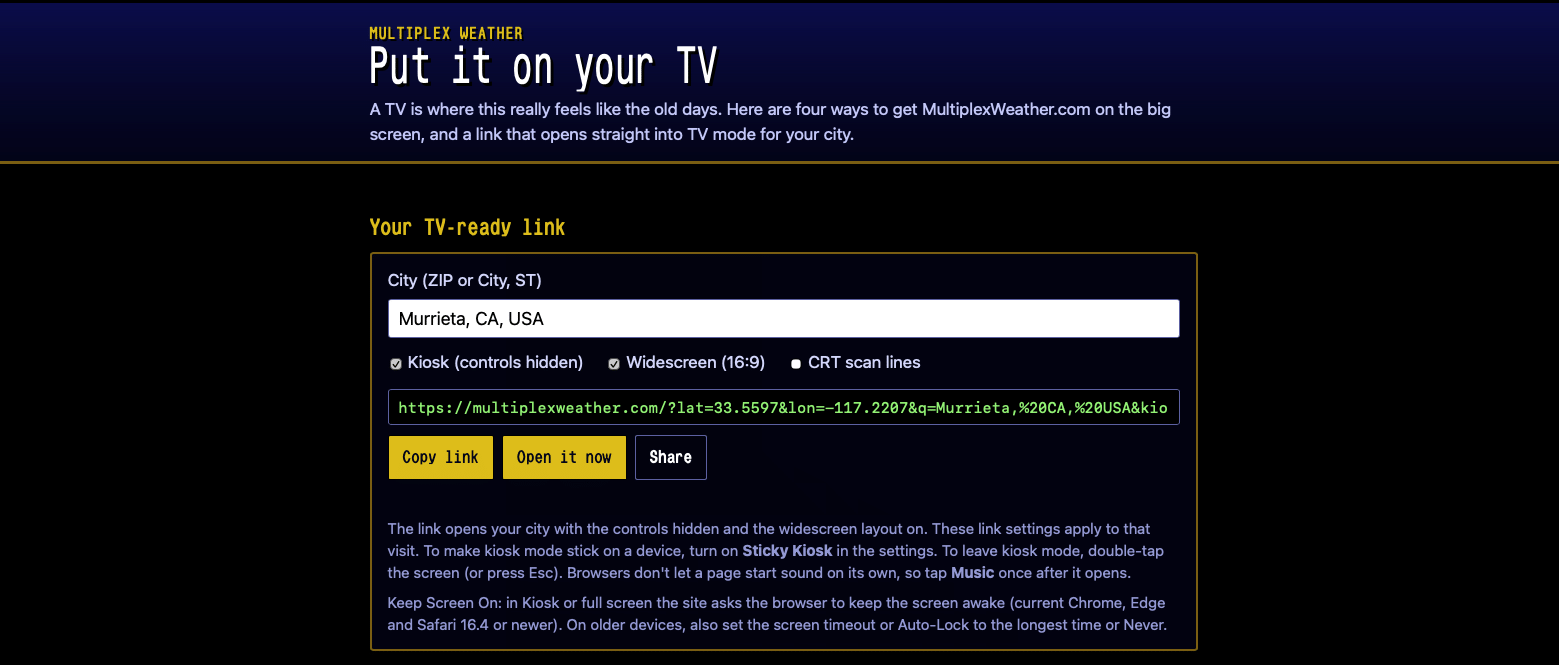
Most weather apps are built for a glance. You open them, read a number, and close them. MultiplexWeather.com is built for the opposite. It is meant to run all day on a screen you aren’t touching. A link that you can make to do this simply can be foudn here: https://multiplexweather.com/tv.
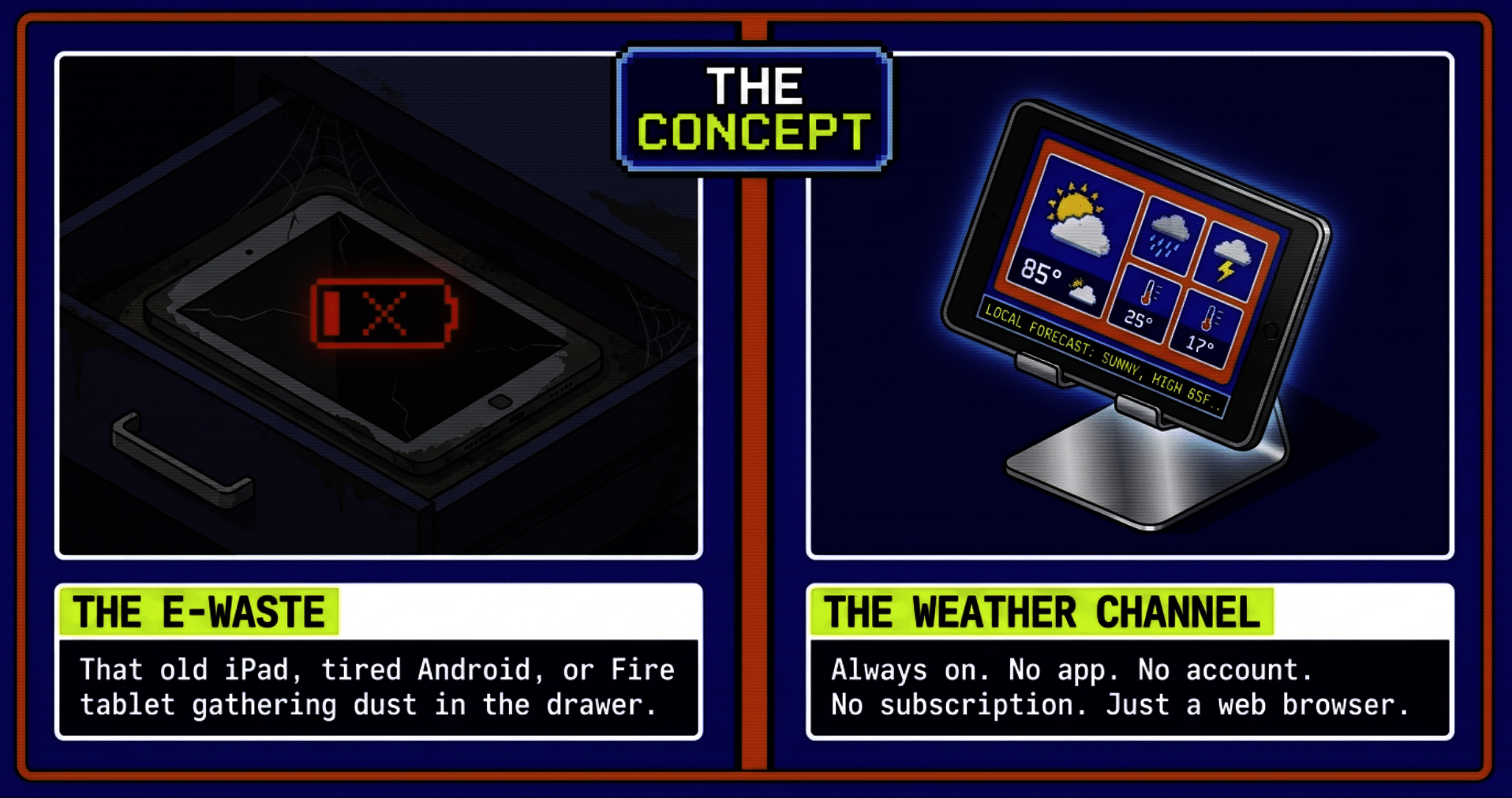
That makes it perfect for hardware most of us already have and don’t know what to do with. A tablet that is too slow for today’s apps is still more than fast enough to show a forecast. A TV that sits dark most of the day can become a kitchen weather channel. A spare laptop can feed a set in a waiting room.
All you need is:
- A screen with a reasonably current web browser.
- Wi-Fi.
- Power, because you want it on all day.
- A few minutes to change some settings.
Let’s start with the device most people have lying around.
Before you start: two things that make every setup better
First, set your city once. When you open MultiplexWeather.com for the first time, it shows Los Angeles. At the top of the page there is a box that says “Zip or City, State.” Type your ZIP code or your city, choose it, and press GO. You can also tap the small target button to use your device’s location. The site remembers your choice in that browser, so the next time it opens, it opens to your city.
Second, know the control bar. Under the forecast is a row of buttons. From left to right:
- Menu, Previous, Next and Play/Pause for the screen rotation. (On a touch screen, you can also swipe left and right.)
- Refresh in the middle, which reloads the forecast.
- Music, which turns sound on or off, and Volume, which opens a slider.
- Fullscreen, which fills the screen with the forecast.
Below the control bar you’ll find the Settings list (Widescreen, Kiosk, Sticky Kiosk, Enhanced Screens, Allow Portrait, Scan Lines, Scan Line Style and Speed), checkboxes for which screens are included in the rotation, the Music station picker, and an Auto Refresh checkbox that keeps the data current. Leave Auto Refresh checked.
A few of these matter a lot for a dedicated screen:
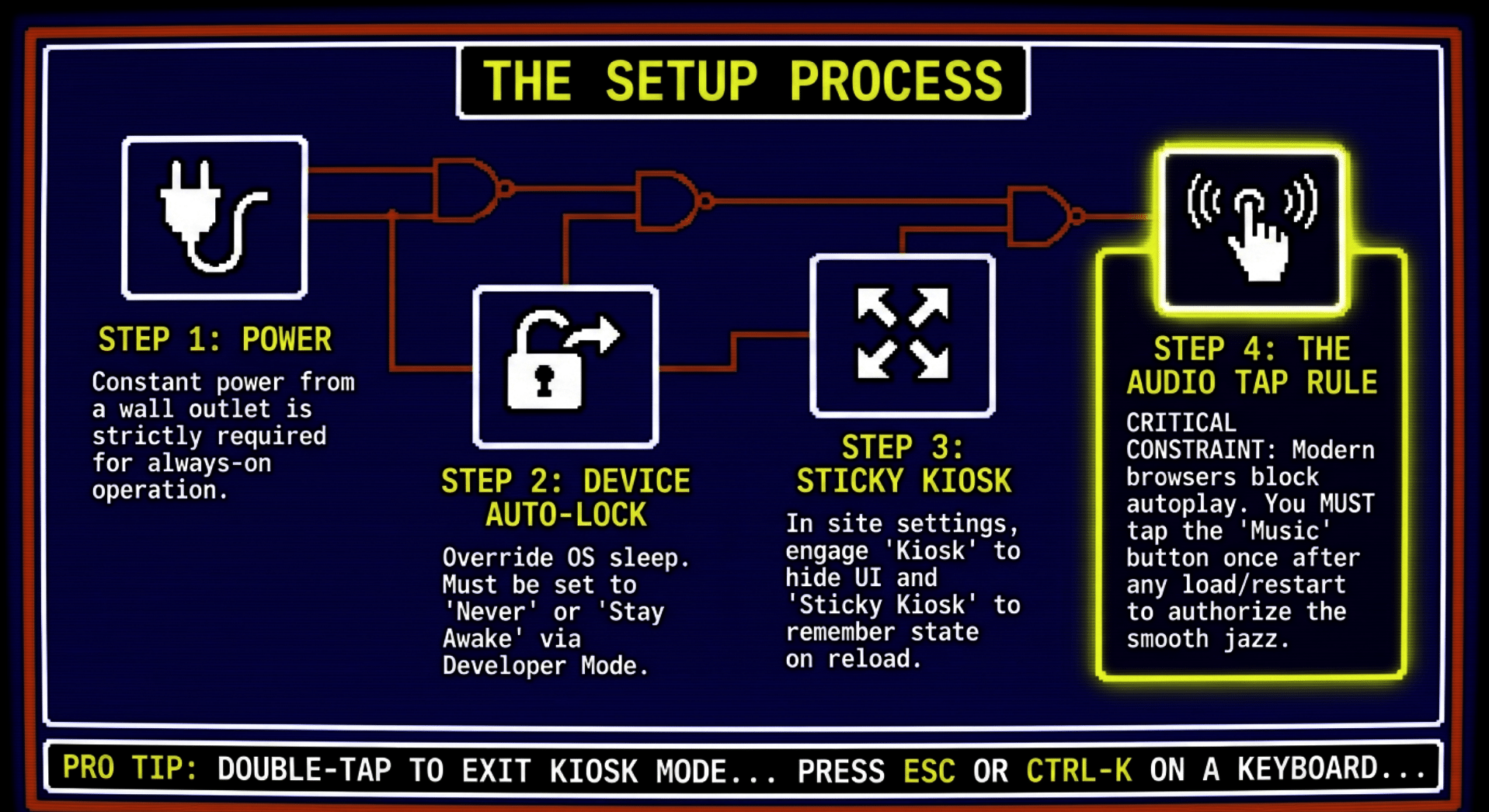
- Kiosk hides the buttons and search box and lets the forecast fill the window. To leave kiosk mode, double-tap the screen (or press Esc or Ctrl-K on a keyboard).
- Sticky Kiosk remembers kiosk mode, so the page opens straight into it next time. This is the one you want for a device that lives on a counter.
- Widescreen uses a 16:9 layout that suits TVs and most modern tablets held sideways. Enhanced Screens, with Widescreen on, lets the text screens use the full width.
About sound. Every modern browser blocks web pages from playing audio on their own. That is a rule of the browser, not the site. So after the page loads, tap the Music button once to start the music. If the device restarts or the page reloads, you’ll need to tap it once more.
Part 1: Using an old tablet you already have
Will my old tablet work?
Most will. The site needs a browser from roughly 2020 or later. Here is my honest guidance, based on reading the site’s code (I have not tested every model in person):
- iPad: It needs iPadOS 13.4 or newer. That includes the iPad Air 2 and later, the iPad mini 4 and later, the 5th generation iPad and later, and every iPad Pro. Older iPads that stopped at iOS 12 or earlier (the original iPad Air, iPad mini 2 and 3, and the 4th generation iPad and older) will most likely not load it. To check yours, open Settings > General > About and look at the software version.
- Android tablets: Use an up-to-date Google Chrome. If your tablet can still install Chrome updates from the Play Store, you’re in good shape.
- Amazon Fire tablets: Use the built-in Silk browser, which is based on Chromium and is updated by Amazon. Recent Fire tablets should be fine.
If a tablet is too old for the page to load, it will usually sit on the “Loading your local forecast…” screen. In that case, try the TV options in Part 2 instead.
iPad (step by step)
- Charge it and update it. Plug it in. Go to Settings > General > Software Update and install whatever it offers. You don’t need the newest system, just the newest one your iPad can run.
- Open the site. Open Safari and go to multiplexweather.com.
- Add it to your Home Screen. Tap the Share button (the square with an arrow pointing up), then Add to Home Screen, then Add. You’ll get an icon called MFM Weather. Opening it from that icon removes Safari’s address bar and tabs, so it looks like an app.
- Open it from the new icon, and set your city again. This trips people up. A Home Screen web app on iPad keeps its own memory, separate from Safari. So the first time you open MFM Weather from the icon, type your ZIP or city once and press GO. It will remember from then on.
- Turn it sideways. Landscape gives you the biggest picture. In the settings below the forecast, turn on Widescreen if you like the 16:9 layout.
- Turn on Sticky Kiosk, then Kiosk. Now the controls disappear and the forecast fills the screen. Double-tap to bring the controls back whenever you need them.
- Keep the screen awake. Go to Settings > Display & Brightness > Auto-Lock and choose Never. (If you use Guided Access in the next step, it has its own Auto-Lock setting too.)
- Lock it to the weather with Guided Access (optional, and great for guests, kids, or a waiting room). Go to Settings > Accessibility > Guided Access and turn it on. Set a passcode under Passcode Settings, and set Display Auto-Lock to Never. Now open MFM Weather, then triple-click the top button (or the Home button on iPads that have one) and tap Start. The iPad stays on the weather until someone triple-clicks and enters your passcode.
- Turn on the music. Tap the screen to show the controls if you need to, tap the Music button, and set the volume. Pick a music station from the Music station menu below the forecast. The choice is remembered.
- Set brightness. A weather channel doesn’t need full brightness. Something around half is easier on the eyes and easier on an old screen. Consider turning off Auto-Brightness under Settings > Accessibility > Display & Text Size if the screen keeps dimming.
Android tablet (step by step)
Android menus vary by brand, so if a menu isn’t exactly where I say, use the search bar at the top of the Settings app.
- Charge it and update Chrome. Open the Play Store, search for Chrome, and tap Update if it offers.
- Open the site in Chrome and set your city.
- Add it to your Home screen. Tap the three-dot menu, then Add to Home screen (on some versions it says Install app). The site is set up to open from that icon without the browser bars.
- Open it from the new icon and set your city once more if it asks for it.
- Turn it sideways, and turn on Widescreen, Sticky Kiosk and Kiosk from the settings below the forecast.
- Keep the screen awake. Set Settings > Display > Screen timeout to the longest option. For a screen that stays on forever while plugged in, use the developer option: go to Settings > About tablet, tap Build number seven times to unlock Developer options, then open Developer options and turn on Stay awake. The screen will stay on whenever it’s charging.
- Pin the screen (optional). Turn on App pinning (sometimes called Screen pinning), usually under Settings > Security. Then open the weather, open the recent-apps view, tap the app’s icon at the top of its card, and choose Pin. Visitors can’t wander off to other apps.
- Turn off battery savers for the weather. Aggressive battery savers can pause web pages in the background. If the page keeps stopping, check Settings > Battery for Chrome and turn off any optimization for it.
- Tap Music and set the volume.
Amazon Fire tablet (step by step)
- Plug it in and update it. Go to Settings > Device Options > System Updates.
- Open Silk (it’s preinstalled), go to multiplexweather.com, and set your city.
- Bookmark it so it’s one tap away. Silk’s menu has a bookmark option.
- Turn it sideways, then turn on Widescreen, Sticky Kiosk and Kiosk.
- Keep the screen awake. Amazon’s own instructions put the timeout under Settings > Display > Sleep (on some models, Display & Sounds). Many Fire tablets don’t offer “Never,” so pick the longest time. For a screen that stays on while charging, unlock Developer options: go to Settings > Device Options > About Fire Tablet and tap Serial Number seven times. Then open Developer Options and turn on Stay awake.
- Turn off Battery Saver under Settings > Battery, because it can shorten the screen timeout.
- Tap Music and set the volume.
A note on locking a Fire tablet to one app: Fire OS doesn’t clearly advertise Android’s screen pinning, and I couldn’t confirm it works on current models. If you need a locked-down screen for a public place, an iPad with Guided Access or an Android tablet with app pinning is the safer choice.
Any tablet: the details that keep it running all week
- Power. Use the charger that came with the tablet, or a good one of the same type. An always-on screen draws steady power. If you’re using a very old tablet, check it now and then. Old batteries can swell after years of being plugged in. If the case starts to bulge or the screen lifts, unplug it and retire it.
- Wi-Fi. Put it within good range of your router. The site pulls fresh forecast data regularly and plays music over the network.
- A stand or a wall mount. A simple tablet stand on the counter is all you need. For a wall, a screw-in tablet mount near an outlet makes a tidy “weather window.” Run a long charging cable down the wall, with a cord cover if you want it to look finished. I have a specific tabletop stand, a wall mount, and a 10-foot charging cable in Part 3, all with Amazon links.
- If the page stalls. Double-tap to bring up the controls and tap Refresh. If that doesn’t help, close the app or tab and open it again. I suggest reloading the page about once a day anyway. It keeps an old browser fresh, and it’s the first thing to try if anything looks stuck. (After a reload, tap Music once to bring the sound back.)
- If you see “US locations only.” The National Weather Service covers the United States. If your location isn’t found, try your ZIP code instead of a city name.
Where to put it
A few places where this really shines. A tabletop stand is enough for a counter or a dresser. A wall mount and a long cable turn it into a little weather window:
- The kitchen counter. You’ll check it every morning without meaning to.
- The guest room. Your visitors get their own local channel and a little nostalgia.
- The entryway. One look tells you whether to grab a coat.
- A waiting room, coffee shop, barbershop or front desk. More on this below.
Part 2: Putting it on a TV
A TV is where this really feels like the old days. Turn on Widescreen in the settings, because a TV is 16:9.
Chromecast or Google TV, from a computer (verified with Google’s instructions)
This is the most reliable path, and Google documents it.
- Make sure the computer and the Chromecast or Google TV are on the same Wi-Fi network.
- Open multiplexweather.com in Google Chrome on the computer and set your city.
- Click the three-dot menu, then Cast, save, and share > Cast…
- Under Sources, choose Cast tab.
- Pick your Chromecast or TV.
- On the computer, turn on Kiosk and Widescreen so the TV shows only the forecast. Tap Music to start the sound.
Google notes that when you cast a tab, the sound plays on the TV. To stop, click the Cast icon next to the address bar and choose Stop casting. Keep the computer awake and the tab open while it plays.
Chromecast or Google TV, from an Android phone or tablet
Android can mirror its whole screen to a Cast device, usually from the Cast or Screen cast button in Quick Settings or from the Google Home app. Open the weather full screen first, then start casting. I haven’t tested this path end to end with the site, and screen mirroring can be choppier than casting a tab from a computer, so treat it as a “try it and see.”
Apple TV or an AirPlay TV, from an iPad or iPhone
Open the weather on your iPad from the Home Screen icon. Then open Control Center and tap Screen Mirroring, and pick your Apple TV or AirPlay-compatible TV. Your iPad’s screen, weather and all, appears on the TV. This is mirroring, so the iPad needs to stay on and awake (Auto-Lock set to Never). I haven’t tested this path with the site end to end, so give it a try before you count on it for a party.
Fire TV, with the Silk browser (no other device needed)
Fire TV has its own web browser. Amazon’s Silk browser is free in the Appstore on Fire TV.
- On your Fire TV, find and install Amazon Silk – Web Browser (or say “Alexa, open Amazon Silk”).
- Go to multiplexweather.com using the on-screen keyboard.
- Use the remote to set your city, then turn on Widescreen, Sticky Kiosk and Kiosk.
- Bookmark it in Silk so it’s quick to reopen.
- Fire TV starts a screensaver when you haven’t touched the remote for a while. Look under the Fire TV’s display settings for the screensaver start time and set it as long as it allows.
I haven’t run the site on a Fire TV myself yet, so if your remote can’t reach a button, try the Silk cursor mode. I’d love to hear how it goes.
A laptop and an HDMI cable (the most dependable option)
If you have a spare laptop, this is rock-solid.
- Connect the laptop to the TV with an HDMI cable (you may need an adapter for USB-C laptops).
- On the TV, switch to that HDMI input.
- Open multiplexweather.com in Chrome, Edge, Firefox or Safari and set your city.
- Turn on Widescreen, then click the Fullscreen button. The browser’s toolbars disappear and the forecast fills the TV. (Press Esc to leave.)
- Click Music.
- In the laptop’s power settings, set the screen and sleep to Never while plugged in.
A TV link that opens straight into TV mode
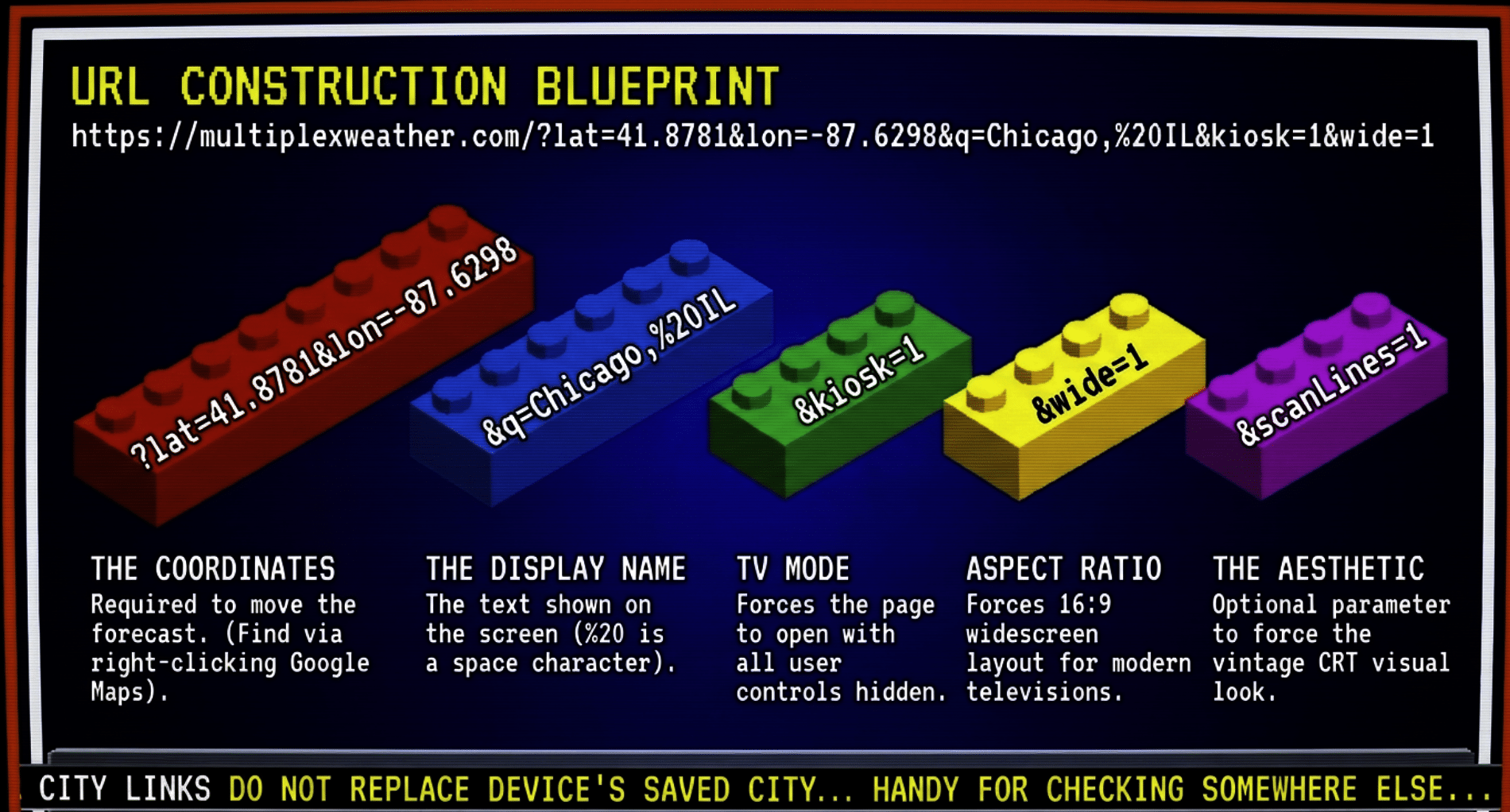
You can set the screen up with a single link. Add &kiosk=1&wide=1 to a city link (explained in the next section), and the page opens with the controls hidden and the widescreen layout on, ready for a TV. You can also add &scanLines=1 for the CRT look. These link settings apply to that visit. To make kiosk mode stick on a device, turn on Sticky Kiosk in the settings.
Part 3 (optional): A dedicated larger-screen tablet
Some of you will want a screen that does one job and does it well. A larger tablet, around 10 inches or more, makes a wonderful dedicated weather channel. It’s big enough to read from across a room, it sits on a counter or hangs on a wall, and it never gets borrowed for email.
When you choose one for this purpose, here’s what matters and what doesn’t:
- Screen size and a decent viewing angle matter most. You’ll be reading it from a few feet away.
- Processing power matters very little. The weather channel is light work.
- A current, updated web browser matters a lot. That’s the whole engine.
- Good Wi-Fi matters.
- A stand or a mount, and a long charging cable, turn it into furniture. I have specific picks for each, just below.
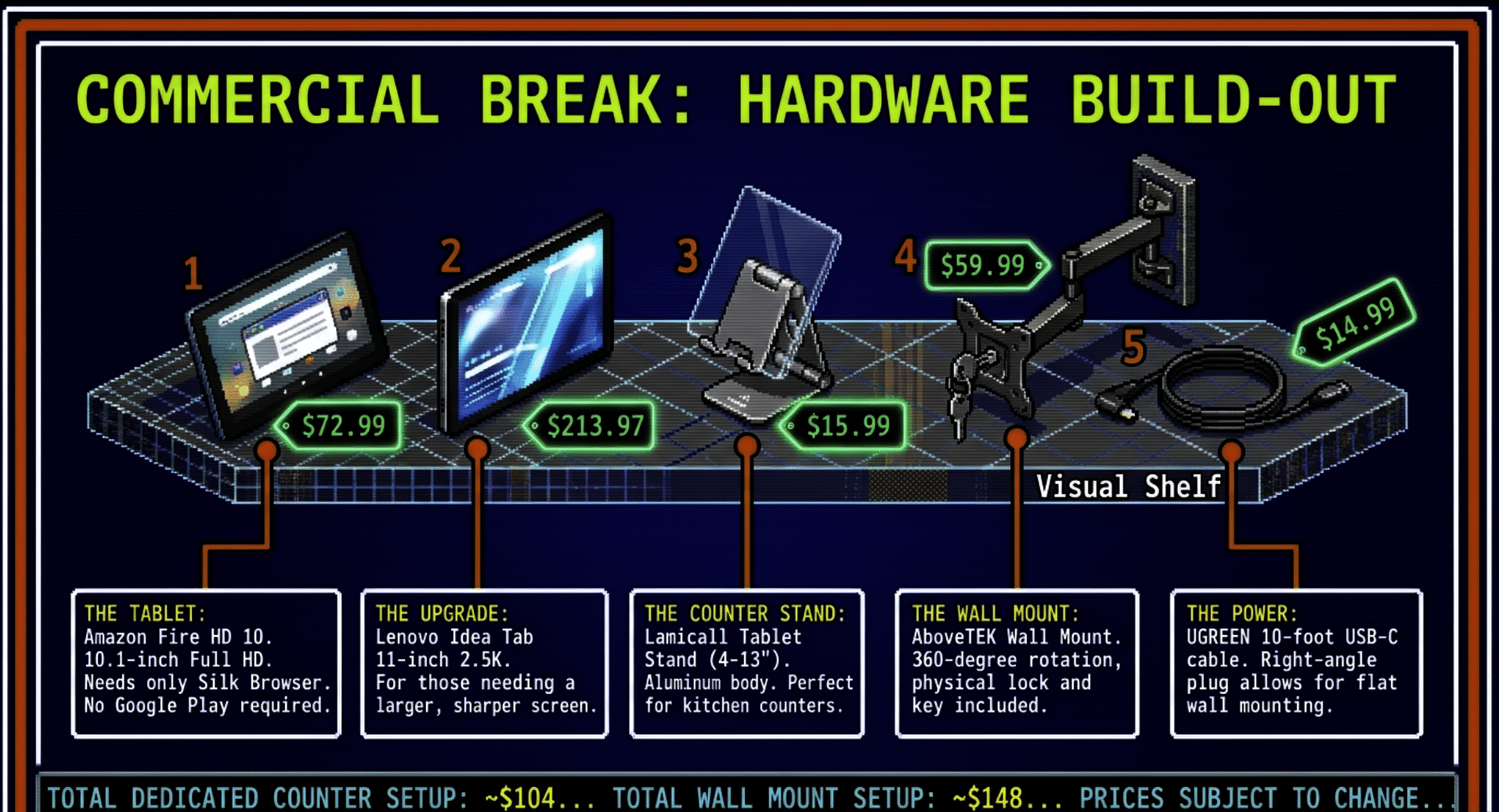
I checked Amazon for tablets on the evening of Wednesday, November 11, 2026, Pacific time, and for a stand, a wall mount, and a long charging cable on the morning of Thursday, November 12. Here are the pieces that actually fit this job. I would skip the no-name “kids” tablets that crowd the search results; you want a current browser, a screen you can read from a few feet away, and a seller you can return to.
The inexpensive pick is the Amazon Fire HD 10. It has a 10.1-inch Full HD screen (1920 by 1200), 4 GB of memory, 32 GB of storage, and up to 13 hours of battery if you are not leaving it plugged in. As of that check it was $72.99, sold by Amazon and in stock, with a typical price shown as $154.99, and a 4.5-star rating from about 45,400 reviews. For a dedicated weather channel, that is plenty. You only need the built-in Silk browser. You do not need Google Play. This model comes with ads on the lock screen; if you leave the screen on and turn Auto-Lock off, you will not see them while the channel is running. Plug it in if you are leaving it on all day, and follow the Fire tablet steps in Part 1.
If you want a larger, sharper screen, look at the Lenovo Idea Tab. This is an 11-inch 2.5K (2560 by 1600) Android tablet with a 90 Hz display and 128 GB of storage. It comes with a pen and a folio case that doubles as a stand, which is useful on a kitchen counter. As of the same check it was $213.97, sold by Amazon and in stock, with a 4.3-star rating from about 800 reviews. You get a regular Chrome browser and a slightly bigger picture. I would only spend the extra if a 10-inch screen feels small from across the room, or if you would rather run full Android. A television you already own, with the steps in Part 2, is still the cheapest way to get a truly large screen.
The Fire HD 10 is still the one I would buy for a dedicated weather screen. The Lenovo Idea Tab is the larger-screen step-up if a 10-inch display feels small from across the room.
Once you have the tablet, you need a place to put it and a cable long enough to leave it plugged in.
For a tabletop, I like the Lamicall Tablet Stand. It is a small adjustable aluminum stand that holds tablets from about 4 to 13 inches, which covers both the Fire HD 10 and the Lenovo Idea Tab, in landscape or portrait. As of the Thursday morning check it was $15.99, in stock, shipped from Amazon, with a 4.8-star rating from about 23,490 reviews. People who use a Fire HD 10 with it say it stays put. Set it on the kitchen counter or a guest-room dresser, plug the tablet in, and you have a weather channel that looks like it belongs there.
For a wall, I like the AboveTEK Tablet Wall Mount. It holds 7- to 11-inch tablets, including Amazon Fire, and it tilts and rotates a full 360 degrees so you can hang the screen in landscape and still read it from an angle. It comes with a lock and key, which is useful in a shop or a waiting room. As of the same morning check it was $59.99, in stock, shipped from Amazon, with a 4.6-star rating from about 316 reviews. The holder is made for tablets thinner than 11 millimeters, so leave a thick case off. Hardware is included. Put it near an outlet if you can, or use the long cable below.
For power, get a long cable. The chargers that come with these tablets are usually short, and a wall mount is almost never right over an outlet. The UGREEN 10-foot USB-C cable with a right-angle plug lets the tablet stay plugged in, and the angled end sits flatter against the wall or the back of a stand. Both the Fire HD 10 and the Lenovo Idea Tab charge over USB-C. Use this cable with a USB-C wall charger. As of the same morning check the regular price was $14.99, in stock, shipped from Amazon, with a 4.6-star rating from about 16,797 reviews. (Amazon also showed a Prime-member price of $11.99 at that same check.)
At these checked prices, a Fire HD 10, the Lamicall stand, and the long cable come to about $104, and the same tablet with the wall mount and the cable comes to about $148.
As an Amazon Associate I earn from qualifying purchases. Tablet prices were checked on November 11, 2026, at about 11 PM Pacific time. The stand, wall mount, and charging cable prices were checked on November 12, 2026, in the morning, Pacific time. Prices can change.
Part 4: Bookmark your city, and share it
You can link directly to any U.S. city’s channel. The format is:
https://multiplexweather.com/?lat=LATITUDE&lon=LONGITUDE&q=City,%20STlat and lon are the location, and q is the name the page shows. (The %20 is just a space.) Both lat and lon are needed. A name by itself won’t move the forecast.
Here are a few that I tested:
- Chicago: https://multiplexweather.com/?lat=41.8781&lon=-87.6298&q=Chicago,%20IL
- New York: https://multiplexweather.com/?lat=40.7128&lon=-74.0060&q=New%20York,%20NY
- Denver: https://multiplexweather.com/?lat=39.7392&lon=-104.9903&q=Denver,%20CO
- New York, ready for a TV: https://multiplexweather.com/?lat=40.7128&lon=-74.0060&q=New%20York,%20NY&kiosk=1&wide=1
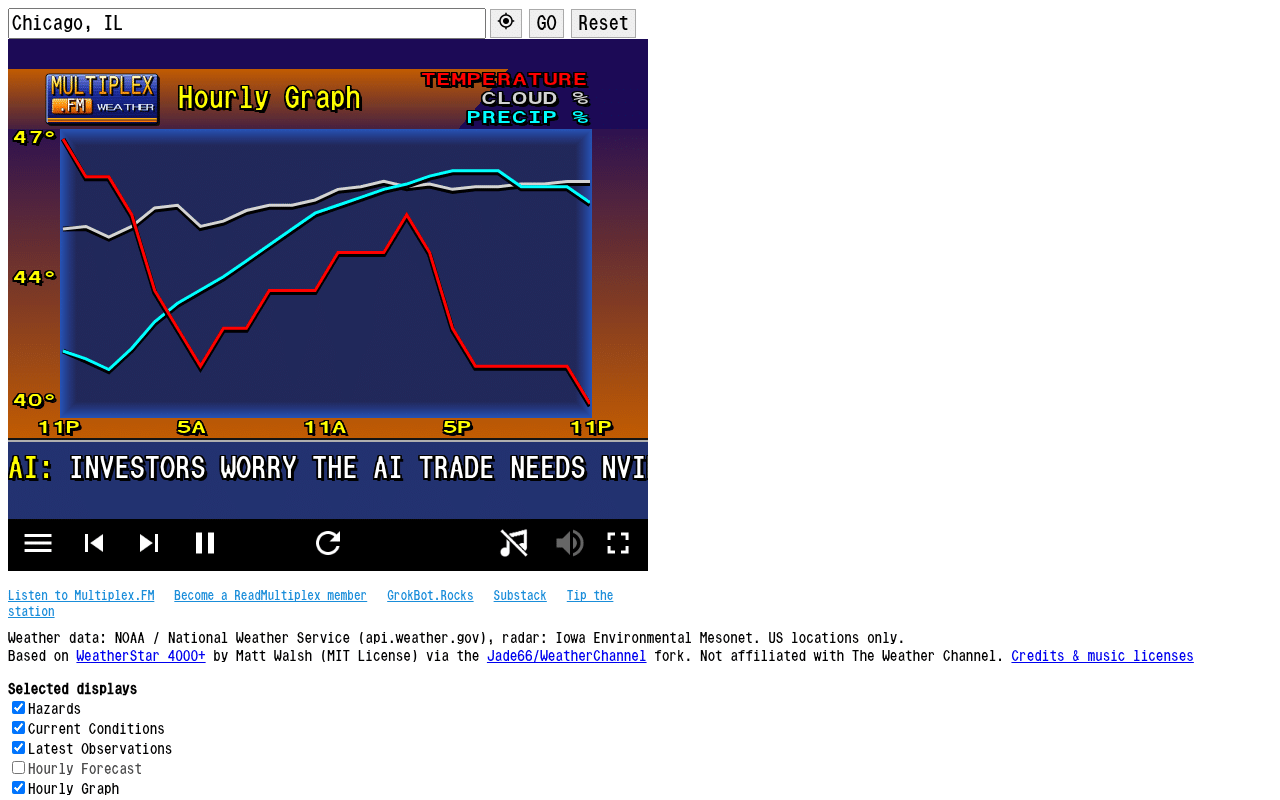
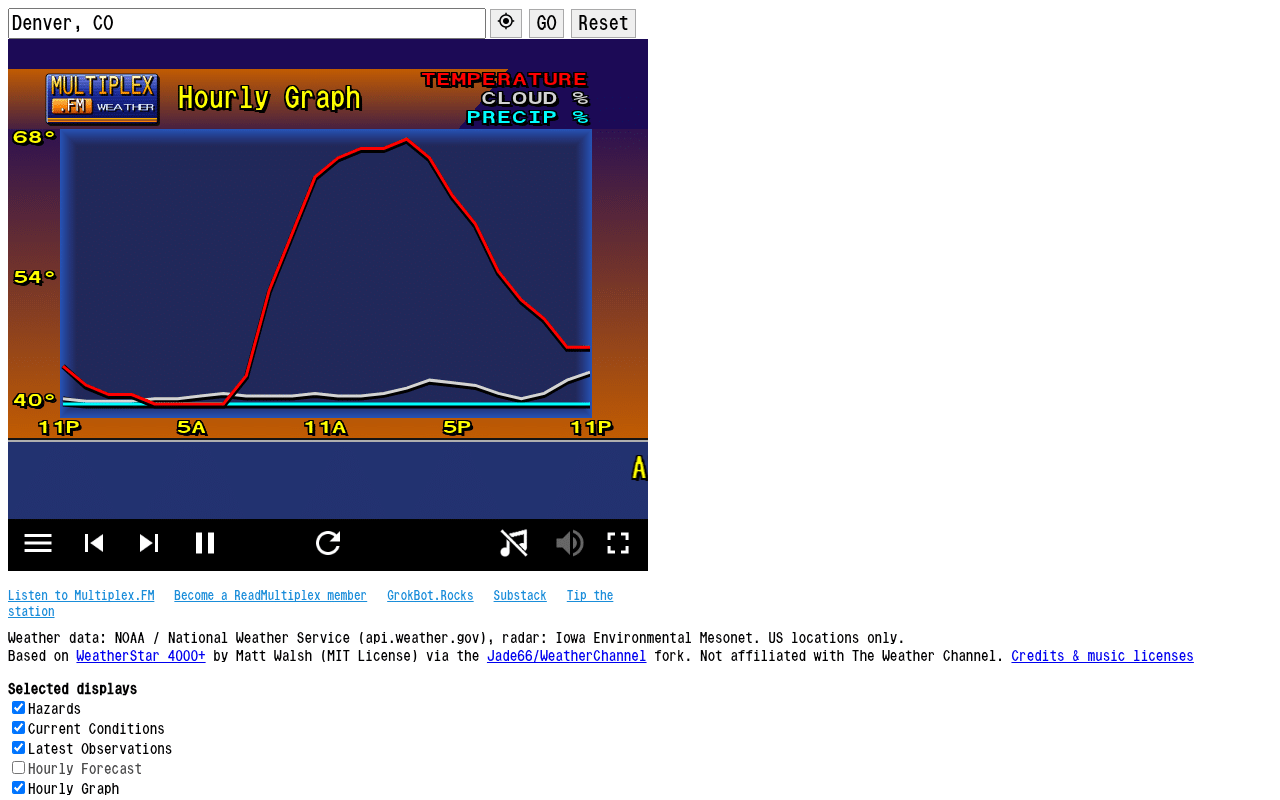
To find your own latitude and longitude, open Google Maps on a computer, right-click your town, and click the numbers at the top of the menu to copy them. The first number is latitude, the second is longitude.
A city link shows that city for that visit. It doesn’t replace the city saved on the device, which makes it handy for checking somewhere else.
This is the week to do it: Thanksgiving
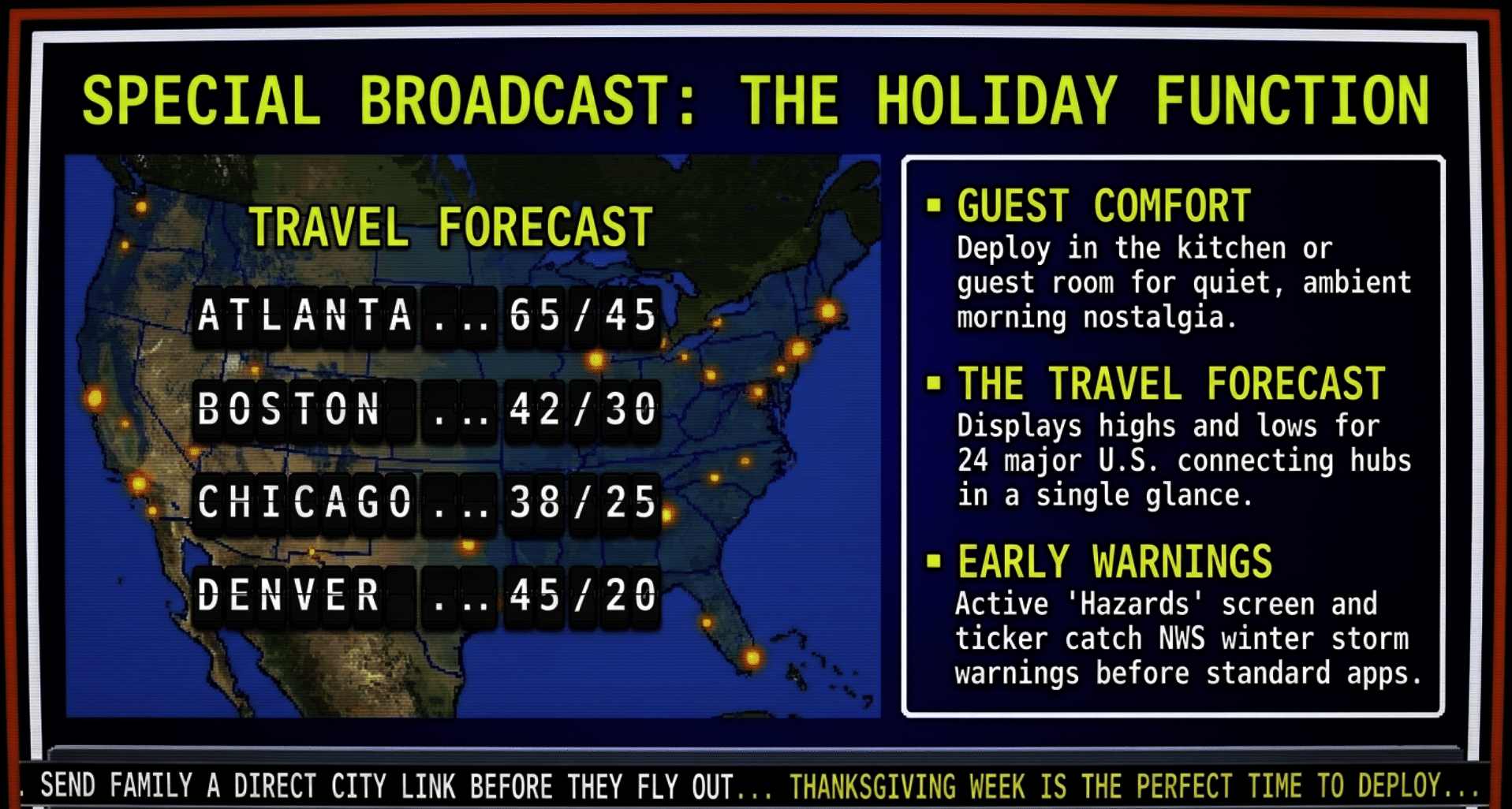
Thanksgiving is Thursday, November 26. If people are traveling to your house, this is the perfect week to set up a weather screen.
- Leave it on for your guests. Put it in the kitchen or the guest room, turn on the smooth jazz, and let people glance at it while the coffee brews.
- Watch the Travel Forecast screen. It shows highs and lows for 24 major U.S. cities: Atlanta, Boston, Chicago, Cleveland, Dallas, Denver, Detroit, Hartford, Houston, Indianapolis, Los Angeles, Miami, Minneapolis, New York, Norfolk, Orlando, Philadelphia, Pittsburgh, St. Louis, San Francisco, Seattle, Syracuse, Tampa and Washington, DC. That’s most of the big connecting airports in one glance.
- Send family a link to where they’re flying from. A city link to their hometown, or to yours, is a thoughtful little thing to send before a trip.
- Watch the Hazards screen and the ticker. If the National Weather Service issues a winter storm warning or other alert for your area, it shows up there first.
Part 5: How it ties into Multiplex.FM
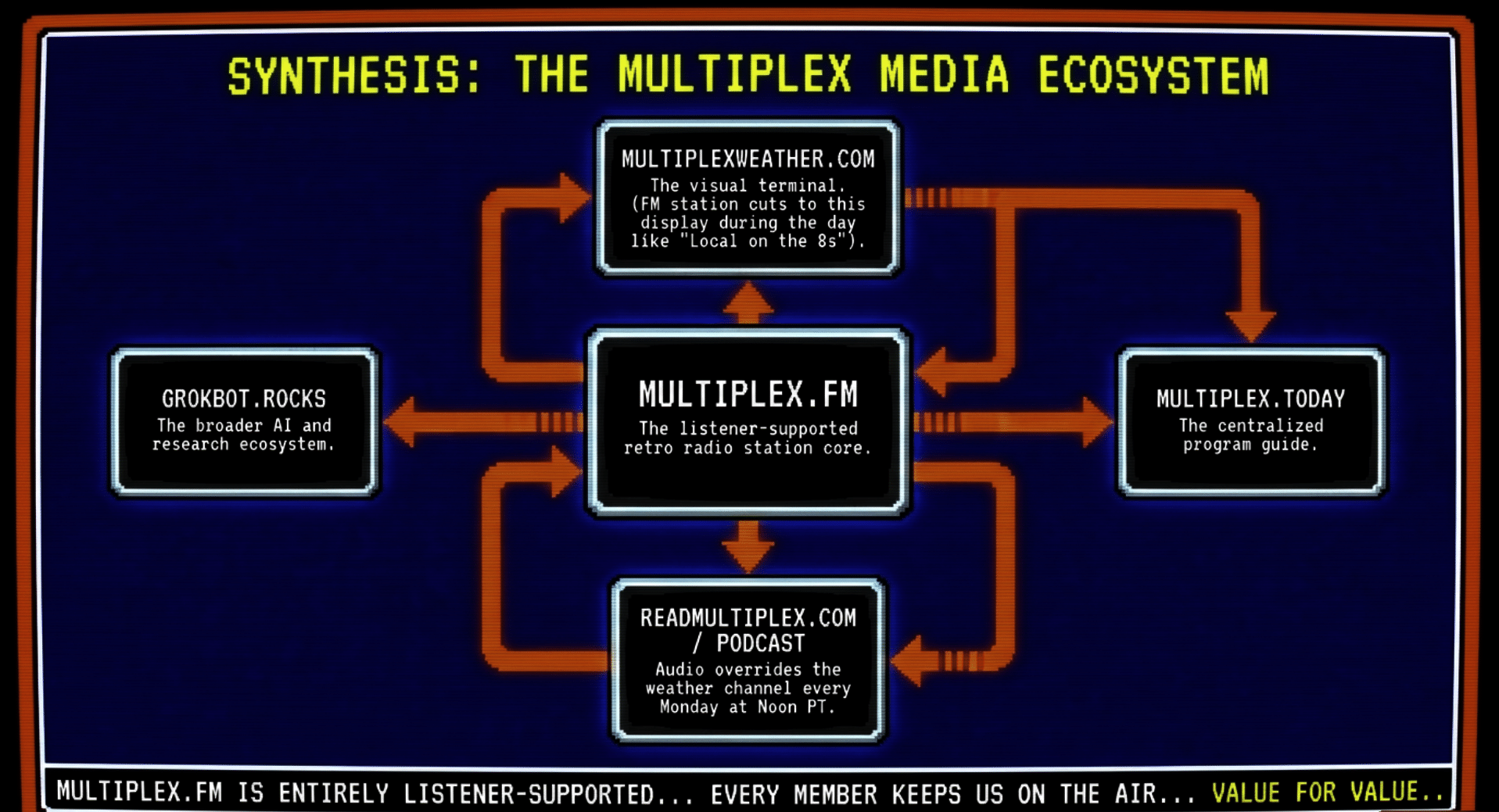
MultiplexWeather.com is part of the Multiplex.FM family, and the pieces work together.
- The same forecast is on the radio. During the day, Multiplex.FM cuts to the weather channel for a few minutes at a time, just like a station’s “Local on the 8s.” When you hear it on Multiplex.FM, you can watch the same thing any time, all day, at MultiplexWeather.com.
- The program guide lives at Multiplex.Today. The ticker will point you there, and you’ll find what’s playing on the station today at Multiplex.Today.
- Podcast days. Every Monday at noon Pacific time, the newest episode of the ReadMultiplex.com Podcast plays on the weather channel in place of the music. Leave the tab open with the sound on and you’ll hear it. The ticker shows what’s playing. You can find every episode at Multiplex.Life.
- The links at the bottom of the site take you to Multiplex.FM, ReadMultiplex membership, GrokBot.Rocks, my Substack, and a tip jar for the station. Multiplex.FM is listener-supported, and every member keeps it on the air.
Part 6: A free retro weather TV for your shop or waiting room
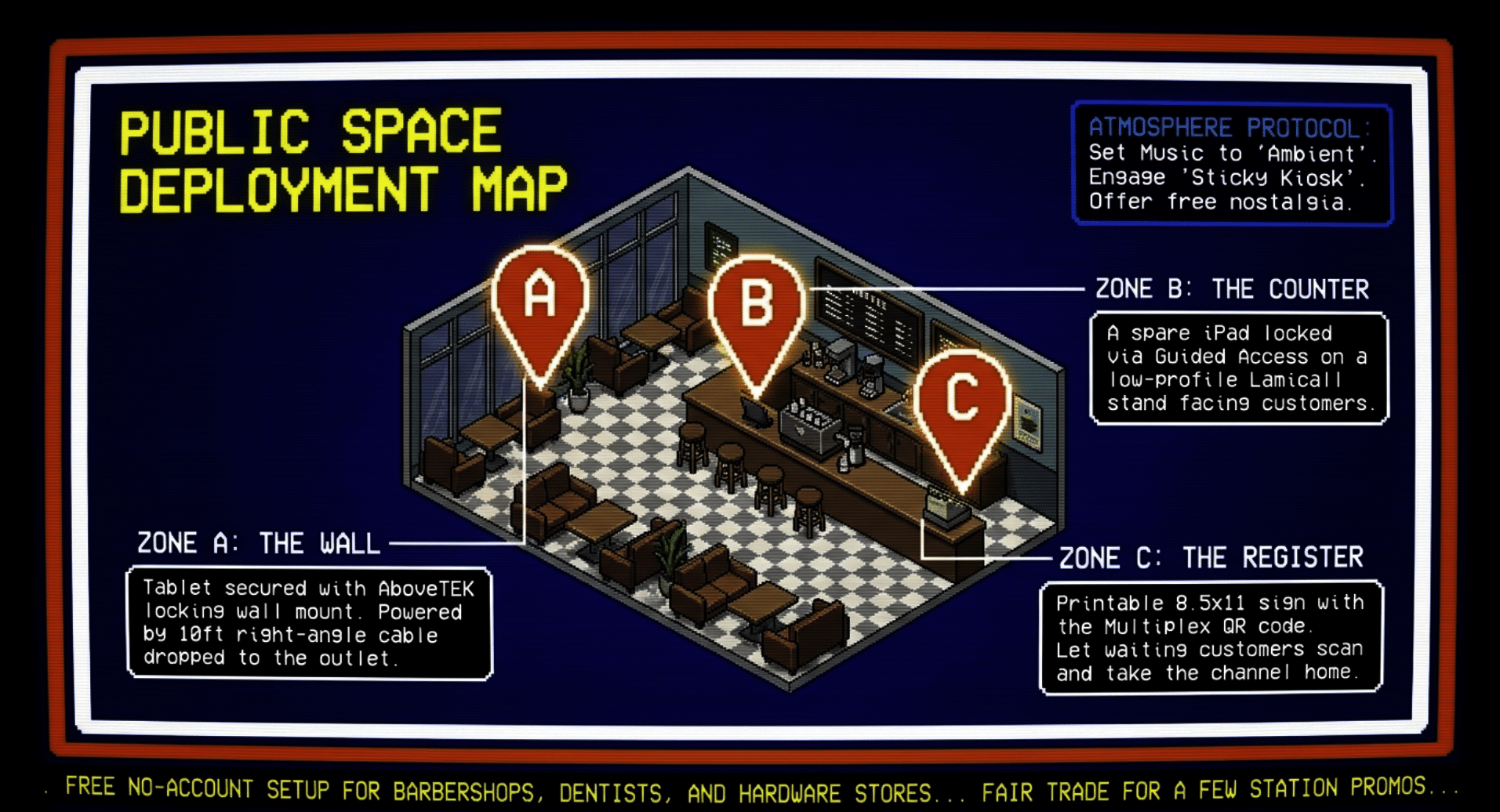
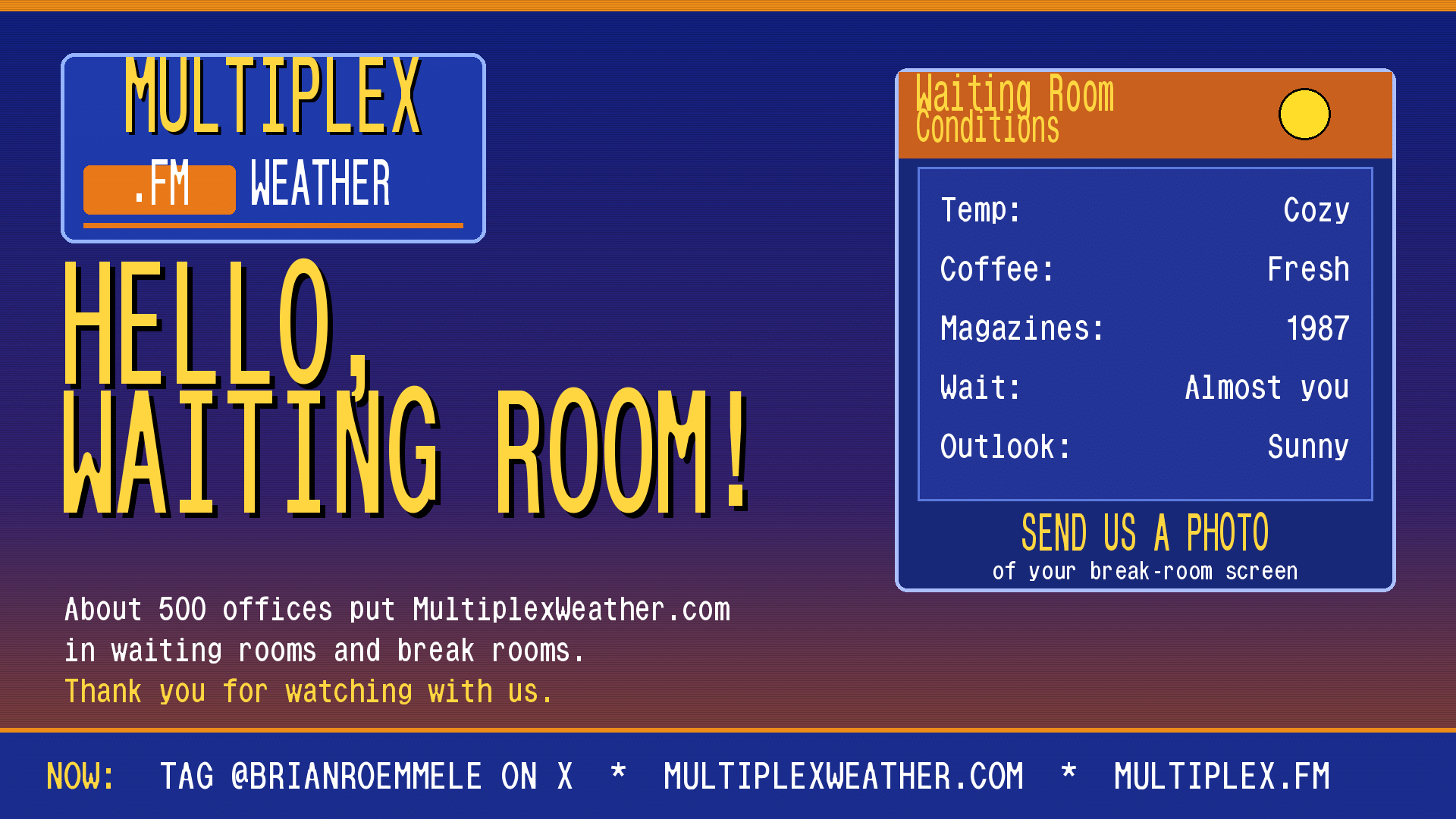
If you run a coffee shop, a barbershop, a doctor’s or dentist’s office, a rest trnrua front desk, a hardware store, or anywhere people wait, this is for you. It is free. It is real NOAA weather. It is pleasant, quiet background, and customers love the nostalgia.
Here’s the simplest setup:
- AirBNB and Home Rentals. I have set up 100s of these on the firetable for fols to install in homes
- Use a spare tablet on a stand, or hang it on the wall with a locking mount (I have picks in Part 3), or use a TV with a laptop or a Fire TV.
- Set your city, turn on Widescreen, Sticky Kiosk and Kiosk.
- Keep the screen awake (see the steps above).
- On a tablet in a public place, lock it with Guided Access (iPad) or App pinning (Android).
- Choose music that suits the room, or leave it silent. Ambient is a good choice for a quiet waiting room.
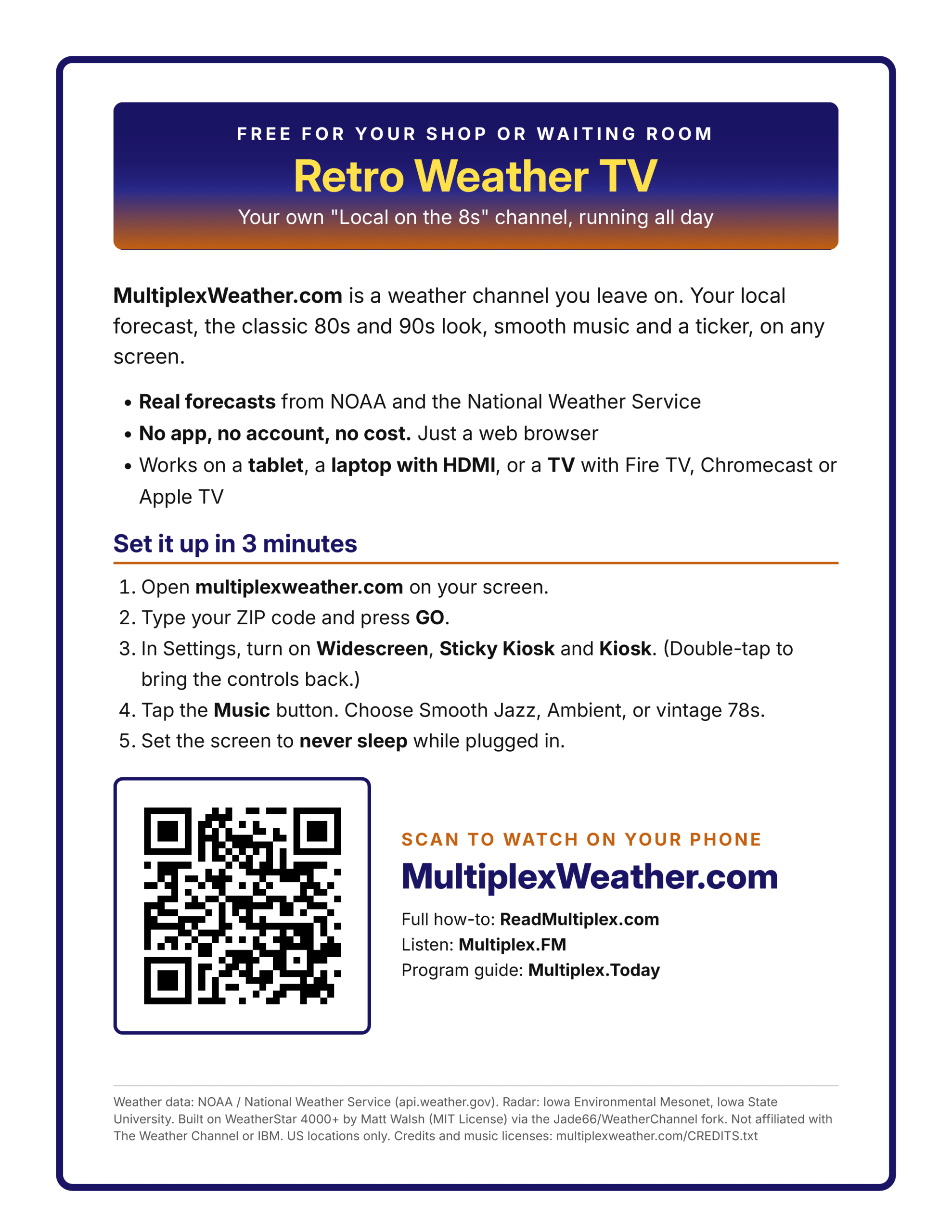
We’ve made a one-page printable sign with a QR code that points to https://multiplexweather.com/. Put it by the register or the screen so customers can take the channel home on their phones. The PDF and the QR image are ready with this draft, and we’ll add them as a download when the article goes live.
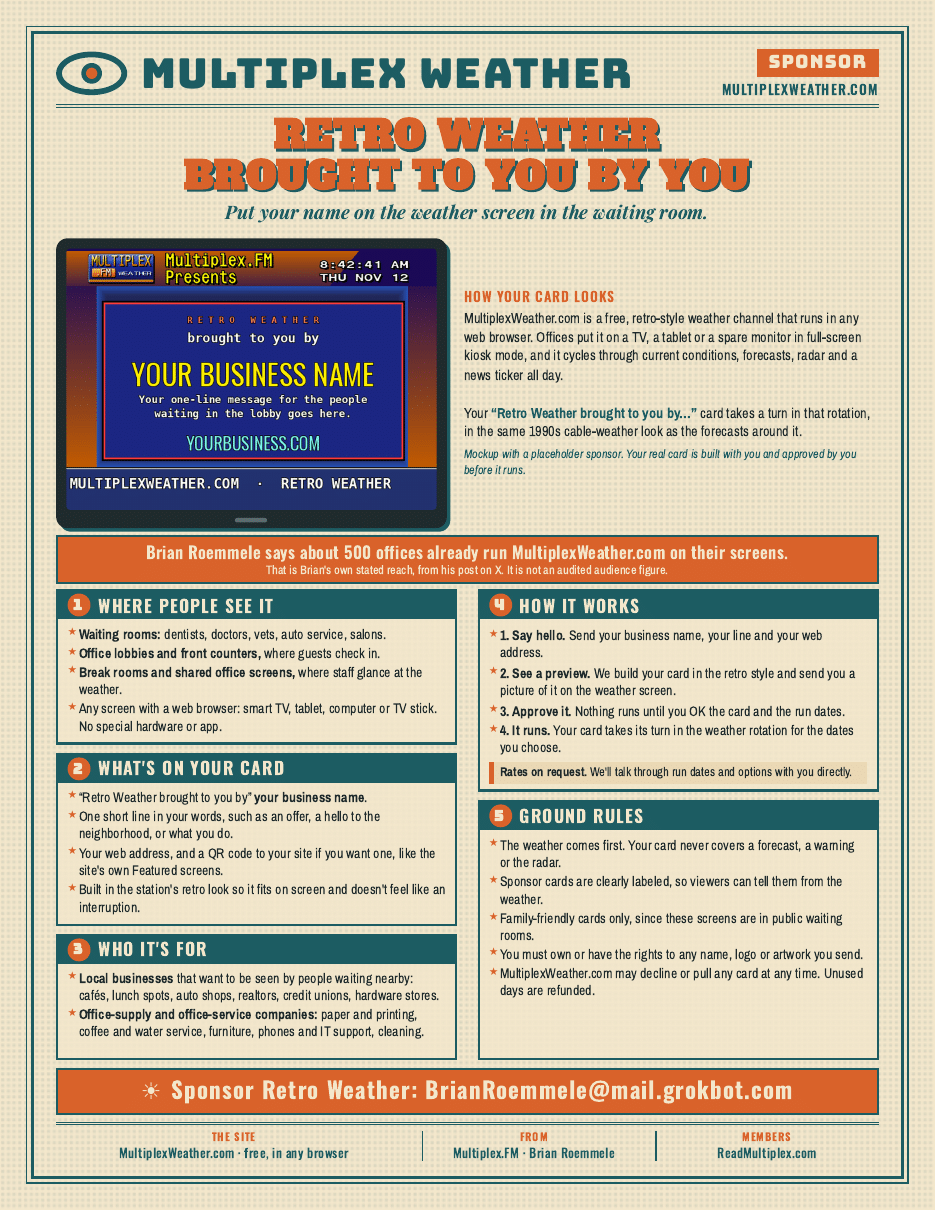
A small courtesy: the site shows a few Multiplex.FM notes and promo screens in its rotation. That’s how a listener-supported station keeps the lights on, and it’s a fair trade for a free channel.
Data, credits and rights
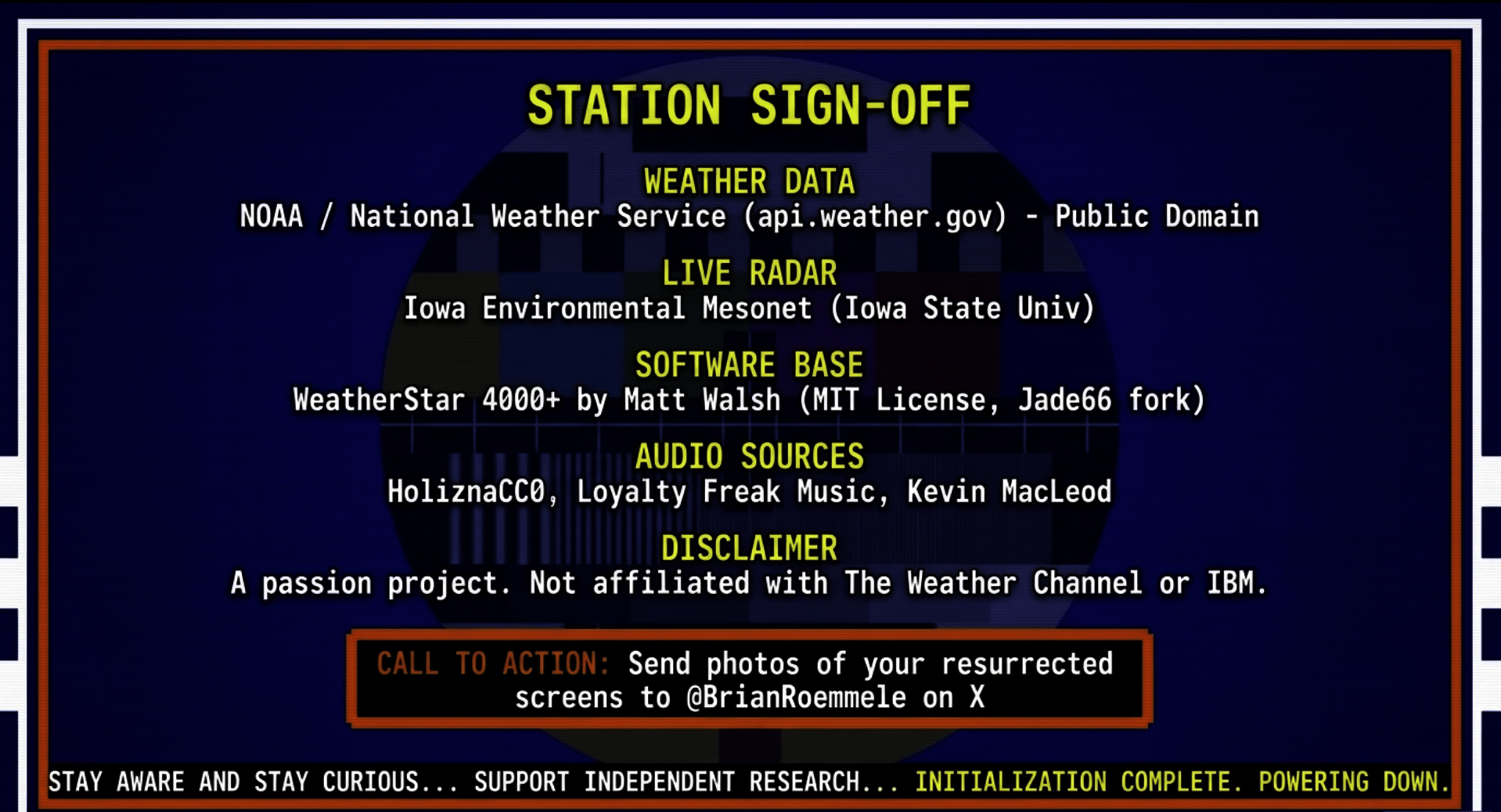
I care about doing this honestly, so here is exactly where everything comes from.
- Weather data: NOAA / National Weather Service, through api.weather.gov. This is U.S. government public-domain data.
- Radar: the Iowa Environmental Mesonet at Iowa State University.
- Location search: Esri ArcGIS World Geocoding, as in the original project.
- Software: WeatherStar 4000+ by Matt Walsh, MIT License, via the Jade66/WeatherChannel fork, with Multiplex.FM additions.
- Music: public domain recordings, CC0 tracks (including HoliznaCC0 and Loyalty Freak Music), and Creative Commons Attribution tracks (including Kevin MacLeod at incompetech.com), each credited with its source and license.
- Not affiliated with or endorsed by The Weather Channel or IBM.
The complete list of credits and music licenses is at multiplexweather.com/CREDITS.txt.
And one plain reminder: this is a friendly, retro way to see the forecast. For a dangerous storm, follow your local National Weather Service office, your local officials, and emergency alerts on your phone.
Quick reference
| Goal | What to do |
|---|---|
| Set your city | Type ZIP or “City, State” in the box at the top, press GO |
| Fill the screen | Turn on Kiosk (double-tap to exit), or tap Fullscreen |
| Open in kiosk every time | Turn on Sticky Kiosk |
| Fit a TV | Turn on Widescreen (and Enhanced Screens) |
| Start the music | Tap Music once after every reload |
| Change the music | Music station menu below the forecast |
| Old-TV look | Scan Lines |
| Slower screens | Speed: Slow or Very Slow |
| Keep iPad awake | Settings > Display & Brightness > Auto-Lock > Never |
| Keep Android or Fire awake | Developer options > Stay awake (while charging) |
| Lock to the weather | iPad Guided Access, Android App pinning |
| Link to a city | https://multiplexweather.com/?lat=..&lon=..&q=City,%20ST |
| TV-ready link | add &kiosk=1&wide=1 |
| Tabletop stand (Amazon) | Lamicall stand, 4–13 inch tablets |
| Wall mount (Amazon) | AboveTEK 7–11 inch mount, with lock |
| Long charging cable (Amazon) | UGREEN 10-foot USB-C, right-angle plug |
| Something stuck | Double-tap, tap Refresh, or reload the page |
That old tablet in the drawer has one more good job in it. Put it on the counter, turn on the jazz, and let the weather roll by. If you set one up, I’d love to see it. Send me a photo of your weather channel on X at @BrianRoemmele.
Watch any time at MultiplexWeather.com, listen at Multiplex.FM, and see what’s playing at Multiplex.Today.
Support This Work, You Will See It No Place Else
To continue this vital work documenting, analyzing, and sharing these hard-won lessons before we launch humanity’s greatest leap: I need your support. Independent research like this relies entirely on readers who believe in preparing wisely for our multi-planetary future. If this has ignited your imagination about what is possible, please consider donating at buy me a Coffee or becoming a member. Value for value you recieved here.
Every contribution helps sustain deeper fieldwork, upcoming articles, and the broader mission of translating my work to practical applications. Ain ‘t no large AI company supporting me, but you are, even if you just read this far. For this, I thank you.
Stay aware and stay curious,
🔐 Start: Exclusive Member-Only Content.
The rest of this article is for Multiplex members
You’ve reached the members-only part. Log in to keep reading right here, or join to unlock it.
- Full member-only articles: insights, wisdom and executive summaries
- The Multiplex members forum
- Member benefits and discounts
Already a member? You’ll come right back to this article after logging in. Forgot password?
Membership status: Not logged in
🔐 End: Exclusive Member-Only Content.
~—~
~—~

~—~
Support ReadMultiplex at Multiplex.Tips

Support ReadMultiplex
Subscribe or donate by Bitcoin.
Copy address:bc1qkufy0r5nttm6urw9vnm08sxval0h0r3xlf4v4x

Send your receipt to [email protected] to confirm subscription.
Members
Become a member for full member-only articles, the Multiplex members forum, and member benefits and discounts.
 Past, present and future technology research + insights
Listen
🔊 Every article has a free “Listen to this ►” button. Hear it read aloud in your browser.
The Multiplex
- Advertise with us: Rates and booking
- X: @ReadMultiplex
- Buy a T-shirt: Multiplex.Love
- Program Guide: Multiplex.Today
- Podcast: Multiplex.Life
- Join the Multiplex team: Multiplex.Team
Stay updated
Get an email when we post new articles:
